Summary
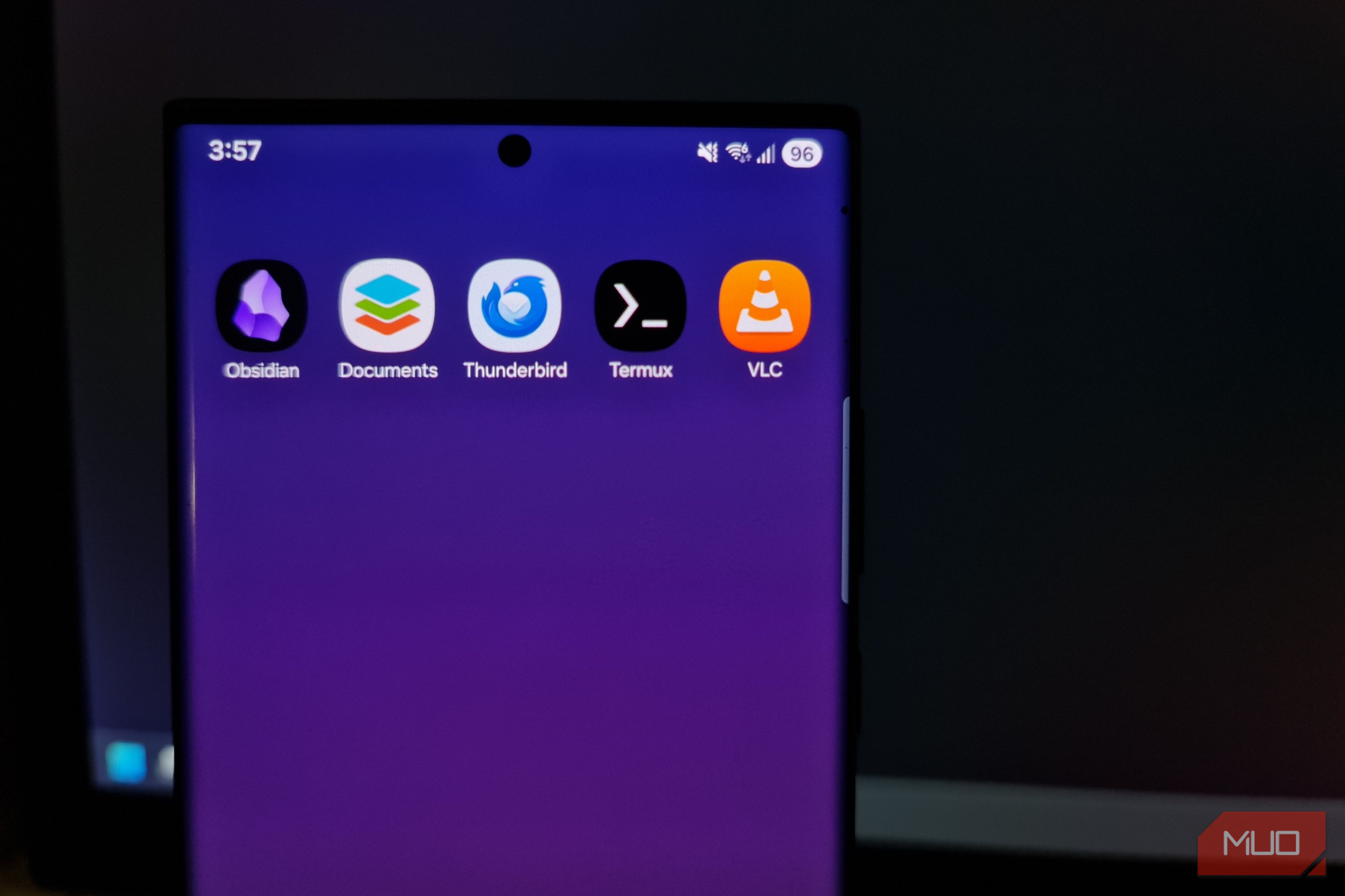
Even in an age of foldable phones with massive screens, serious work always seems to send me running back to my laptop. I might start with a note or replying to an email on my phone, but things like document editing, server administration, and network media quickly expose how limited mobile apps can be. I wanted to see if that old assumption of mine still held up. So, I loaded five familiar applications I use on my laptop every day onto my Samsung Galaxy Note running Android 16 and a custom ROM. The experiment won’t have me retiring my laptop any time soon, but it did make me realize that for smaller tasks, I can easily live without it for a week. I gave every app a real laptop job Opening an app doesn’t mean it counts as a success Rather than installing five apps, opening them, and admiring their menus, I gave each one a job that would’ve normally sent me back to Windows:
- Obsidian became the notebook for the entire experiment itself.
- ONLYOFFICE edited a formatted DOCX file and exported it as a PDF.
- Thunderbird sent both of these files through a real project mailbox.
- Termux connected to my Home Ops server over SSH and restarted a Docker container.
- VLC streamed a custom test video from that same server. To count, each application needed to complete a real desktop-style task, with no external keyboard, Samsung Dex, or opening the laptop. I allowed normal preparation, including creating the mailbox and initial test documents, but once the first app was installed, every task had to happen on my phone. Obsidian It kept its desktop workflow but lost the breathing room I use Obsidian quite often for creative writing and have often wondered if I could skip the laptop entirely and just work from my phone. Once installed, I built a vault with a dashboard, checklist, and linked notes for each app. The workflow was remarkably similar to the desktop version, but with most controls tucked away behind menus to fit the smaller display. Samsung’s swipe keyboard made writing relatively faster. The graph also worked well with the six test notes, but its limits were obvious. Desktop Obsidian can show a note beside the graph for better context. The phone makes me switch between them, turning something like a large fiction project into visual spaghetti where I lost my place in the milliseconds between flips. Returning to the opening screen to start a new vault was also quite awkward. To make Obsidian feel more like the desktop version, I did the following:
Connected my phone to the same remote vault through Obsidian Sync. - Added my most-used formatting options, tags, and plugin commandsto the Mobile Toolbar. With those changes made, I’d definitely keep Obsidian for capturing stories and notes while lying in bed. ONLYOFFICE Preserved my documents, but hid its best tools I opened a prepared .DOCX file that contained headings, styled texts, lists, a table, and a deliberately misspelled word “convienient.” ONLYOFFICE perfectly preserved the formatting, and its spell checker caught the error. After having an awful experience with MS Office analogues in the past, I was really surprised to find that editing tables and lists was easy. I tapped a cell and just typed. It’s the way it really should be, with none of the wrestling I assumed I’d get when using a touchscreen. The review tools were, unfortunately, not placed as obviously as they could have been. Track changes and comments sat on the main toolbar as a collaboration icon showing two overlapping people. Once I had figured it out, both features worked flawlessly. The edited .DOCX reopened with no problems, and the exported PDF kept its layout. Getting ONLYOFFICE to act more like its desktop version involved:
- Setting the correct document language and enabling the spell checker in the Application settings.
- Turning off Mobile View to get a more accurate representation of the document.
- Connecting to the same cloud storage used on my computer.
ONLYOFFICE legitimately felt like a mobile editor with a user interface designed around a phone, not a desktop app squeezed into one. However, its simplified controls and missing advanced tools made it the most constrained app on my list. It’s also the only one I don’t expect to keep using regularly.
 ONLYOFFICE 9.2
 - OS
- Windows, macOS, & Linux
- Price model
- Free and Open Source Thunderbird Made mobile email refreshingly boring For this test, I used one of my project mailboxes. It’s seldom used, but it’s still a production mailbox nonetheless. Thunderbird synchronized the IMAP mailbox without any issues. I opened one incoming email with the .DOCX attachment from the ONLYOFFICE app, replied, and attached the revised document and PDF, completing the workflow. Setting up my account was a breeze. In fact, it’s even more streamlined than the desktop version. Folders, attachments, replies, and search were all similarly straightforward. Thunderbird was clean and snappy, without the visual clutter or the irritating Focused Inbox interface I got with Outlook for Mobile. There wasn’t much I needed to change, but I changed these to make it behave like the desktop client:
- Imported the existing accounts using Tools > Export for Mobile on desktop, then just scanned a QR code to add them.
- Enabled push notifications for important IMAP folders, so messages arrived immediately.
I honestly can’t praise Thunderbird for Android enough. It felt so close to its desktop counterpart because I just stopped noticing I had even changed platforms. It made mobile email simple and basic, which is exactly what I want from an email client. Thunderbird has now earned a permanent place on my phone.
 Thunderbird
 - OS
- Android, Windows, Linux & Mac
- Price model
- Free (open-source) Termux Put my home server right inside my pocket The current Google Play build doesn’t present much in the way of limitations. I installed OpenSSH, connected to my Home Ops server, and confirmed I was actually connected and not just on a local session. While connected, I performed a few admin tasks, like listing and running Docker containers, restarting Dozzle, and pinging Cloudflare. The SSH session was extremely responsive, and once connected, it barely felt different from using the terminal on my laptop. Termux’s extra key row deserves a lot of this credit. The arrow keys, in true Linux admin style, let me recall previous commands and move through lines to correct mistakes. This was a nice addition because touchscreen typing with hands as big as mine is an obvious weak point. Samsung keyboard swipe did work, but it was too laggy to accurately input commands. Autocorrect was also not workable, so my fingers had to painstakingly enter every character deliberately. In landscape mode, the keyboard took up so much space that I was left with roughly two visible lines of the terminal. Hiding it, however, restored a properly readable terminal. To emulate the Windows Terminal experience, I made these changes
Customized the extra key row by editing nano
~/.termux/termux.properties
to keep Crtl, Tab, and the arrow keys in a familiar spot. -
Added short host aliases to
~/ssh/config
so connecting requires less typing.
All these compromises just slowed input, not administration capability. I genuinely managed my server from a pocket computer, and Termux is absolutely staying installed.
 Termux
- OS
- Android
- Price model
- Free, Open-source VLC Streamed media from my server like it does on a desktop VLC, the media player famous for playing almost every format on earth, can do so much more. I used Termux again to copy a H.264 test video I made to my Home Ops server, then shared it over the LAN with a temporary Python HTTP server. VLC opened it without buffering, which is more than I can say about the ROM’s stock media player. Audio worked, seeking was responsive, and picture-in-picture (PiP) felt like the desktop version once it was enabled. One strange rendering fault did appear at the start of the video. During the first play, static areas remained black until regions containing movement appeared over the top of them. This same behavior was actually repeatable in the desktop version of VLC, so it may have been a fault of video codec optimization. Getting VLC to stream video like its desktop version meant I needed to:
- Set Background/PiP mode to picture-in-picture and grant VLC’s PiP permission in Android.
- Add my regularly used network locations to Favorites for faster access. Apart from the one annoying rendering glitch and the smaller display, VLC behaved much like it does on my computer. It handled local and network media equally well, and has now replaced the custom ROM’s stock media player. The apps were desktop-class, but the screen wasn’t Quick work became laptop-optional, not laptop-free forever None of these apps are going to solve the issue of not enough screen space. Long writing still favors using a physical keyboard, large Obsidian graphs need the room to sit alongside notes, and half of Termux is lost to the on-screen keyboard. Work that needs a keyboard is always going to send me back to the laptop. But that was never the standard these apps needed to meet. Every task produced a useable result without reaching for the laptop. Thunderbird, Termux, VLC, and Obsidian have all earned permanent places on my Samsung. ONLYOFFICE was still the most capable document editing app I’ve ever used on a phone, but editing tasks really do demand a full desktop. So, in the end, my phone didn’t replace my laptop, but it did remove the ritual of always opening it for every little task.