Summary
With barely twenty apps installed and most of my media streaming from the cloud, a 128GB phone should have plenty of room left. Yet mine was somehow down to its last two gigabytes. Android’s storage screen showed the usual breakdown for photos, downloads, and system files, with every category looking lean. But those categories didn’t account for everything. Several gigabytes were missing, and nothing on the phone could tell me where they went.
A dead end that led to real discovery
What Android’s storage screen won’t tell you
Android’s built-in cleanup only targets what the system already tracks, like caches, old downloads, or apps you haven’t opened in months. I cleared the cache from Instagram and YouTube, ran the storage sweep in Files by Google, and got back maybe 300 megabytes. These tools work from the same breakdown the storage screen shows. If something doesn’t appear in those categories, no cleanup will touch it.
The storage screen has a category it calls Other that holds everything Android can’t sort into apps, photos, or videos. The system isn’t actually scanning those files; it just subtracts its known categories from the total and dumps the remainder into Other. On my phone, that remainder was bigger than photos and apps combined, but tapping it shows just a number. No file names, no folder paths, nothing you can act on.
So I opened a file manager and dug into WhatsApp’s internal folders. Several levels deep, under WhatsApp Video, I found a Sent folder holding over nine gigabytes. WhatsApp compresses every video you send on your phone and saves that compressed copy in the Sent folder. If you send that same video to someone else a few days later, it creates another copy. It doesn’t check whether that file already exists in that folder. Your gallery hides this folder on purpose to keep the camera roll clean. Cleaner apps skip it too, because those files look like personal data.
Clearing the storage Android won’t show you
Folders your phone never wanted you to find
WhatsApp keeps your original videos and the compressed copies it creates for sending in separate folders, so deleting the Sent folder won’t affect your gallery or your conversations. To get there, open a file manager like Files by Google or Samsung’s My Files. Tap into Internal Storage and follow the path: Android > Media > com.whatsapp > WhatsApp. From there, open Media, then WhatsApp Video, and the Sent folder is right inside. Select everything in it and delete.
While you’re in the Media folder, check WhatsApp Images too. It has its own Sent folder that accumulates compressed copies of every photo you’ve shared. These two Sent folders alone can hold several gigabytes of files that no cleanup tool will ever flag. Mine had over 5,000 images from years of sharing.
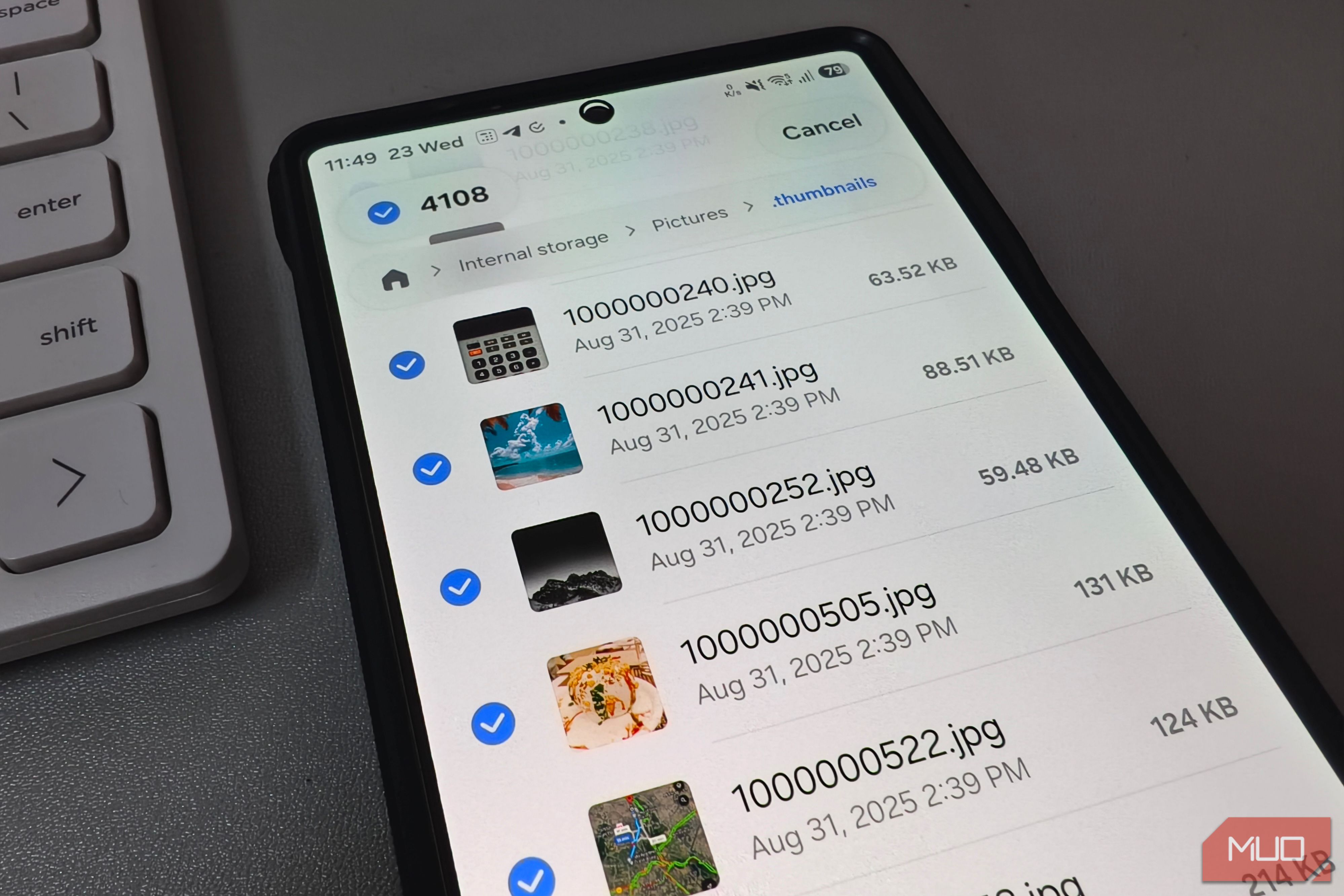
There’s one more hidden folder worth clearing before you close the file manager. Turn on the hidden files toggle in your file manager’s settings, then look inside Pictures or DCIM for a folder named .thumbnails. Android stores preview images there for every photo your gallery has ever loaded but rarely cleans them out. This folder can grow past a few gigabytes over time. Deleting it is safe since the phone rebuilds fresh previews as you browse.
Don’t skip your gallery’s trash either. Every photo and video you’ve deleted in the last 30 days still sits in a Trash or Recently Deleted folder, taking up the same space as before. Emptying it frees that storage immediately.
Stop this folder from filling up again
All that recovered space will fill right back up if you keep sharing videos through WhatsApp, because there’s no setting to turn off the duplication. But Android already has Quick Share built in. It streams files over peer-to-peer Wi-Fi, sending the original straight from your phone to theirs without compressing it or saving a copy anywhere on your device.
For people who aren’t nearby, Quick Share can generate a QR code or a shareable link that works across Android, iPhone, and PC. The recipient doesn’t need a special app or account; they just open the link in their browser and download the file. The link expires after two days, so there’s no permanent download floating around.
Samsung Galaxy users get Private Sharing on top of this. It encrypts the file before sending and lets you set an expiry timer, though it only works between Galaxy devices. The recipient can view the file but can’t save it, forward it, or take a screenshot. Once the timer runs out, the file disappears from their device entirely.
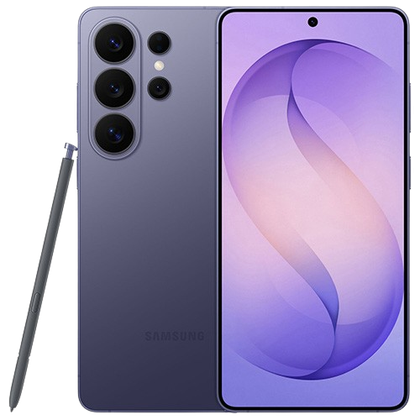 Samsung Galaxy S26 Ultra
- SoC
- Snapdragon 8 Elite Gen 5
- Display
- 6.9-inch Dynamic Super AMOLED 2X
- RAM
- 12 or 16 GB
- Storage
- 256GB, 512GB, or 1TB The Samsung Galaxy S26 Ultra isn’t a massive leap in specs compared to the previous generation Samsung Galaxy S25 Ultra, but it boasts improvements in every aspect. The major differentiators are two features that will appeal to power users and content creators, called Privacy Display and Horizon Lock.