Summary
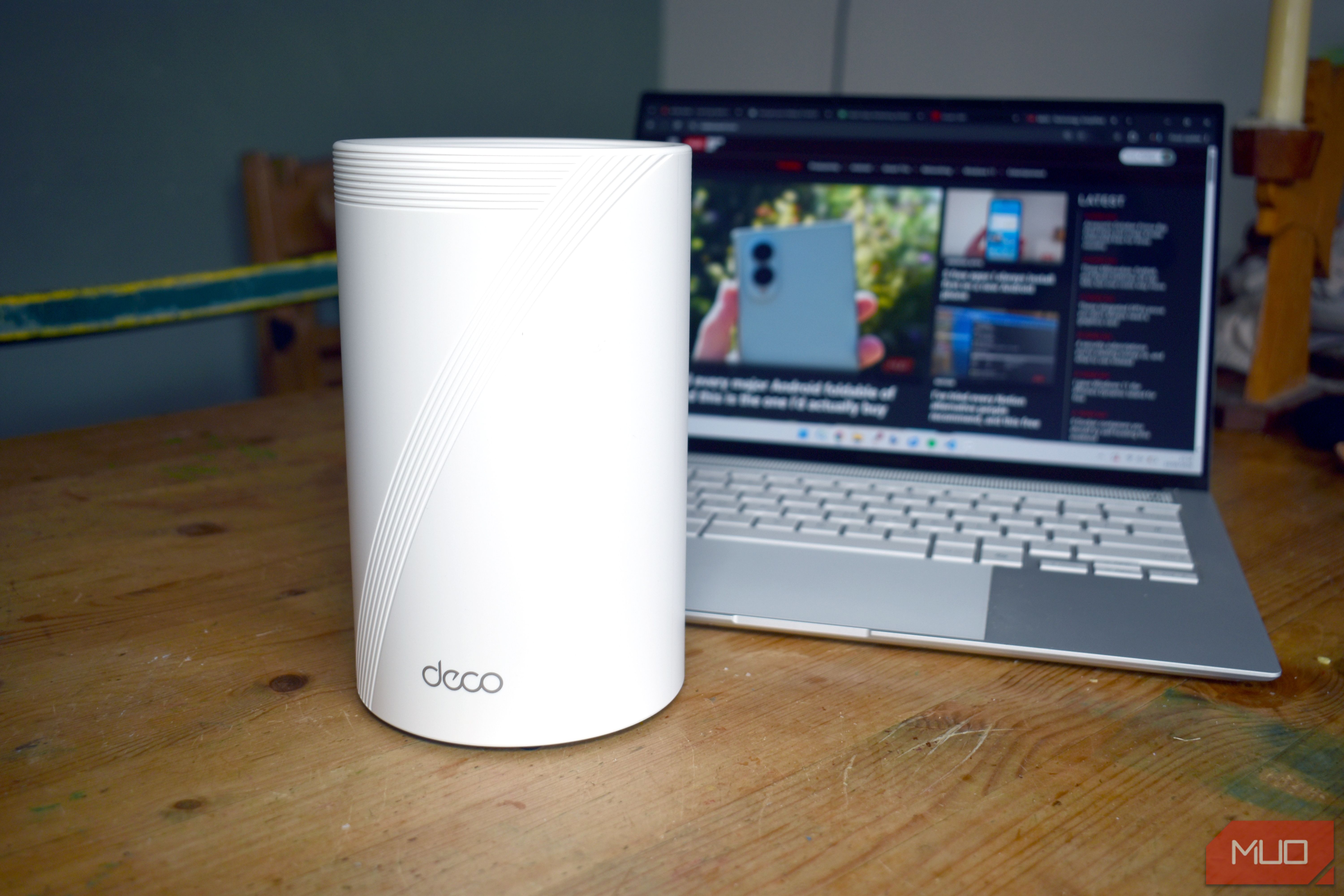
It took a while, but I finally upgraded my home to Wi-Fi 7, hoping that all of my networking would be taken care of for the foreseeable future. Now, there are always bedding-in glitches when you switch your router and update your network. Everything needs a minute to get accustomed to the new configuration and so on. But I wasn’t prepared for a host of issues forced directly onto my plate after swapping to Wi-Fi 7 — some of which I’m still trying to get to the bottom of. Dead spots, dead spots everywhere I knew 6GHz couldn’t get far, but its limitations are surprising Stepping up from my old Wi-Fi 6 router came with one huge upgrade that I was really looking forward to using: the newest 6GHz Wi-Fi band. The new standard comes with all manner of upgrades, not least Multi-Link Operation, which allows your device to effectively send data across all three Wi-Fi bands (2.4GHz, 5GHz, and 6GHz), almost as if it were one continuous band. I wasn’t expecting to encounter such issues with the 6GHz band itself, though. The 6GHz broadcast range is small, hitting up to 25-30 meters in perfect, line-of-sight, outdoor conditions. That drops to around 5-15 meters indoors, depending on walls, floors, and other interference. What I wasn’t expecting was just how temperamental 6GHz can be, and the seeming knock-on effect on reception that my router is seemingly plaguing my household with — not just on the 6GHz band. For example, next to the router, on the 6GHz band, I get 98 percent signal and a link rate of 3800Mbps (not transmission, just the maximum link rate between the devices). Move to the kitchen table around 3-4 meters away from the router? That drops to around 65 percent. In some ways, it figures, dropping around 10 percent per meter. The drop-off is still significant and leads to moments where the 6GHz signal suddenly doesn’t work at all on my smartphone (a Motorola Razr Fold). It’s a similar story moving upstairs; with the router placed as centrally to my house as it can be, the 6GHz dies off much faster than anticipated. My older hardware won’t stay connected, either I’m getting dead spots on 5GHz, too Now, this is more down to the router, but the TP-Link Deco BE65 unit I’ve “upgraded” to is also seemingly lacking the power to reach the corners of the house my old router did, even on the 5GHz band, which managed before. Is the TP-Link Deco BE65 pushing me to create a mesh Wi-Fi network rather than using the router as a single access point? I’m not sure, but my kids are definitely unhappy that I’ve broken the Wi-Fi signal across the house with this “upgrade.” Part of the issue is band steering. The router moves my devices to a different band because it deems that to be a better connection. As a feature, that’s fine, and how a router should work. But part of the process is that your device is momentarily deauthorized from the network, then reauthorized by the network. But across all of my devices, and those of my wife and daughters, everyone has noticed a significant uptick in just being dumped from one network and not connected to the next. The normal way I’d fix this problem is to convert my Wi-Fi bands into separate entities, creating a separate SSID for each. If you’re having a similar problem, this is what I’d suggest. But unbeknownst to me, the TP-Link Deco BE65 doesn’t actually have this feature. Separating the 6GHz Wi-Fi band saw some improvements, but I’m still trying to get to the bottom of my disconnecting 5GHz and 2.4GHz devices. The likely culprit is some combination of WPA2/WPA3 network security, but given that mixed WPA2/WPA3 security has been available for a long time and is what I have selected, it might not be the real cause. The channel auto-select doesn’t choose the best channels Manual channel selection works here instead Oddly, I also noticed that the new router’s channel selection doesn’t seem to find the clearest channel. Each router band consists of 20MHz channels, and having a clearer channel with less interference can make your Wi-Fi transmissions smoother. In busy areas, you’re more likely to encounter Wi-Fi channels with multiple broadcasts, so the idea is that you set your router to a different channel with less potential interference. Most modern routers have an auto-channel scan feature that moves you from busy channels to those with less competing signals. But the TP-Link Deco BE65, in my case, doesn’t appear to do that. I found the 2.4GHz band sitting on channel 11 with four competing signals, while the 5GHz band had two, despite me living in a reasonably quiet village when it comes to competing Wi-Fi signals. Even the 6GHz channel chosen by the router had a single competitor, which surprised me. Thankfully, this is an easier and more specific fix. I fired up everyone’s favorite Wi-Fi analysis tool, Wi-Fi Analyzer, and scanned the local airwaves to see exactly which channels my neighbors were using, then manually assigned new channels on my router to move away from them. Wi-Fi Analyzer is one of the best free tools to figure out what’s up with your Wi-Fi, and it did the job here yet again. I’m still sticking with Wi-Fi 7 The thing is, Wi-Fi 7 is still a great upgrade, even with these teething problems. I’m fully willing to concede that my issues are a user problem (mostly) and that it’s down to me to figure out, and not all Wi-Fi 7 or the router’s fault. Wi-Fi 7 only officially launched in 2024, and the hardware only really started appearing later that year; I’m a couple of years behind the curve here, but Wi-Fi 7 still doesn’t have huge adoption, even more than halfway through 2026. So, I’m sticking with Wi-Fi 7 because future updates, router firmware updates, and personal knowledge updates on the standard will only make it better. Now, if I can just stop my teenage kids from being deeply irritated with me that the Wi-Fi doesn’t work, I’ll be onto a proper winner!