Summary
Hard drives aren’t expected to get cheaper anytime soon. Western Digital confirmed in its 2026 earnings report that they are sold out of HDD capacity for all of 2026 because AI data centers have bought up the supply. As a result, prices have skyrocketed hard. I was about to put in my credit card details and order another external drive for my video backlog. But then I came across HandBrake, threw a folder of old footage into it, and it freed up more space than the new drive would’ve given me. This free solution, though it took time, saved me money. I never made that purchase, and here’s exactly how you can avoid it too. I have a lot of external drives full of my personal data HandBrake came up as an obvious fix I’ve got a couple of external drives sitting in a drawer right now. The main reason behind purchasing them was because each one is filled up with videos. I did the math before buying drive number three, and buying another storage felt like patching a leak instead of fixing it. The real issue wasn’t that I had too much video, but it was that most of it was recorded at a much higher bitrate than it needed to be. Yes, modern smartphones do come with the option to shoot videos in HEVC (High Efficiency Video Codec), but H264 is chosen by default. Phones and cameras prioritize speed when recording, not efficient compression. So the output is a very large file. That’s the exact problem HandBrake is built to fix, and the best thing is that it doesn’t cost you a single penny. HandBrake is a free, open-source video transcoder that can be used on Windows, macOS, and Linux. The process is simple. You feed it a video, choose a target quality, and it re-encodes the file into a much smaller file size without affecting the quality of the video much. You might wonder if this is what other video converters do, but the fact is, HandBrake does the compression more effectively. Getting HandBrake is a simple process Setup takes a couple of minutes Unlike other video converters that ask you to go through a series of pages to download the software, HandBrake works differently. Getting HandBrake on your PC takes a few minutes, and setting it up is also quite easy. Here’s what you need to do:
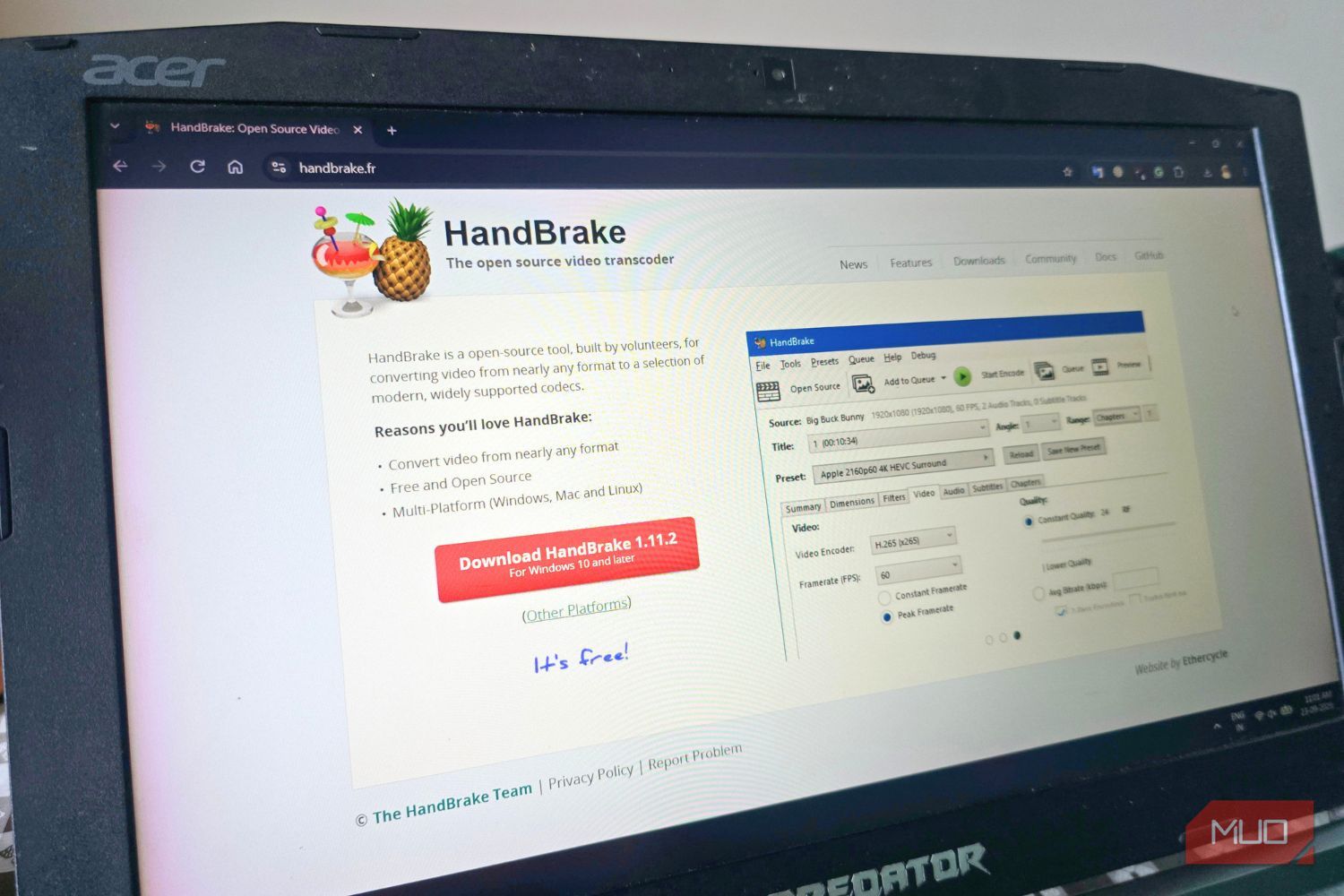
Visit the official HandBrake websiteand get the tool for your PC based on your OS. - Run the installer and open the tool.
- Drag a video file or a complete folder into the first window that appears. Alternatively, you can click the Open Source button to start.
That is it. You don’t need to set up an account or use your Google, Apple, or Facebook account to log in to use HandBrake. Also, you don’t get those subscription flash screens every time you interact with the software.
It is quite common for people to get lost in the number of tabs that HandBrake has to offer. But in reality, you just need to interact with only a couple of tabs to shrink a video dramatically. After you have added the video file, you need to select the Video tab, which is right below the Preset drop-down menu. Within the Video tab, in the Video Encoder drop-down, you need to select H265 (x265).
 HandBrake
 - OS
- Windows, macOS, Linux HandBrake is a free, open-source video transcoder that lets you convert videos from one format to another. It also offers tools for compressing videos and adjusting settings such as resolution, codecs, audio, and subtitles. The two tabs that you need to pay attention to You can also build your own preset For those who don’t know, HEVC delivers roughly the same video quality at about half the size of the older H.264 standard, which is the main reason why my files shrank so much. However, the trade-off is slower encoding, and it takes longer to process. After that, in the Video tab, you need to switch to “Constant Quality” mode and adjust the RF slider. Keep in mind that a lower RF number means higher quality and bigger files. On the other hand, if you choose a higher number, it will mean smaller files and more visible compression. For most 1080p videos, RF 20-22 is where you should keep the slider for best quality. For 4K footage, you can push it to 24-26 since the extra pixels will hide the distortions. Once you’ve found settings that work for you, you don’t need to re-enter them for every video. HandBrake allows you to save your own preset based on any of the built-in ones. I made one preset for smartphone footage and another for screen recordings. This makes compressing a new batch of videos a matter of a couple of clicks instead of a couple of minutes per file. You might want something simpler HandBrake’s biggest strength is its depth of settings. But that can quickly translate into overkill if you just want to compress one video for email without touching anything. It’s worth knowing that there are single-purpose tools built for exactly that. For me, HandBrake works well, since the control over quality is worth the extra steps. Before you add another hard drive to cart, I would recommend that you spend some time feeding your videos through HandBrake first. Storage prices aren’t heading down anytime soon, and there’s a decent chance the space you’re looking for can be made available through HandBrake.