Summary
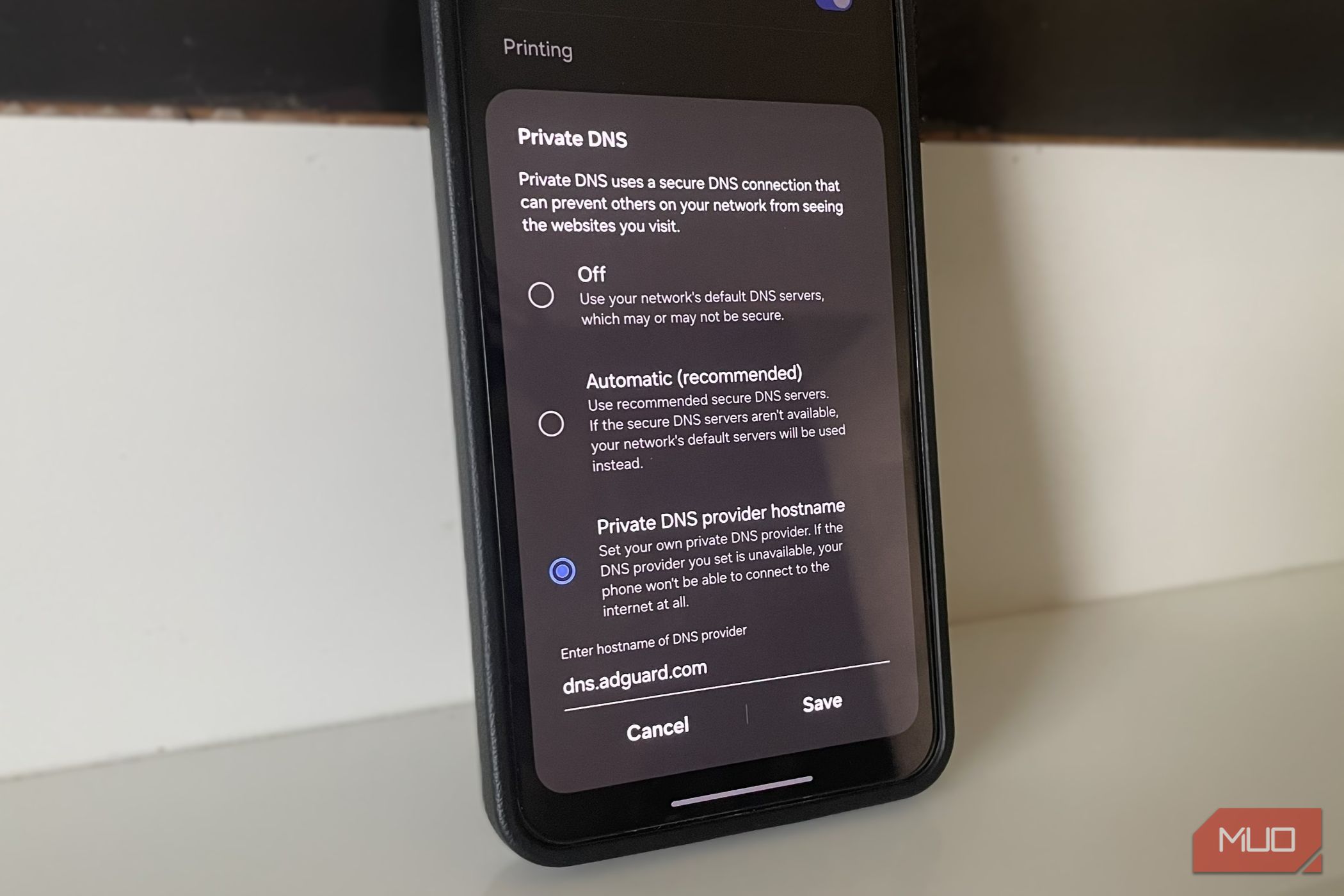
I use public Wi-Fi all the time, and if there’s one thing I always change before I actually start using it, it’s the Private DNS setting. It’s easy to overlook, but changing it means I don’t have to rely on whatever DNS server the public network is using. It’s not a foolproof solution by any means, but it’s free, and it does give me another layer of protection. Public Wi-Fi comes with risks you shouldn’t ignore There’s a reason they have a bad reputation Public Wi-Fi is convenient, and sometimes the only option when you’re not getting any cell coverage or have run out of data. But those free networks you get at the airport, coffee shop, hotel, mall, and most other public places are a big security risk, mostly because you’ve no idea who else is on the network or how it’s configured. One of the concerns is the DNS that public Wi-Fi uses. At your home or office, the default DNS is usually the one provided by your ISP or one you’ve set yourself. But on a public network, you never really know what DNS the router is using. The network provider may be using their own DNS or the owner may have set up a custom one. This doesn’t necessarily mean they’re watching everything you do online, but it’s a possibility. A poorly configured DNS is also a liability because someone could tamper with your DNS requests. For instance, you may try to open Microsoft’s website, but the DNS may redirect you to a fake login page that looks identical. This is called DNS spoofing, and it makes public Wi-Fi a little more complicated than just connecting and getting online. Changing DNS is the easiest way to keep yourself secure It’s not foolproof, but it still helps You may not have any control over the DNS of a public Wi-Fi, but you can change the default DNS server on your Android phone. This overrides whatever the network is using, so you can be sure that your DNS queries are handled by a reliable network provider you actually trust. It’s also a one-time change. Once you set a DNS provider, it applies to every network you join, so you don’t have to repeat the process every time. Android’s Private DNS uses DNS-over-TLS to encrypt DNS queries between your phone and the DNS provider, which makes it harder for someone to snoop on or tamper with those requests. It also means the public Wi-Fi provider isn’t handling your DNS lookups at all. Before setting it up, you need to pick the DNS provider. You’re spoiled for choices here, as there are plenty of options like Google DNS, Cloudflare, AdGuard, NextDNS, Quad9, and many others. They all specialize in different things, so you’ll want to pick the one that’s right for you. Google and Cloudflare are the fastest and most reliable. If you want a DNS that can also block ads, AdGuard is a popular choice. Quad9 focuses on the privacy side, while NextDNS offers more control over filtering. Once you’ve picked a DNS you want to use, head to Settings > Connections > More connection settings > Private DNS. Then, enter the address of your preferred DNS provider. Android doesn’t accept simple IP addresses like 8.8.8.8 or 1.1.1.1, so you’ll have to enter the DNS provider’s hostname. For Google Public DNS, that’s dns.google. For AdGuard DNS, it’s dns.adguard-dns.com. You can find the correct host name on the DNS provider’s website. You can do more… A few extra precautions can help too Changing the DNS is an easy way to add another layer of protection, but I don’t want to oversell it because it’s not a complete solution. DNS only handles the process of translating domain names into IP addresses. It doesn’t encrypt everything your phone sends and receives, so you shouldn’t trust a private DNS alone to keep yourself secure on a public network. If I’m going to spend a lot of time on a public network, a VPN is the more secure option. It encrypts your internet traffic between your phone and the VPN server. But even with VPNs themselves, you need to pick one you actually trust. If you use a free, no-name VPN service, you risk handing over your data to the VPN provider instead. So yes, choosing the right VPN matters just as much as using one. If you want a free option, Proton VPN is one that’s worth trying, because its free plan doesn’t have a data limit. Finally, make sure the security features on your Android phone are turned on. Google’s Safe Browsing, for instance, can warn you about fake websites that might steal your data or inject malware. So it’s best to ensure that all those features are set up correctly.