Summary
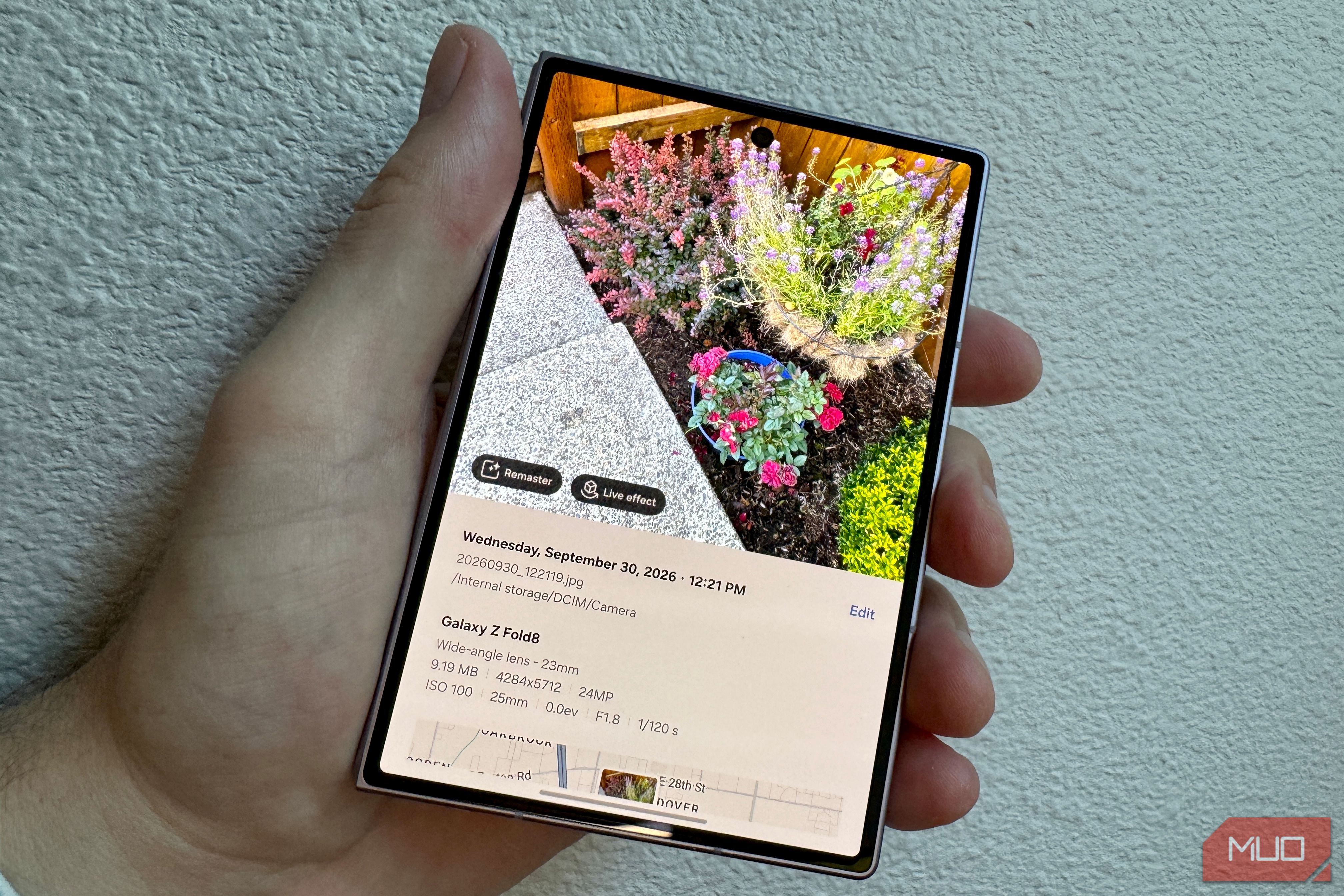
I left my Fold 8 on 50MP for its first weeks because more pixels felt like a better choice. Then I checked my storage and realized it was eating up a lot of the space on my phone. The higher MP count does for sure pull in great detail, especially in good light. Since Samsung’s Galaxy Z Fold 8 doesn’t have a telephoto lens, the extra resolution can double as a way to counteract crop zooms. That’s the main reason I defaulted to the mode in the first place. And the default 12MP feels a little low on a flagship phone. Turns out, Samsung’s hidden 24MP mode gives me nearly everything I like about 50MP at a fraction of the space utilization. 50MP cost me twice the pixels for detail I rarely saw The file size data is clear My Z Fold 8’s 12MP shots come out at 4000 x 3000 and 50MP shots at 8160 x 6120. Samsung’s 24MP mode outputs 5712 x 4284. The 50 million pixels of the 50MP mode is roughly twice the 24MP. When I took photos of some flowers in my front yard, I got some pretty interesting numbers, however. I expected 50% smaller file sizes, but ended up with 59% smaller files. Here are the numbers: | Mode | Resolution | File size | |---|---|---| | 12MP | 4000 x 3000 | 5.44MB | | 24MP | 5712 x 4284 | 9.19MB | | 50MP | 8160 x 6120 | 22.48MB | In my test, it seems as if the 24MP mode stores about .38MB per megapixel, while both 12MP and 50MP modes come in around .45MB. That’s where the savings come in. Yes, the 12MP mode produces smaller files, but it also keeps the resolution down. Getting twice the resolution for less file size cost is why I’m sticking with 24MP mode. At scale, that means 1,000 photos would take up about 22GB in 50MP mode and about 9G in 24MP mode. That gives you way more photos you can store with Google’s free tier (roughly 670 50MP photos or more than 1,600 at 24MP. Nothing I do with my photos needs 50MP Where those extra pixels actually go My storage is fixed on my Z Fold 8; it ships in the version it ships in and that’s it; there’s no SD card slot. The 256GB I have on my phone won’t ever expand. The cloud can’t handle much more, either. I’m always getting storage warnings from Google, and I’m even one tier up from the free 15GB limit. Any original quality photos you back up count against that limit, too. Plus, if you let Storage saver handle your photos in the cloud, it will shrink any photos over 16 MP to 16MP anyway, making a 50MP photo useless when stored that way. Finally, my screen can’t show 50MP images anyway. The Z Fold 8’s inner display shows at 24489x1848, or about 4.5 million pixels, and a 4k TV can show around 8.3 million. Don’t get me started on Instagram, which uploads at up to 1080 x 1080. 12 MP felt too thin and 50MP was overkill, so the middle setting was worth a look. 24MP gets me most of the detail without the storage bill What the 24MP mode actually does Samsung describes the 24MP mode as an AI Fusion blend of 12MP multi-frame processing and a 50MP high-resolution capture, putting it right between the 12MP mode’s speed and the high detail of a 50MP photo. Our own testing shows that 24MP photos carry far more detail than 12MP at far smaller sizes than 50MP, making this a no-brainer. Turning it on takes a little trip into your Camera settings. The 24MP mode is accessed through Samsung’s Camera Assistant, which is a Good Lock module. I tapped the little grid icons in my Camera app, then the Settings gear icon, then found Camera Assistant, which I had to download from there. Once it was on my phone, I just enabled the 24 MP in Photo mode, and also toggled Keep 24 MP resolution on. That way, my phone wouldn’t go back to the 5MP0 or 12 MP settings after I closed the Camera app. Your Samsung can fall back to 12MP when you zoom, shoot in low light, fire rapid shots, or the phone hits 45˚C. I may still switch back to 50MP sometimes Taking photos in bright daylight landscapes generally means I’m cropping later, since there’s no telephoto. If that’s the case, I’ll switch to 50MP to grab the shot. Otherwise, I’m just happy to stick with the nice balanced middle ground of 24MP mode, which rides the line between photos with high resolution and big file sizes and photos with low resolution with smaller sizes. Give this a try on your own Samsung phone and see if it works for you, and let me know in the comments below.