Summary
Samsung Galaxy phones offer a ton of smart features to make your life easier. Sometimes, though, these automatic behaviors might work against you. Your phone makes some decisions in the background. For instance, some smart features might compromise battery life or throttle your performance. My Galaxy was doing a lot of things automatically, and most of the time, I wouldn’t even notice. I decided to turn off five automatic features on my phone. Once I did that, my phone felt faster, my battery lasted longer, and I didn’t get interrupted for things I never asked for.
Switching between Wi-Fi and mobile data
I stopped my Galaxy from choosing mobile data for me
One of the first things I disabled was my phone’s ability to jump from Wi-Fi to mobile data. Samsung’s Wi-Fi settings offer a Switch to mobile data option. When you enable this, your Galaxy phone can switch to mobile data whenever it detects a weak or unstable Wi-Fi connection. It then switches back when the Wi-Fi connection improves. The basic idea is good. It aims to keep your downloads and streams running smoothly. So, when I’m on an important video call or watching a video in a coffee shop, I don’t have to worry if Wi-Fi suddenly stops working. However, I found this automatic behavior less useful than it sounded.
When I’m connected to Wi-Fi, I generally want to stay on Wi-Fi. I don’t want my phone to decide that the connection isn’t good enough and I should use my mobile data instead. I didn’t pay attention to this until my data usage spiked one month despite the fact that I wasn’t even leaving my house. If you also don’t like this feature, you can find this option under Settings → Connections → Wi-Fi → Switch to mobile data.
Galaxy Store and Play Store auto-updates
I took control of when my apps get updated
I used to treat automatic updates as a no-brainer feature. After all, who wants to update dozens of apps manually? However, updates can land in the middle of my workday or hog mobile data while installing in the background. Still, I prefer having a little more control over when updates happen on my phone. So, I decided to disable automatic app updates. I opened Galaxy Store and tapped Menu → Settings → Auto update apps → Never. On Play Store, tap your profile icon → Settings → Network preferences → Auto-update apps and choose Don’t auto-update apps. You can also choose to update apps on Wi-Fi only.
If you’re someone who simply forgets about updates altogether, I wouldn’t recommend keeping automatic updates off. I regularly check the Play Store and Galaxy Store and install updates when I have time. It takes me a minute or two, but it gives me an idea of what’s being updated before I install anything.
Using the Light performance profile
I chose battery life over maximum performance
Switching the performance profile is one of the most important changes I’ve made on my Samsung smartphone. On support models, Galaxy phones use a Standard performance profile by default. This mode offers a balance of top processing speed, battery life, and cooling efficiency. It also runs the CPU at its full capacity for snappier performance. It sounds great, but I don’t want my phone working at its full power all the time.
I mainly use my phone to browse the internet, scroll through Reels, make video calls, and click photos. I don’t play any heavy games or use editing apps on my phone. So, I switched to a Light profile that prioritizes battery life over processing speed. It also keeps my phone cool. After making the switch, I actually noticed that my phone lasted longer without affecting my everyday usage.
Personalized ads and recommendations
I want to decide for myself
Samsung collects data on how you use your phone. It includes device data, your location, and search history. This information is used to power a suite of personalization features like recommendations, offers, and advertising. Sure, it can be helpful if you genuinely want your phone to learn your preferences. I find it quite annoying to see unnecessary personalized recommendations and promotional offers all the time. I don’t want my phone to look like a billboard. Samsung has improved over time, but you will still see recommendation prompts, marketing notifications, and Galaxy Store ads as soon as you set up your phone.
So, I always make sure to visit Settings → Samsung account → Security and privacy, and turn off Get news and special offers on email and mobile number and Improve personalized advertising options.
RAM Plus
My Galaxy didn’t need more RAM
This is one of those features I immediately disable on my Samsung smartphone. RAM Plus uses a portion of your device’s internal storage as virtual memory to keep more apps active. This virtual expansion improves performance on your phone. Sure, it sounds impressive on paper. However, I didn’t notice any real gains from this feature. In fact, it caused occasional delays when I was switching between apps. This makes my phone feel less responsive when I’m multitasking. That’s because virtual memory is slower than the physical RAM.
My phone already has 8GB of RAM, so RAM Plus feels unnecessary. I went to Settings → Battery and device care → Memory → RAM Plus and turned the toggle off. If your phone also has 8GB or more RAM, you can turn this feature off without any worries. In case you’ve got an older or lower-end smartphone, you might find RAM Plus helpful in certain situations.
My phone now works my way
Samsung offers a great bunch of automatic features on its Galaxy smartphones. Some of these are genuinely useful, so I don’t just turn everything off for the sake of turning things off. If you rely on some features, there’s no reason to change them. I just felt some of these automatic features weren’t optimal, in my case. Once I disabled a handful of features, my phone felt more private and noticeably snappier. That’s what matters to me. If you haven’t explored these settings, it’s worth spending a few minutes and figuring out which defaults are actually working for you.
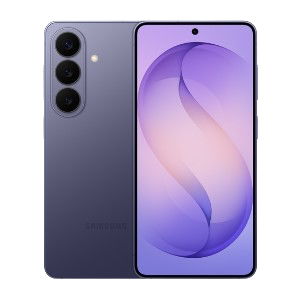 Samsung Galaxy S26
- SoC
- Snapdragon 8 Elite Gen 5 The Samsung Galaxy S26 features a 6.3-inch 120Hz display, a Snapdragon 8 Elite Gen 5 chip, and a 4,300 mAh battery. It includes a 50MP main camera with enhanced AI software, 256GB of base storage, and a slim 7.2mm profile, focusing on fast daily performance.
- Display
- 6.3-inch Dynamic AMOLED 2x