Summary
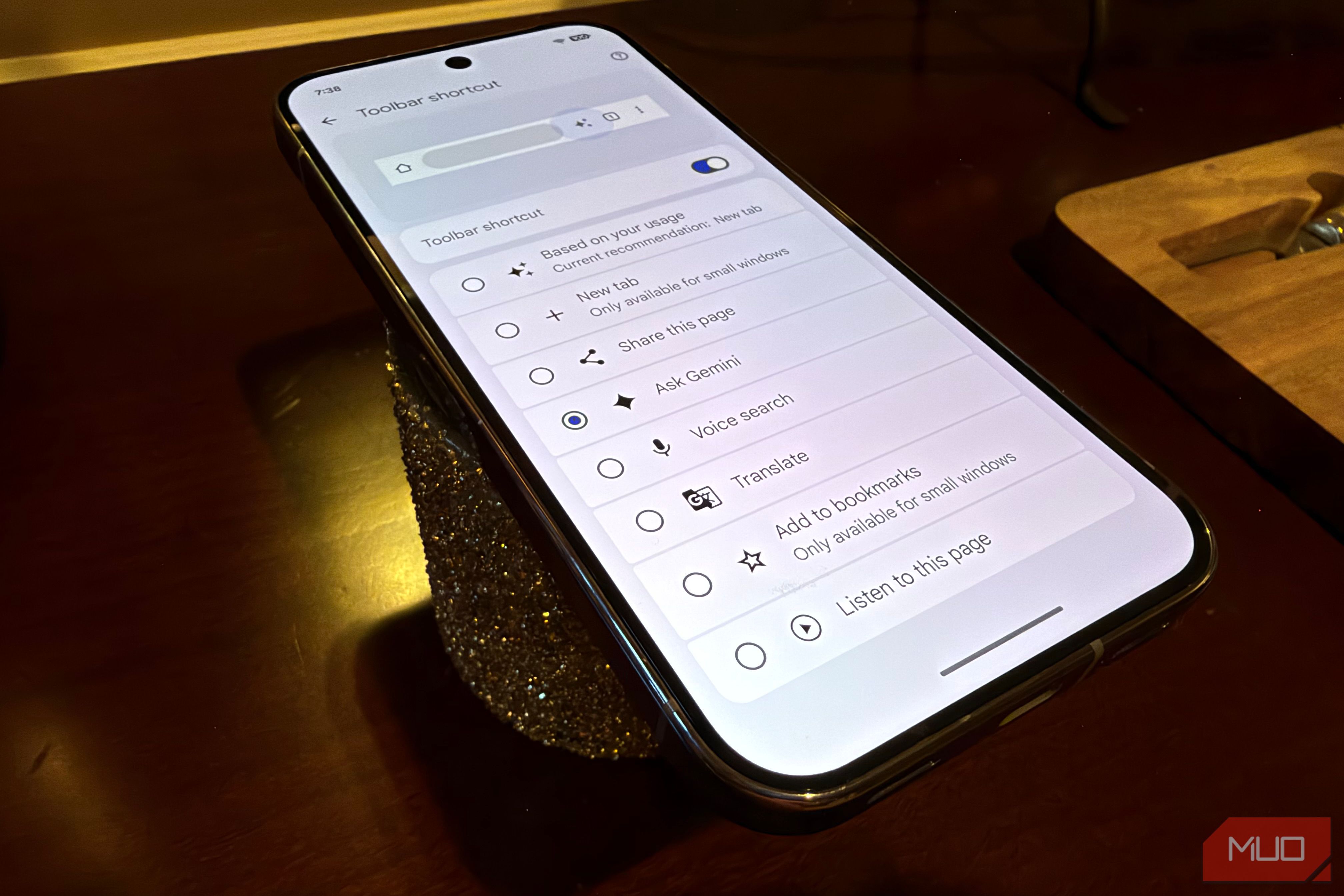
Chrome is an important part of my digital life, whether by relying on its fantastic cross-platform and cross-device password, bookmark, and tab syncing capabilities, or by utilizing the world of extensions and plugins (on desktop) that let me make it my own. But out of the box, Chrome has some questionable settings that make it more difficult to use, plus some customization tools that Google quietly offers that you might not know about. Here’s how I tweak the Chrome defaults on Android to make the browser work much better and how you can fully take advantage of all that Chrome has to offer. Move your address bar to the bottom It’s so much easier to use I can’t believe this isn’t enabled by default, especially at a time when the average phone size is 6” or greater and being able to reach key UI elements with one hand is paramount. I don’t know about you, but being able to use my phone one-handed is very important when some Android apps seem to be designed around a world that once had smaller phones, where placing UI elements at the top was acceptable. Moving your address bar to the bottom has numerous benefits, not least of which are comfort and ease when entering or changing the URL, because it brings the click target from the default top of the screen to the bottom where your thumb rests. To change the Chrome address bar to the bottom, just open Chrome and go to the three dots > Settings > Basics > Address bar > Bottom. You’ll need to restart Chrome for the changes to take effect. Doing this will also put the toolbar button, which you can customize as mentioned below, within easy reach so that you can more easily bring up Gemini, or toggle voice search, or instantly open a new tab. Customize your toolbar button Pick your toolbar shortcut, or let Chrome decide for you Chrome can place a shortcut to the right of your address bar, and by default, Chrome picks for you automatically with the “based on your usage” option (alternating between New tab, Share, Voice search, Bookmark, or Translate). But you can pick a toolbar shortcut that stays near the address bar permanently. Among the choices, I select Gemini, because I love being able to ask for a quick summary of an article if I’m in a rush, or ask a question about a topic I’m learning by calling up Gemini when I need it. Another handy one to enable for those who don’t always have a free hand to type is Voice search, which puts a persistent microphone next to your address bar so you can quickly toggle a voice search anytime you open Chrome. Your toolbar shortcut is always there You can specify which shortcut is always there by opening Chrome and tapping the three dots > Settings > Appearance > Toolbar shortcut > turn it on and select the shortcut you want. For example, if you frequently look at websites in other languages, the Translate shortcut will be ideal to place on your toolbar. Or if you prefer to listen to content versus reading, you can set Chrome’s fantastic Listen to this page button permanently as your shortcut. Set Chrome as your default browser Especially if you’re on a Samsung Some housekeeping: while Google Chrome does come on Samsung phones, it’s not set as the default browser, which means most links will open in Samsung’s browser (which has a few cool features that Chrome lacks, but I still prefer Chrome). To make this change, open Chrome, then tap three dots > Settings > Default browser > Browser app > pick Chrome. As an aside — if you’re looking for a browser that does a better job of blocking ads and trackers, and you don’t rely on some of the continuity features of Chrome like password manager and tab group syncing, we really like Brave, which we’ve written about often at MUO as a great alternative to Chrome, if that’s something you’re after. Master the swipe The fastest way to move between multiple tabs This isn’t a setting per se, but a fantastic navigation tool that Google keeps quiet unless you discover it by accident. If you ever find yourself having to toggle between two or three webpages, like perhaps you are referencing some info while filling in a form, it’s far too slow to tap the tab button and select another tab. Instead, Chrome has a brilliant built-in gesture you can activate by sliding your finger horizontally along the address bar. Doing this will let you swipe between multiple open tabs. It’s a lifesaver and I use it often, but it takes a bit of practice to get just right. In the end, Chrome is still my preferred browser across every platform I use, even though some configuration is needed to get the setings just right.