Summary
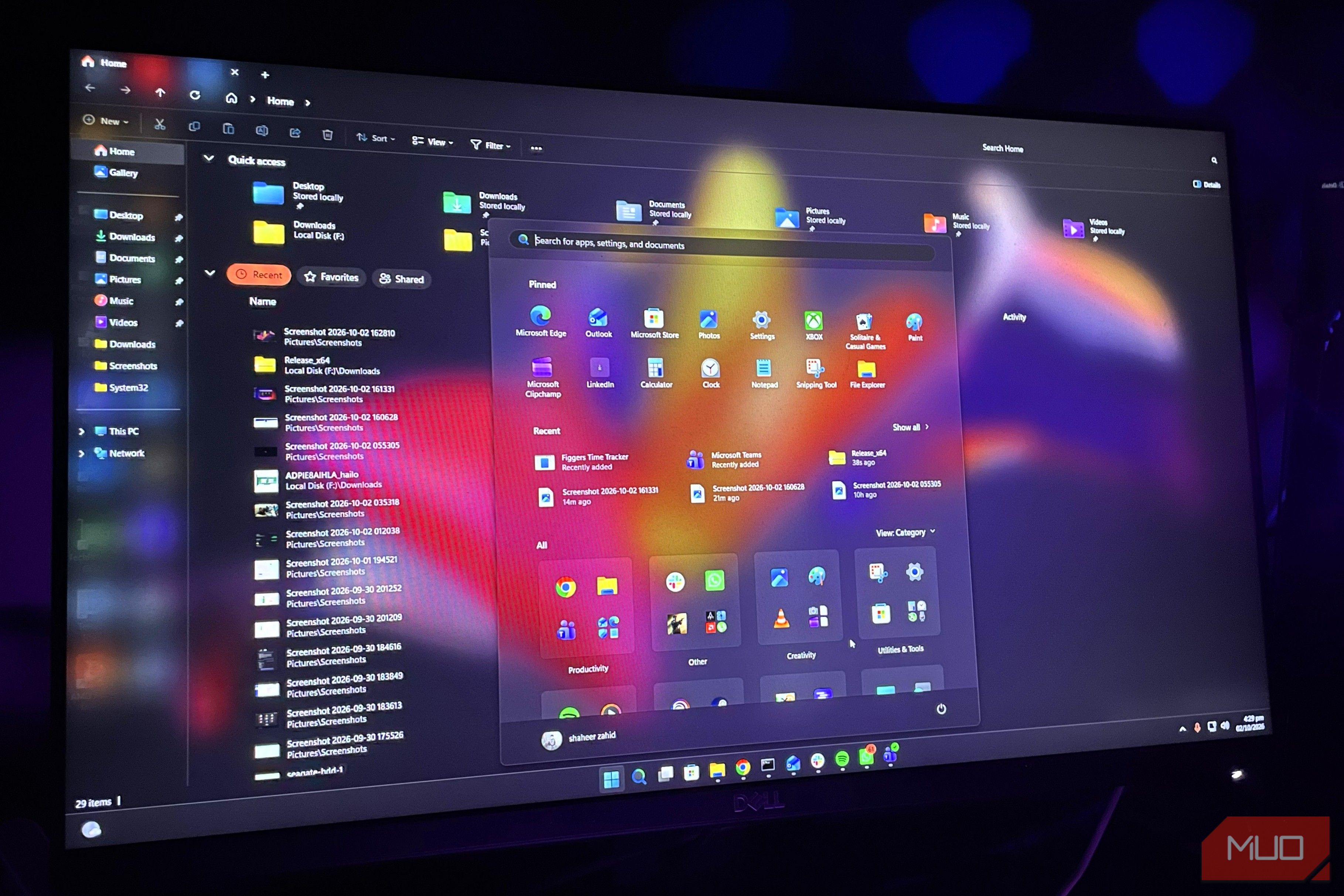
Windows Vista is remembered as Microsoft’s greatest failure, but it introduced a feature and design that the tech giant still hasn’t topped, even after nearly 20 years. Ironically, one of Windows Vista’s features remains unmatched to this day. It took Windows 7 to give Aero a design theme that combines transparency and depth without disrupting the rest of the OS. Unfortunately, Microsoft dropped that aesthetic a long time ago. Fast-forward to Windows 11, and the minimalistic design looks boring and minimal, lacking the depth that made Aero so appealing. Fortunately, you can bring back the glassy, translucent theme in Windows 11, and dare I say, with a few tweaks, it looks even better than it ever has. Recreate Aero Glass with DWMBlurGlass Install the tool and dial in blur, colors, and title bar effects to match Windows 7 DWMBlurGlass is a lightweight desktop utility that customizes how Windows 11 looks by hooking directly into the Desktop Window Manager (DWM) to change how the OS UI and design elements appear as they’re rendered. After downloading the tool from its official GitHub repository, open and install it. To make changes, download the Windows Symbols after opening the app, as they’re needed to map Windows files, so the tool can start making UI changes. Now, DWMBlurGlass customization isn’t limited to the Aero theme; you can change the blur and transparency effects however you want. You can choose colors for title bars, text, and more in either Light or Dark mode, and a preview below shows what it’d actually look like. The General tab also lets you enable Windows 7-style title bar glow, Aero reflection effect, and extended borders, all of which I recommend turning on. For the main effects, go to Advanced and select one of these four effect types: Blur, Acrylic, Aero, or Mica. For a one-to-one recreation of Windows 7’s design theme, selecting Aero or Blur also seems to work well. For the implementation, I’d prefer to keep CustomBlur, which uses DWMBlurGlass’s own approach. Extend the glass effect to File Explorer ExplorerBlurMica makes every pane see-through instead of just the title bar DWMBlurGlass only works with title bars, and if you want to transform all UI elements within Windows, including File Explorer, it’s more work. To achieve a fully glassy appearance that builds on the original Aero design concept from Windows 7 and evolves into something new comparable to Apple’s Liquid Glass concept, you need one more step: make all File Explorer components glassy. The tool for this procedure is called ExplorerBlurMica, a lightweight utility that runs a script to register a DLL to make your entire File Explorer glassy and nearly see-through, which is much better than the shoddy translucent implementation in Windows 11. At any time, if you want to return to the original state, select the uninstallation command in the setup, and you’ll get Windows 11’s default view. Make the Start Menu translucent too TranslucentSM ties the whole interface together with one registry tweak The final step in the Windows 11 makeover is to make the Start Menu see-through, too. Otherwise, it feels separate from the bunch, and the glassy theme doesn’t feel as cohesive. Another utility on GitHub that does this is called TranslucentSM. After downloading the tool, open the application in the setup, and it will create a registry value you’ll need to tweak manually. After that, follow these steps:
- Open the Registry Editor.
Paste this address in the bar: Computer\HKEY_CURRENT_USER\Software\TranslucentSM.
- Select the D-Word TintOpacity and change its value to 1.
- Now, end the StartMenuExperienceHost.exe task in Task Manager.
Copy the contents of the setup to the startup folder, which you can access from the Run program by entering shell: startup . The last step ensures the tint theme applies every time you start Windows, so you won’t have to apply it manually. The Aero glass revival is worth the effort The Aero Glass theme holds up surprisingly well on Windows 11. It’s not an exact recreation of Windows 7’s design, but an expanded version of Aero that applies across the whole UI and blends better with the current theme. In any case, the execution is better than Apple’s Liquid Glass, since it’s uniform across the UI. Especially on OLED screens with Dark Mode turned on, the result looks so much better, and I wish Microsoft would go this route for Windows 12 in terms of aesthetics.