Summary
Have you noticed your Bluetooth speaker or headphones not performing as well as they used to or as advertised? Before you blame the device for being faulty or think the model is subpar, double-check the settings on your Android smartphone. Unlike wired audio devices that connect via a USB-C port or 3.5mm jack, Bluetooth devices have many factors that affect sound quality. If you are facing a similar issue, you should be able to fix it in most cases by accessing Developer Options. Access Developer Options to tweak additional settings Developer options need to be unlocked Developer Options are disabled by default on most Android devices. Thankfully, you can follow a few simple steps to enable them and access a bunch of audio settings. To enable Developer Options:
- Open Settings on your device.
- Head to the About Phone section.
- Look for the Build number or Software information option.
- Tap on the Build number listing seven times in a row.
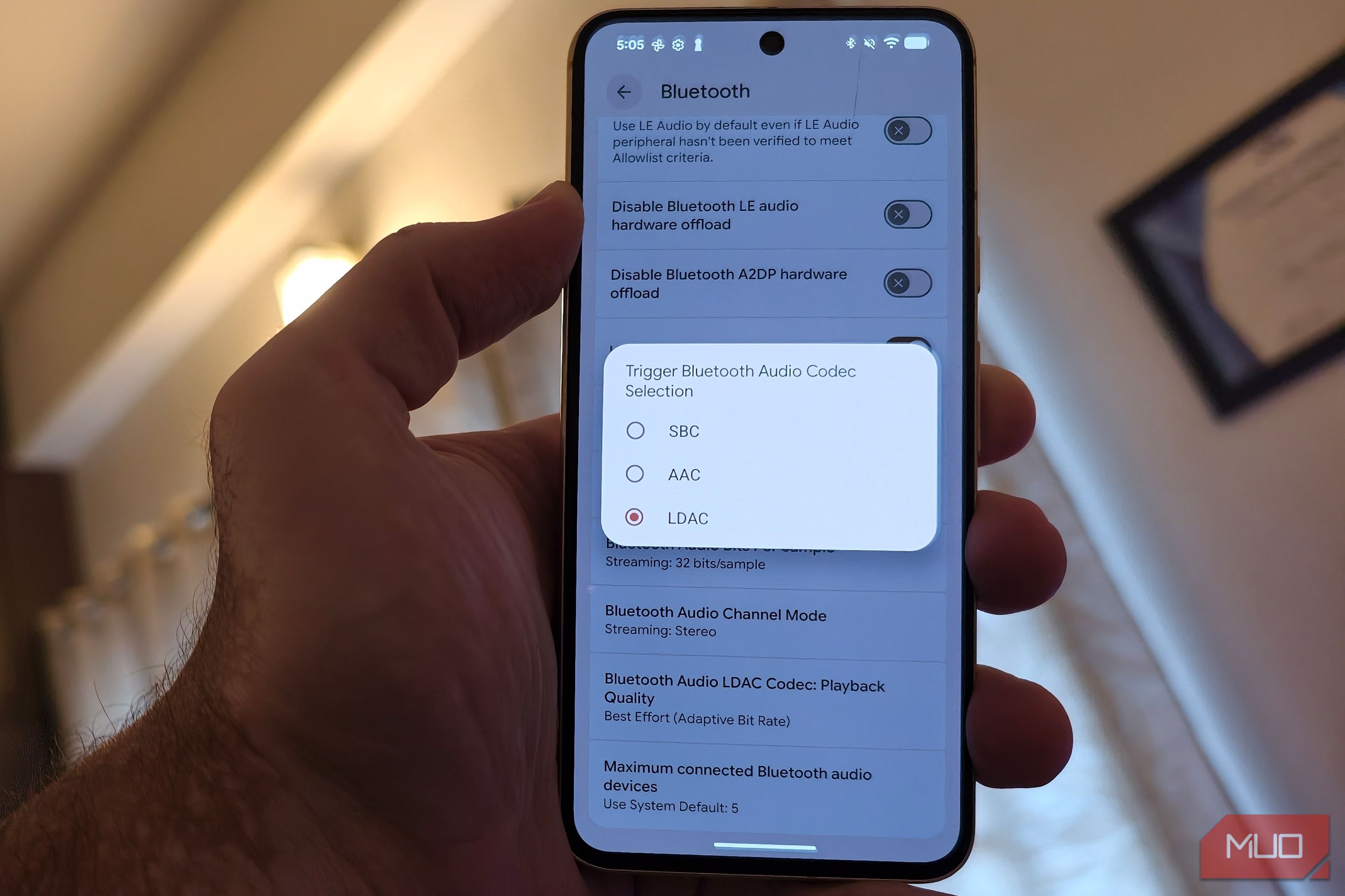
- Enter your PIN or passcode if prompted. You will then get a notification confirming Developer Options are enabled. These additional settings can be accessed by heading to System or an equivalent section and choosing Developer Options. Choose the highest quality codec for the best results The first setting to check Codecs determine how audio is encoded and decoded as it’s sent from your smartphone or tablet to your Bluetooth device. In a way, your phone compresses music data into smaller packages to fit Bluetooth’s limited bandwidth, and the wireless audio device decompresses it to play the sound. There are many codecs, and your phone may not be using the highest-quality codec supported by the Bluetooth device. So first, verify the exact settings and codec being used for the connected Bluetooth device. Go to Settings > Bluetooth > tap the connected audio device, then look for the Audio Codec or connection details. On most Android smartphones, you get some basic codec control under this option. So, if your headphones support LDAC or AptX, you should be able to either use or disable that codec for that particular connection. If you don’t see the codec you are looking for, you’ll need to go to Developer Options for additional controls. Under Developer Options, look for the Bluetooth Audio Codec options under Networking. This reveals the codecs available for your current connection, such as aptX, SBC, AAC, LDAC, and more. If your headphones or speakers play glitchy sound, switch to the highest-quality codec that is available. The issue may vary depending on your Android phone and Bluetooth device Other key settings that could degrade the audio quality There are a host of other settings that may be the reason for the poor audio quality if selecting the right codec does not work. It is possible that your smartphone or tablet may be getting connected to multiple audio devices. This can cause the connection to switch abruptly, disconnect from the one you’re actively using, introduce audio lag, or cause glitchy audio. In Developer Options, you can choose how many Bluetooth devices your handset can connect to at once. You should be able to choose anywhere between one and five connected Bluetooth audio devices, select a sample rate, and choose between mono and stereo channels. Another important feature to check is the A2DP Hardware Offload. When enabled, an Android device uses a separate, power-efficient audio chip to perform tasks such as processing and encoding audio instead of using the main processor. While this can be a wonderful optimization tool and can save battery, the secondary chip may fail to communicate accurately with Bluetooth devices. In such cases, your device may start using a low-quality bitrate, causing your headphones or speaker to play muddy, low-quality audio. If you think this is the cause, turn this toggle on to disable the offload feature. Remember, different users may have to tweak different settings to rectify the issue, based on the default values, specific Android versions, and wireless audio devices. Cross-check everything before you blame the Bluetooth device With wired audio devices, there are generally very few issues that can cause the quality to degrade. But with Bluetooth speakers and headphones, it is not that simple. If your new audio device is playing muddy audio, checking Developer Options to access codec settings, A2DP Hardware Offload, and more can help. If you are still unsure, use a different smartphone or tablet to stream audio to your Bluetooth device. If it plays perfectly, the issue is mostly limited to the exact settings. I would also recommend that you regularly check for updates if your headphones or speaker has an app for the same.