Summary
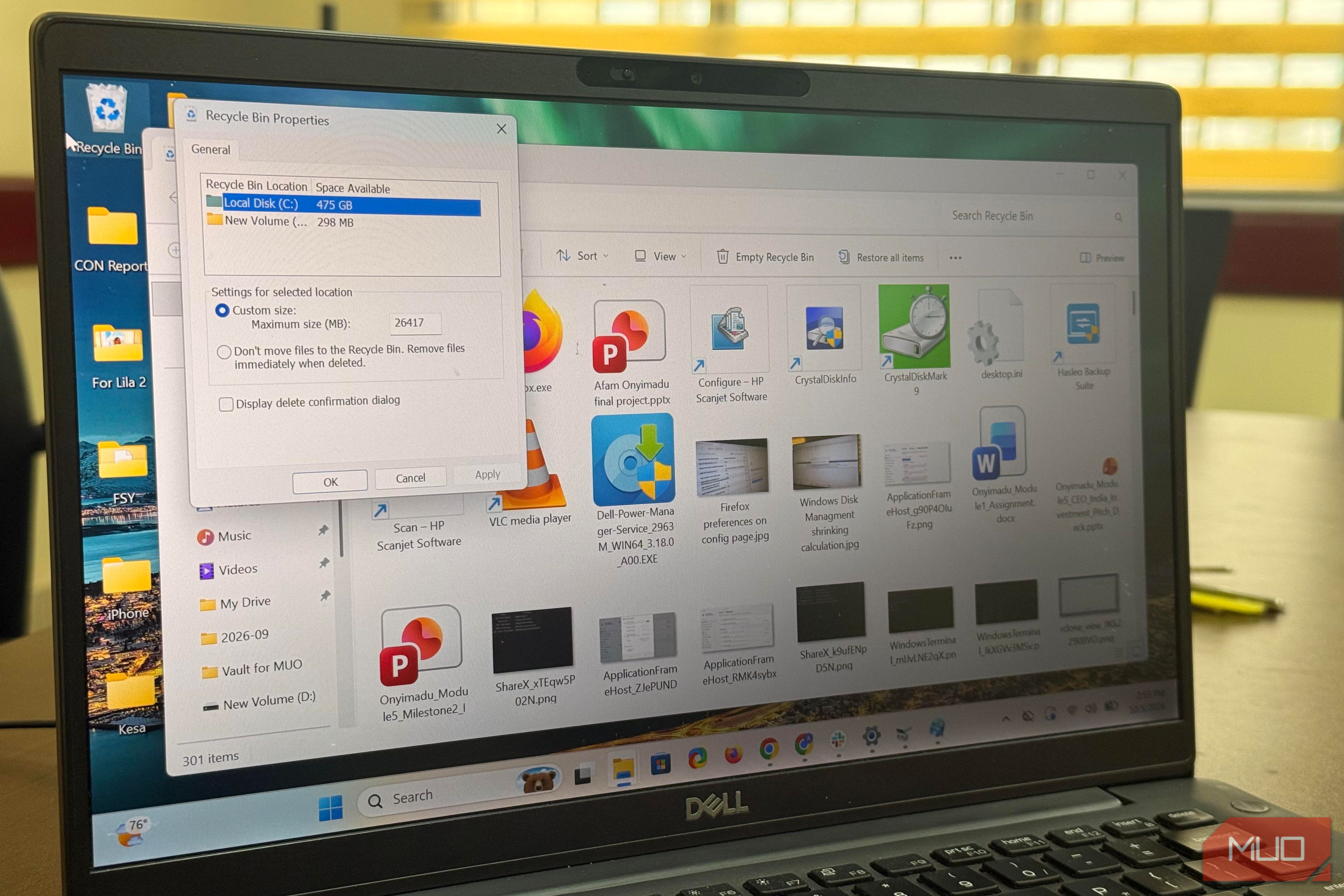
I assumed the Recycle Bin was my undo button with no expiration date. This ended up costing me data. On Windows, every drive gets its own Recycle Bin size limit, and the limit isn’t displayed prominently. When I checked the limits on my different drives, I realized that one had a much smaller safety net than I’d have guessed. It took just a few minutes to fix. Look up your Recycle Bin limit now Three drives, three different limits, and one sizing rule fits them all Let’s start with something you can do. Right-click the Recycle Bin icon on your desktop and select Properties. If you have several drives listed, click through them individually. You’ll quickly notice that the number shown for Maximum size is different for your drives. For me, here is what it looked like: | Recycle Bin Location | Space Available | Maximum size | |---|---|---| | Data (D:) | 25.8GB | 2,647MB | | Windows (C:) | 237GB | 14,187MB | | Local Disk (C:) (A separate computer) | 475GB | 26,417MB | These numbers follow a rule: On Windows, the bin is capped at 10% of the first 40GB of a drive, then 5% of the remainder. If I take the 237GB drive, for instance, the first 40GB gives 4,096MB (1GB is 1,024MB here), while 197GB at 5 percent adds about 10,086MB. This adds up to roughly 14,182MB, just five megabytes away from what I see in the Recycle Bin Properties. It’s further off on the 475GB drive, but still close. That formula gives smaller drives a proportionally larger Recycle Bin. For my D drive, the Recycle Bin maximum size was close to 10% of its space. So, while it was close to 10% on one drive, it was about 6% or 5% on others. None of this matters until you delete a big file. For me, it was a Linux ISO that taught me what could hurt. I deleted something big A file bigger than the limit can’t go into the Recycle Bin On my D drive, I had a few ISOs, including one for Pop!_OS that was 3,005,824KB, just under 3GB. That drive had a limit of about 2.6GB, and when I hit delete, the file wasn’t automatically sent to the bin. Because it was too big to recycle, Windows asked if I wanted the file to be permanently deleted. Clicking Yes means you can no longer restore it from the Recycle Bin. That prompt is the last safeguard before permanent deletion. If you don’t pay attention, you may click through without understanding the consequences. For files under the Recycle Bin limit, there is no prompt; they automatically go to the Recycle Bin. That same ISO placed on a different drive may behave differently. On my C: drive, which had about a 14GB limit, it was simply sent to the Recycle Bin. So even though it was the same file and delete operation, the Recycle Bin limit on the destination drive changed the outcome. You don’t have to risk files to test this. Open the Command Prompt as an admin and run the command below to make a dummy file with fsutil. fsutil file createnew test30.bin 31457280 The size is in bytes, so this creates a 30MiB file (31,457,280 bytes). You can set a small limit on a new partition. I did this on a 298MB partition I created and set the limit to 29MB. | What I deleted | Limit | What Windows did | Recoverable from Recycle Bin? | |---|---|---|---| | 28MB dummy file | 29MB | Went to the bin | Yes | | 30MB dummy file | 29MB | Too big to recycle prompt | No | | 3GB Linux ISO on D: | 2,647MB | Too big to recycle prompt | No | This size threshold is the first rule. There is a second one that only shows up after you’ve been deleting for a while. The second rule that may cost you What happens once the bin reaches its limit I needed to know if Windows judges a file against the limit or against the space left in the bin. On the partition with the maximum size set to 29MB, I deleted an executable that was about 15MB. Next, I deleted a group of files that were together about 15MB. This second deletion went straight to the bin. If Windows was measuring leftover room, it would have triggered the prompt showing the files would be permanently deleted. The deleted content at this point was around 30MB, more than the configured limit. I had the same experience when I subsequently deleted a 25MB file and a 20MB file. That told me the limit wasn’t simply a running total that blocked new deletions once the cumulative size crossed 29MB. A single file larger than the limit skips the Recycle Bin, while multiple smaller files can enter it over time. But there is a second rule: Once the bin needs more room, Windows removes older entries to make space for newer ones. That second rule may be costly. The file you deleted hoping to easily recover from the bin may be gone without you ever emptying it. This happens quickly on drives like my D drive with a small limit. Windows may also empty the Recycle Bin on a schedule. You can double-check this: open the Settings app and navigate to System > Storage > Storage Sense and look for the Recycle Bin option. By default, items in the Recycle Bin are deleted after 30 days, but you may set it to Never, 60 days, 14 days, or 1 day. Not every drive deserves a raised limit It’s easy to raise the limit: go to the Recycle Bin Properties, select the drive, choose Custom size, type a number in megabytes, and click OK. The larger you make the limit, the more disk space deleted files can occupy before Windows starts removing older items. A small limit is favorable for me because I often delete large files to free space; these files will skip the bin. If I permanently delete something important, I may try Windows File Recovery, but that’s a recovery attempt, not a replacement for the Recycle Bin.