Summary
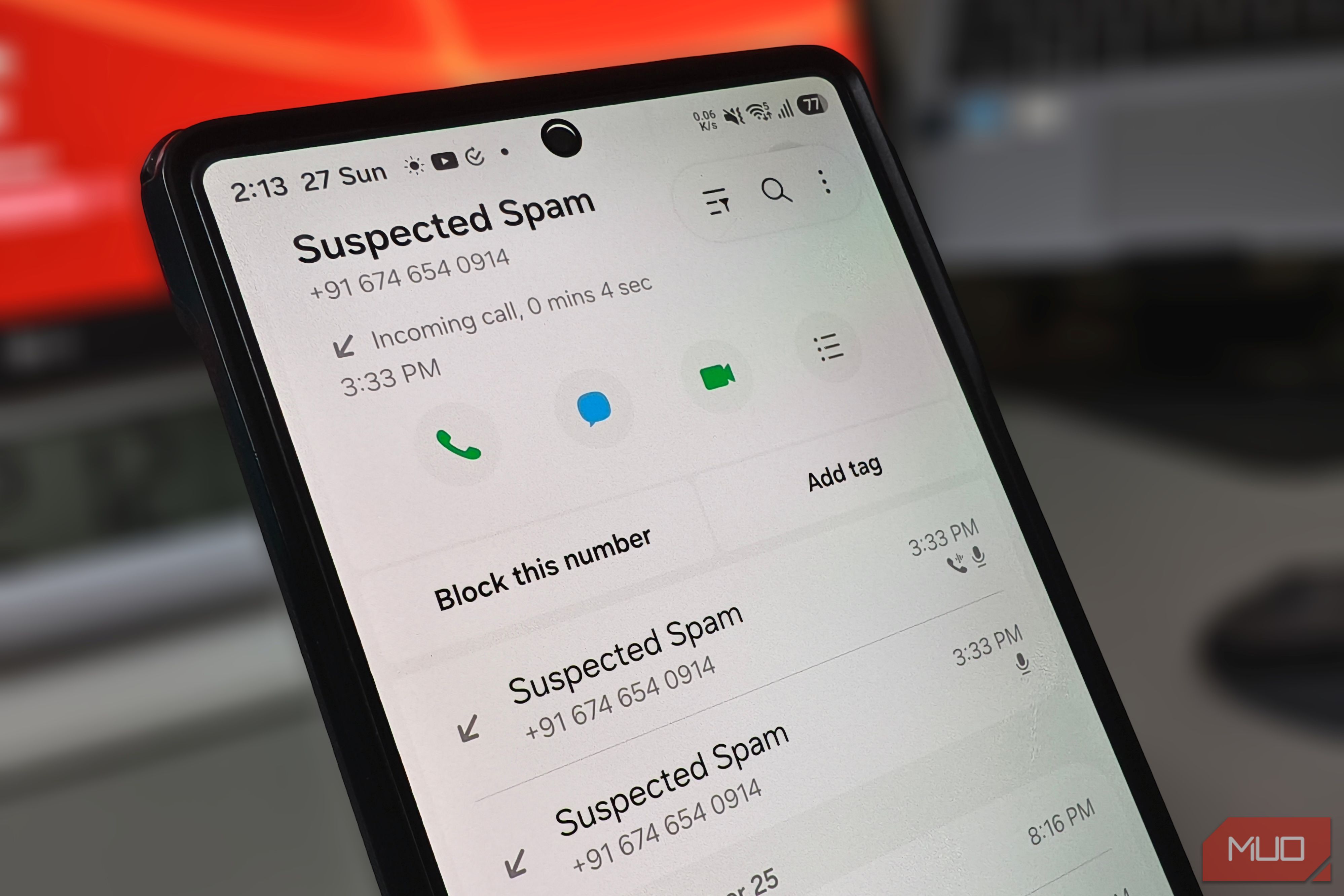
I recently tweaked a few Samsung call settings to stop telemarketers, and for weeks, it seemed like the problem was solved. Then I realized my phone was quietly blocking real calls too. These built-in filters don’t just target robocalls and scam operations. Settings spread across the Phone app and system menus treat every unfamiliar number the same way, and legitimate calls get caught alongside the junk. I tracked down four of them after discovering how many genuine calls my phone had silently rejected. Turn off “Block calls from unknown numbers” Never miss important desk callbacks Samsung’s Phone app has a blocking option that doesn’t just filter spam. It rejects every incoming call where the caller ID is hidden or withheld, so your phone never sees a number at all. The call doesn’t ring, and your phone doesn’t alert you either. A number that isn’t in your contacts still gets through, even if the label sounds otherwise. That works well against shady robocalls, but it also locks out legitimate office desks and recruiters calling from unlisted switchboards. Your Galaxy treats that call the same way it treats a scam operation, and nothing on your end tells you a real call was blocked. You’d only find out when someone mentions they tried reaching you. To change this, open the Phone app, tap the three-dot menu, and go to Settings. From there, tap Block numbers and toggle off Block calls from unknown numbers. Apple has a similar method to stop spam callers on iPhones, proving aggressive filtering isn’t just a Samsung problem. Adjust caller ID and spam protection Prevent false flags on delivery drivers Beyond blocking hidden callers, your Galaxy runs a separate spam filter powered by Hiya. This crowdsourced database flags incoming numbers based on user reports and can reject them before your phone ever rings. The filter offers two blocking tiers. One rejects every number the database considers suspicious, and the other only targets high-risk scam calls while letting everything else ring through. Hiya’s database isn’t always accurate, though. A recently reassigned phone number can end up flagged simply because the previous owner attracted complaints. From the same Settings menu in the Phone app, select Caller ID and spam protection, then tap Block spam and scam calls. If it’s set to block everything, switch to Only block high-risk scam calls so your phone stops rejecting legitimate numbers on its own. Check your Do Not Disturb exceptions Allow repeated rings during quiet hours Do Not Disturb keeps your Galaxy quiet while you sleep or focus, often activating automatically through Modes and Routines. You can pick which contacts are allowed to reach you, but anyone outside that list won’t ring through, even if they call back immediately. Samsung does include a toggle that lets a second call from the same number break through within 15 minutes, but it’s switched off by default. If someone calls you twice in a row with something urgent, your phone silences both attempts. You’d have no idea anyone tried reaching you until you check your call log. This setting lives outside the Phone app. Head to Settings, then Notifications, and tap Do not disturb. Select Calls and messages, then tap Calls and set your exception to at least Contacts only. Switch on Repeat callers underneath, so urgent callbacks from unfamiliar numbers can still get through. Review Truecaller auto-block settings Stop third-party tools rejecting contractors Even after adjusting Samsung’s built-in filters, a third-party app on your phone might be running its own. Millions of people use Truecaller to identify spam calls, but its auto-block feature works independently of your Galaxy’s dialer. If you installed it and left the settings alone, it could be silently filtering calls you actually want. The app offers different blocking levels, and the most aggressive one uses AI to decide which calls reach you. Truecaller itself has acknowledged it might block legitimate businesses. If you’re paying for the premium tier or enabled the strongest setting during initial setup, it could be rejecting real calls alongside the spam. To check which tier is active, open Truecaller and head into Settings, then Block. If your blocking level is set to Max, consider switching to Basic. Basic still filters spam, but it is less aggressive with unfamiliar delivery and business numbers. Keep your filters in check After adjusting these settings, your phone stops treating every unfamiliar number as a threat. Even so, automated filters are never completely foolproof, so it’s worth checking your call log’s blocked tab every few days to spot any legitimate numbers that got filtered by mistake. And if calls still go missing after all of this, your carrier likely runs its own spam filter on the network side that none of these device settings control.