Summary
Summary
- Microsoft will rotate update certificates; expired certs will block Windows Update on May 17 and June 19, 2027.
- Install July 2026+ security update by June 19, 2027; LTSC/LTSB and some servers have May 17, 2027 deadline.
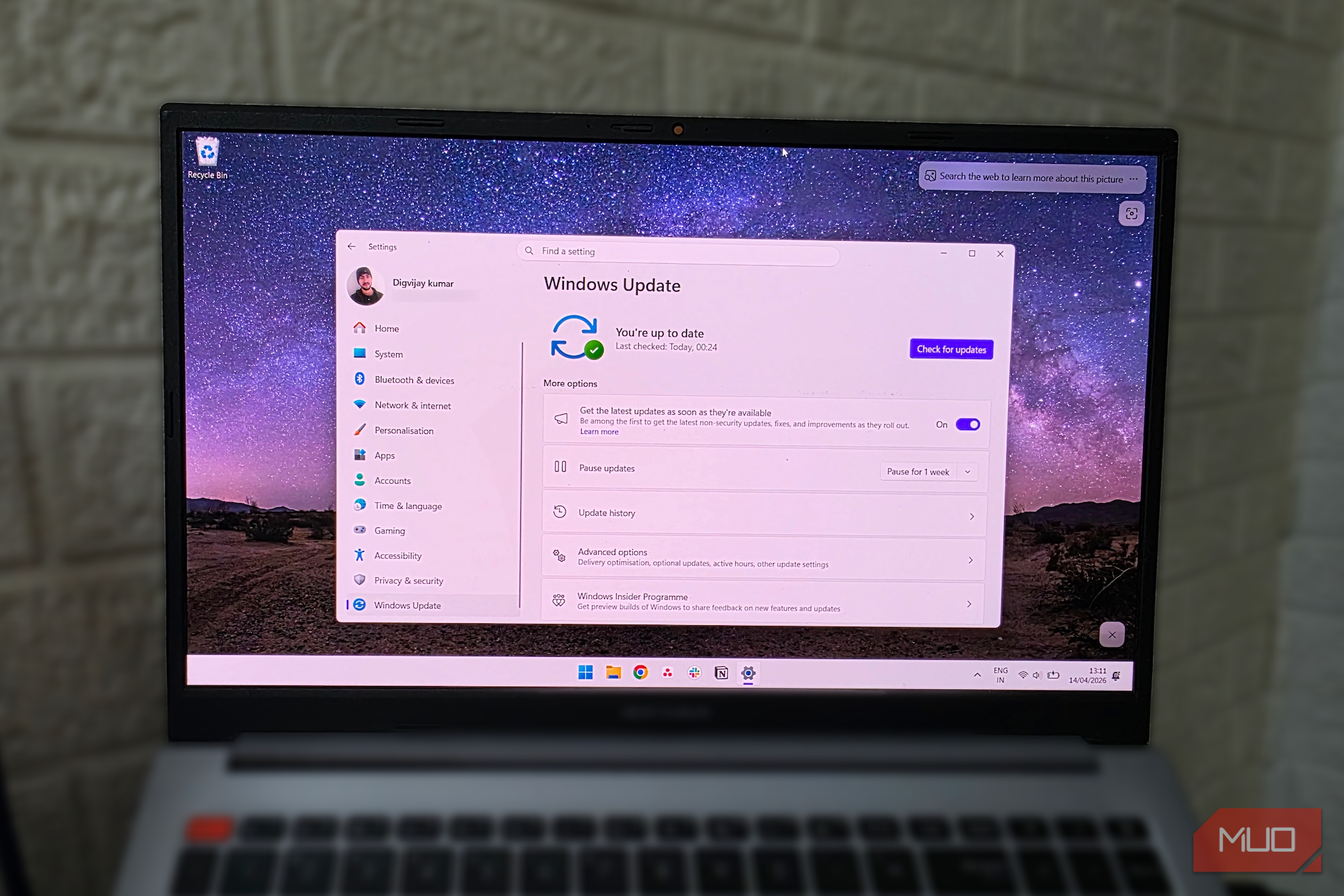
- If updates are disabled or OS unsupported, your PC will lose Update access and become vulnerable after certs expire. Bad news if you’re putting off important software updates: Microsoft has announced that a key backend security feature—the digital certificates your computer uses to communicate securely with Microsoft’s update servers—will rotate out on May 17th 2027 and June 19th, 2027. Any Windows devices running an unsupported version of the operating system, or one that hasn’t received the most recent security updates, won’t be able to connect to Windows Update after this date. When those certificates expire, your unpatched machines will no longer receive essential security updates and thus will become vulnerable to digital threats. Here’s what that means for you Update your PC! When your PC checks for updates, it uses security certificates to make sure that it is in contact with an official and trusted Microsoft server and not with a malicious threat. Since security procedures call for these digital keys to be replaced from time to time, Microsoft has substituted the old security keys with new ones. Think of it like changing your password from time to time for safety reasons. However, if your device doesn’t receive these new digital keys through normal updates, it will eventually lose access to Windows Update. The new 2027 warning specifically affects how your computer communicates with Microsoft’s update servers. The good news is that Microsoft has already quietly bundled the replacement certificates into recent monthly security updates. If your computer runs a modern version of Windows and you regularly install monthly patches, the transition will happen seamlessly behind the scenes without requiring you to lift a finger. But if your computer runs an unsupported operating system, or if you have deliberately turned off updates for years to avoid rebooting, your machine will not have the new keys. Once the old certificates expire in 2027, your PC will be blocked from accessing the system and won’t be able to download the updates needed to stay safe. Here’s how to check if you need to take action if you have disabled updates, use a managed update policy, or your device was excluded from the initial rollout, confirm that you install the relevant July 2026 (or later) update before June 19, 2027. f you are on Windows 11 version 24H2 (and the corresponding server releases), ensure you have installed the Microsoft security update(s) Microsoft identifies for your build—install at least the Microsoft update lists for your version (for many in-support versions, this means the July 2026 security update or later, or the specific patch Microsoft lists for 24H2) well before June 19, 2027. Most supported Windows 10/11 releases and Windows Server 2022 need the July 2026 security update (or a later cumulative update that contains the certificate) installed by June 19, 2027. Check your device’s specific update history / KB number to confirm eligibility and also verify OEM firmware prerequisites if applicable. Long-Term Servicing Branch (LTSB)/Long-Term Servicing Channel (LTSC) releases of Windows 10 Enterprise 2019 LTSC, Windows Server 2019, and Windows Server 2016 have an earlier deadline of May 17, 2027. Not sure which version you have? To check your Windows version, go to Settings, select System, then click About. Your version number will be listed under Windows specifications. As long as you are still using a supported version of Windows 10 or Windows Server 2022, your system must have the July 2026 security update (or a more recent one) installed by June 19, 2027. If you’re unsure whether your device is up to date, you can check yourself. Click the Start menu, then go to Settings. Select ‘Update & Security’ and then pick ‘Windows Update’. Once there, click ‘Check for updates’ to see if any important patches are available. If updates are found, follow the on-screen instructions to install them. By regularly checking for updates you make sure that your system receives the most recent security fixes in time.