Summary
When Creality sent me its consumer-level engraving unit, the Falcon A1C, I was excited to try my hand at personalizing things for gifts and items around the house. The company sent along blanks for stone coasters, commemorative coins, metal wallets, and wood blanks that can be engraved and even cut out.
As I used the A1C to create, I found the hardware impressive, especially at this price point. What I didn’t love was the software, though the desktop version was easier to use than the mobile app. Still, it’s a kludgy process that feels like it needs a few more iterations to make it user-friendly.
All that said, though, the Creality Falcon A1C Laser Engraver is a solid entry point to the hobby, letting beginners like me etch images and text on materials like wood, stone, and metal.
 Creality Falcon A1C Laser Engraver
- Brand
- Creality
- Laser Power
- 5W, 10W available
- Working Area
- 150 x 150 mm
- Screen
- none Creality’s Falcon A1 Laser Engraver offers a small footprint, AI-powered image customization, and safety features that can make sure even schools can use it. It offers up to 15,000 mm/min speeds, supports rotary engraving (with add-on peripherals), and can etch your designs into wood, leather, acrylic, metal, and more. There’s a built-in HD camera that helps with positioning and material recognition, as well.
- Small footprint
- High-quality output
- Several safety features built in
- Includes an exhaust tube
- Software is not very user-friendly
- Only mobile app uses Wi-Fi; desktop requires a cable
- Can be fussy to set up projects Creality provided us with the Falcon A1C unit for this review, but the company had no input in this article and did not see it before publishing. Creality Falcon A1C Laser Engraver pricing and availability The Falcon A1C laser engraver comes with all you need to get started, including a safety key, a USB-A to C adapter, a USB cable, the unit itself (mine came with a 10W laser module), an exhaust tube and hose clamp, and a power cable. You can get it directly from Creality or at retailers like Amazon for $299. Units with higher-powered laser modules are also available for a higher price. Creality Falcon A1C Laser Engraver
- Brand
- Creality
- Laser Power
- 5W, 10W available
- Working Area
- 150 x 150 mm
- Screen
- none
- Software
- mobile and desktop
- Positioning Camera
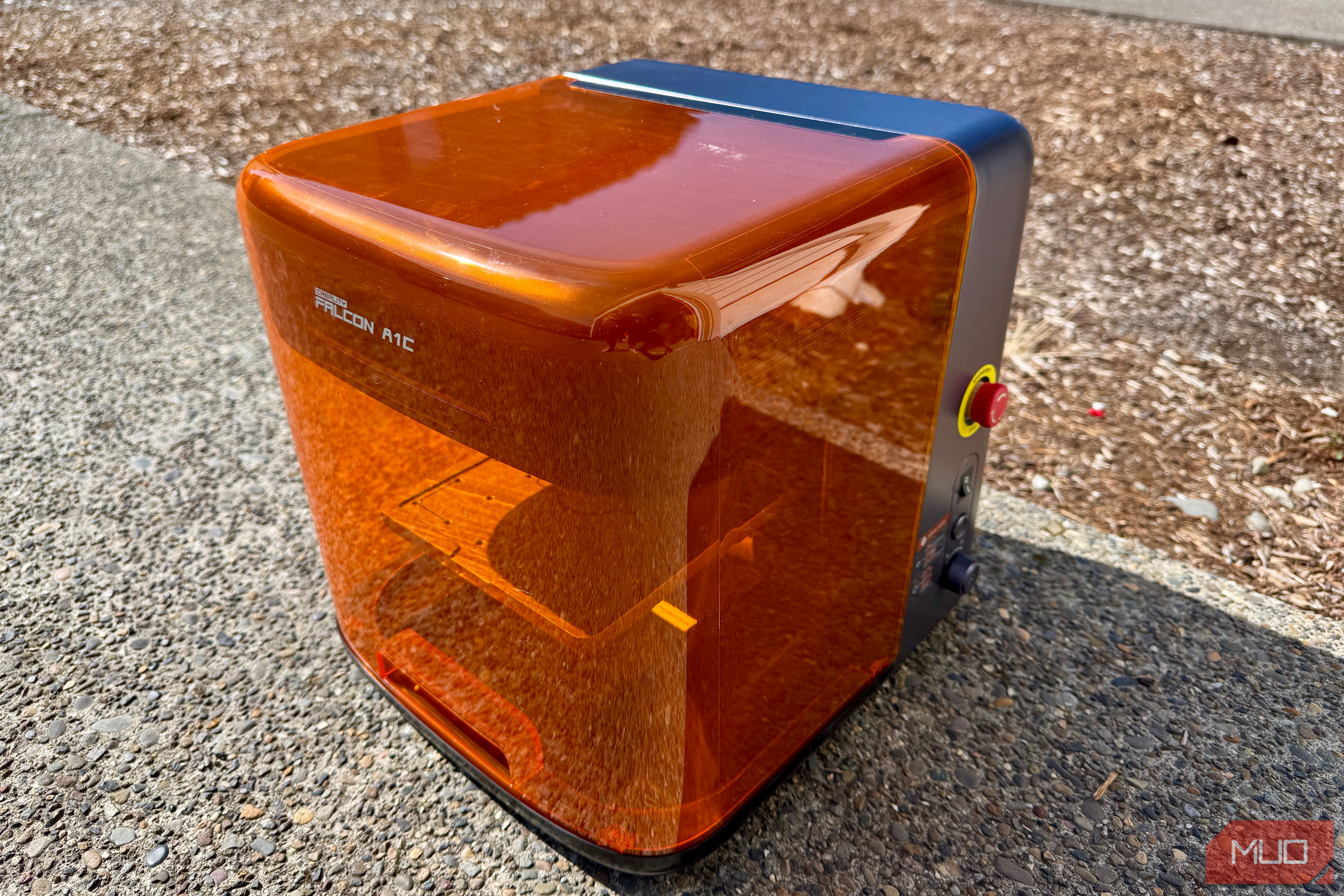
- HD Using the Creality Falcon A1C Laser Engraver The hardware is impressive; the software, not so much I started out making little wooden key chains, and a wooden design with an image of a planet and an old IRC name I have. I used the app on the computer, connected via USB-C, to run this job, and it was fairly straightforward, as I pulled the designs from the app’s catalog of models, similar to a 3D printing site like MakerWorld. I had to make sure my garage door was cracked, as the burning smell was pretty intense and my workbench isn’t close enough to the door to connect the exhaust hose to it. The designs came out looking great, and the cuts and etching was fantastic. The next project I took on was engraving an image onto one of the metal wallets the company provided to test with. I used the mobile app because I don’t love being tethered to the machine via USB-C. I pulled the image of a deer with antlers onto my iPhone’s photo gallery, then imported that into the mobile Falcon app. I then used the app to create an AI-assisted cutout of the image, to get rid of the background. It would be great if there were better controls in the app. This was my first disappointment, as the background that was supposed to get cut out stayed in the image, making it hard to position it on the wallet. The app works by taking a photo of the engraving bed and whatever is on it, so you can put your designs on that way. Without some sort of opacity control, it’s hard to see where the blank item you’re aiming for is underneath a white-background item. I found a similar difficulty when trying to print a photo of a red panda on a stone coaster. It was easy to get the photo of the coaster with the A1C, but the AI cutout leaves the background in 100% opaque white. I also found that the engraving looks much better when it’s a line drawing, and not just a photo. You can see the difference above; thankfully, the Falcon software includes a line-drawing filter, which simplifies the image for engraving. Still, the output looks fantastic. The second red panda coaster, the one I engraved with the line drawing, looks great for giving as a gift. The deer-head on the wallet is perfect for someone who loves deer. I tried putting a little logo and an Instagram address on some aluminum business cards (also provided by the company for testing), with varying results. First off, the bed doesn’t fit more than three to 5 cards on it at a time, and two of those cards end up overlapping a bit. So bulk printing isn’t the way to go here. Secondly, trying to duplicate the basic design from the first card to the four other ones was time-consuming and very manual. The software includes resizing and rotating handles on the imported assets, but it’s pretty hard to do precisely on a touch screen. It would be great if there were better controls in the app so you can print more than one similar thing at a time. I was unable to get anything to print on the commemorative coins that came along with the unit, so I’m wondering if they need a more heavy-duty laser module. They look pretty cool, though, so maybe I’ll keep playing with them and see if I can get them engraved. Solid results from a small, self-contained unit Safety and size are worth the price of admission I have the A1C unit set on my garage workbench, mostly because I needed the smoke and burning smells outside of my house. It fits nicely there, too. The 336 x 377 x 341 cube-like unit only weighs about 22 pounds, too, making it easy to move around. Before using it, you plug in a little safety USB dongle into the back, something you could remove if you have kids or are using it in a school environment. It won’t work at all without the safety key. The controls on the side are simple, too, there’s a flip On/Off switch, a pairing/confirmation button, and a big emergency stop button at the top. There’s also a knob that you can dial either way to move the working plate up or down, but only if the translucent plastic lid is down firmly. I found many times wanting to move the plate down to reposition an item on it, only to be thwarted by the orange cover being open. Putting it down made it possible to move the plate, which while annoying, is also super safe. Should you buy the Creality Falcon A1C Laser Engraver? If you’re looking for an affordable starter engraver that can handle wood, thin metal, and plastic, then the A1C could be a winner for you. At $299, it certainly won’t break the bank, and the results it provides are pretty great. The software still needs a ways to go to be as beginner-friendly as the unit itself is, and laptop users will be stuck next to the unit when engraving, but the versatility and professional-looking results speak for themselves. You should buy the Creality Falcon A1C if:
- You’re new to engraving and want to try it without spending a ton of money
- You want to engrave wood and thin metal one item at a time
- You want to feel safe using a laser engraver You shouldn’t buy the Creality Falcon A1C if:
- You want a larger working plate
- You want to engrave multiple items at once
- You want intuitive, user-friendly software The Creality Falcon A1C has earned a place on my workbench, and I think it will provide a long while of fun, creative engraving projects without costing a whole lot. I’ll manage the software as it is, and hope for improvements over time. This affordable, small-footprint engraving unit is good for what it does, and the safety features make it great for a household with kids or clumsy adults.