Summary
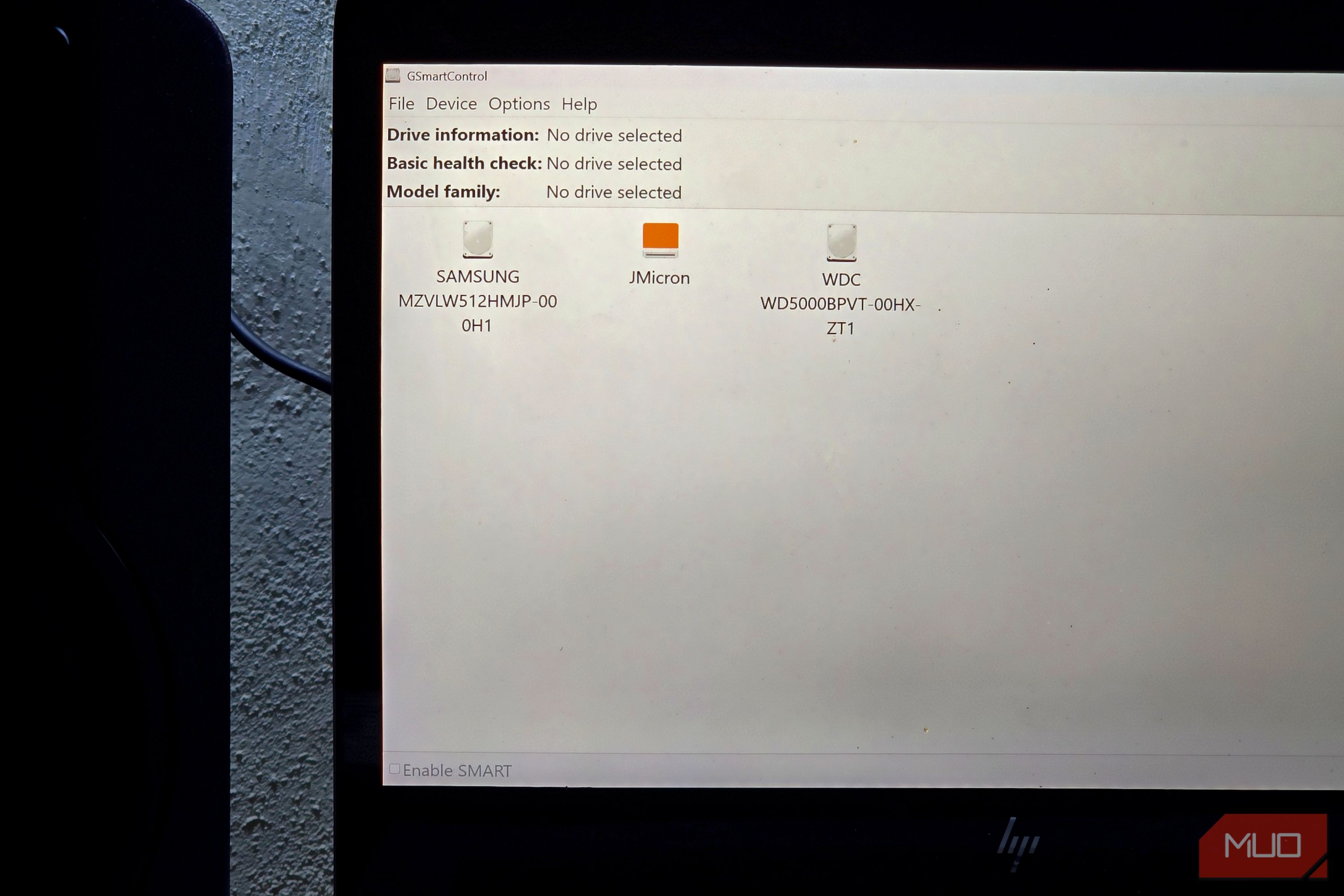
Windows told me my 512GB Samsung NVMe SSD was Healthy, which sounds reassuring until you realize how much information that one word leaves out. The drive has spent years tracking its own writes, wear, temperatures, shutdowns, and errors, and Windows boils it all down to a verdict that’s basically the storage equivalent of “looks fine to me.” During one of my usual hunts for useful Windows tools, I ran across GSmartControl, a free app that digs into the SMART data drives already collect about themselves. Curiosity got the better of me, so I installed it expecting a more technical version of the same clean bill of health Windows had given me. What I found was a much fuller accounting of what my SSD had been through, enough to make Windows’ one-word verdict look remarkably terse. Windows gave me one word, and GSmartControl gave me the paperwork Healthy is a verdict, not an explanation If you want a baseline before installing anything, open PowerShell and run: Get-PhysicalDisk | Format-Table FriendlyName, MediaType, HealthStatus, OperationalStatus, Size -AutoSize Microsoft documents Get-PhysicalDisk as part of the Storage module, with health states including Healthy, Warning, Unhealthy, and Unknown. My Samsung NVMe showed up as Healthy with an OperationalStatus of OK, which is enough for a quick sanity check. It still omits details like how much wear the drive has accumulated or what history it has logged over time. I installed GSmartControl 2.0.2 from the project’s official download page. It serves as a graphical front end for smartctl, putting SMART and NVMe health data within reach without requiring a detour into command-line syntax. The app scans connected drives at launch, and double-clicking one opens its more detailed diagnostics. GSmartControl is cross-platform, although I tested it on Windows. The project also explicitly warns that gsmartcontrol.com is a phishing site, so please stick to the official website or GitHub repository. GSmartControl exposed the Samsung NVMe without complaint, while a JMicron-backed device reported SMART as unsupported. If a drive connected through an enclosure or storage controller shows little or no health data, the bridge or controller may be getting in the way. GSmartControl supports some USB bridges and RAID controllers, but not every hardware path. My SSD had a much longer story than its health badge The biggest number on the page wasn’t the bad one The NVMe Attributes page is where that Healthy label finally picked up some context. My drive reported 7% Percentage Used and 100% Available Spare. In NVMe terms, Percentage Used is an estimate of how much of the drive’s rated endurance has already been consumed. It isn’t a countdown clock to failure, and the value can keep climbing past 100%. If you’re trying to estimate an SSD’s remaining lifespan, you still need to consider the drive’s endurance rating and total writes alongside that percentage. Mine had logged 98,948,652 Data Units Written. NVMe defines each unit as 512,000 bytes, which works out to roughly 50.7 TB written over the drive’s lifetime. It had also accumulated 11,080 power-on hours and 5,089 power cycles. The current temperature was 42 degrees Celsius, and the drive reported zero minutes at either its warning or critical composite-temperature threshold. Taken together, those numbers give a much clearer picture of how heavily the SSD has been used and what operating conditions it has recorded. One counter looked considerably uglier at first glance. GSmartControl showed a lifetime count of 25,546 Error Information Log Entries, and most of the records currently visible were Invalid Log Page or Invalid Field in Command entries with an LBA of zero. At the same time, Media and Data Integrity Errors remained at 0, so calling those 25,546 entries damaged sectors would be flat-out wrong. SMART and NVMe telemetry often arrives as raw accounting, and the intimidating number is not always the incriminating one. The drive had also logged 97 unsafe shutdowns. That counter records unexpected power losses where the controller wasn’t properly prepared to lose power, so abrupt power cuts and hard power-offs can push it upward. If that number keeps climbing alongside corrupted files, read-only behavior, disappearing storage, or other warning signs of SSD failure, I’d treat the telemetry with much more urgency. SMART data also won’t tell you whether the SSD is performing as fast as it should. If speed is the concern, use one of these ways to test SSD speed and performance rather than trying to read benchmark results into health counters that were never designed for that job. I made the SSD test its own health claim The SSD passed its own pop quiz GSmartControl can also launch the drive’s built-in self-tests. I ran a fresh Short Self-Test on the Samsung, and it completed without errors at 11,080 lifetime hours. That gave me another useful data point because the SSD was performing its own diagnostic routine instead of simply reporting the counters it had accumulated over time. GSmartControl 2.x supports NVMe drives, although NVMe self-tests require smartctl 7.4 or newer. A SMART self-test isn’t a substitute for CHKDSK because they look for different kinds of trouble. SMART checks the drive’s health data and built-in diagnostics, while CHKDSK focuses on filesystem and disk volume problems. If you’re not sure which Windows repair tool actually fits the problem, it helps to understand the difference between CHKDSK, SFC, and DISM before launching commands and hoping for the best. If SMART data is already pointing to serious trouble, copy anything irreplaceable somewhere safe before spending much time on additional diagnostics. A successful self-test doesn’t certify that an SSD will keep working indefinitely, either. SMART gives you evidence about the drive’s condition, not a guarantee, which is why important files still need an independent backup. Depending on what you expect to recover after a failure, Windows’ own backup options can leave a sizable hole. Windows can keep Healthy; I’ll keep the numbers Windows’ Healthy status is perfectly serviceable for a quick check, and I open GSmartControl when I want to know what that verdict rests on. A few minutes with the SSD’s own telemetry gave me a much better reason to trust its health status, along with a record of the wear, errors, shutdowns, and other numbers worth revisiting later.