Summary
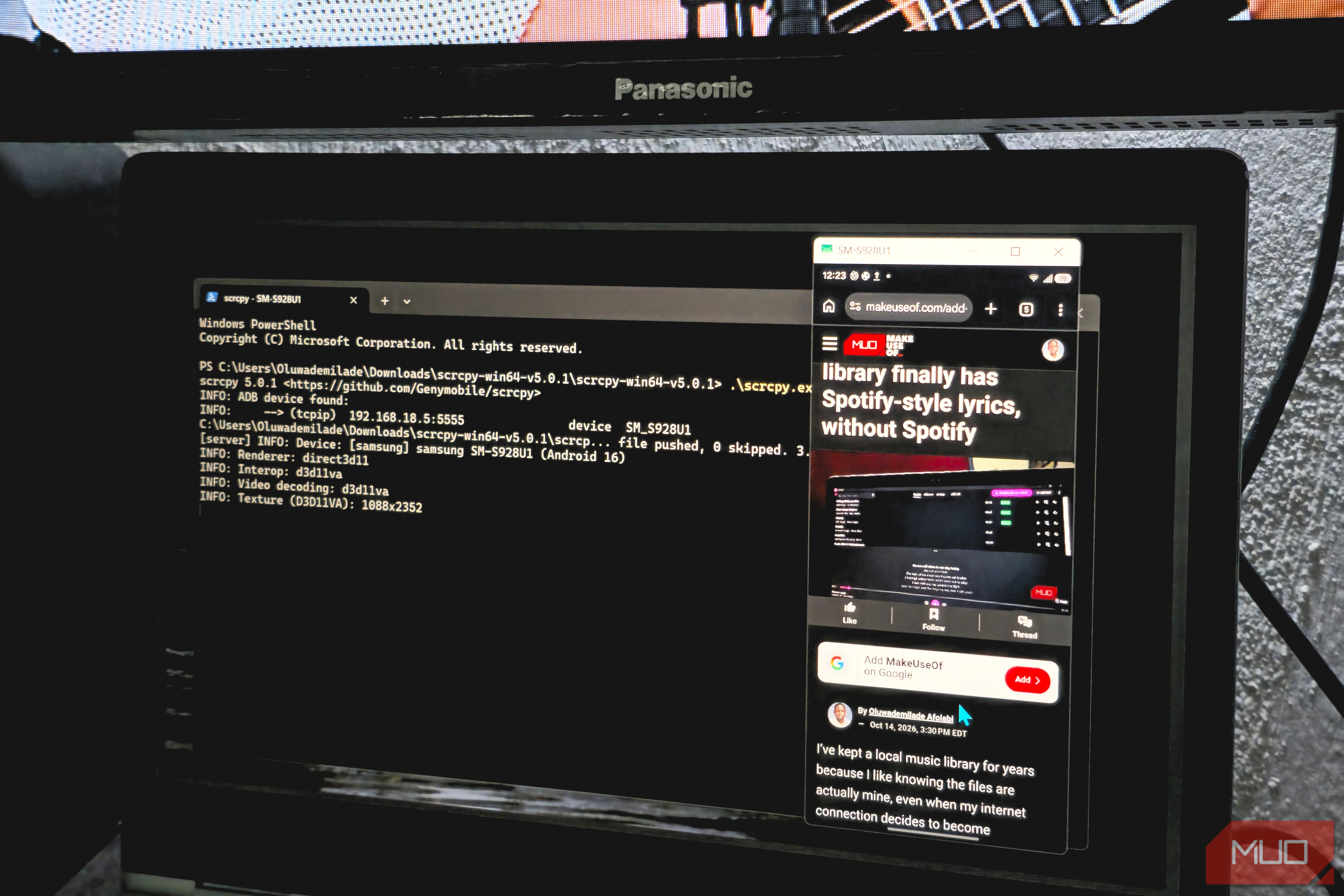
Phone Link has lived on my Windows PCs for years because it justifies the space it takes up. It puts notifications, calls, messages, and recent photos within easy reach, and Microsoft has made Phone Link considerably more capable lately. Even so, I wanted a more direct way to control my Galaxy S24 Ultra with the keyboard and mouse already on my desk. scrcpy gave me that directness, and the recent 5.0 update makes an already nimble utility easier on the PC running it. Getting scrcpy running is slightly peculiar Five minutes in Developer options buys you a much simpler workflow scrcpy skips most of the ceremony that usually comes with linking a phone to a PC. The official Windows build comes as a ZIP file from GitHub, and once it’s extracted, you launch the program from a terminal. There’s also a WinGet package, which appealed to me because I’ve grown fond of installing Windows apps with WinGet instead of hunting down installers online. The timing worked against me during testing, though. WinGet installed scrcpy 4.1 and insisted that nothing newer existed, even though GitHub already had version 5.0.1. After grabbing the current build from GitHub, there wasn’t much left to configure:
Enable Developer options on Androidand turn on USB debugging. - Connect the phone over USB and approve the computer when Android asks whether to allow debugging.
Open a terminal inside the scrcpy folder and run .\scrcpy.exe . The command line can look a little forbidding at first, but the project’s own documentation is quite good. Its connection guide covers USB and TCP/IP setups, and you can check out the shortcuts reference to learn the keyboard controls. My Galaxy S24 Ultra added one small detour because Samsung’s Auto Blocker had grayed out the USB debugging switch. Turning Auto Blocker off made the option available again, and ADB recognized the phone as soon as I approved the connection. Within seconds, the entire phone appeared in a resizable Windows window. scrcpy requires no root access, Android companion app, or user account, and there is barely an interface to learn because the interface is simply Android itself. Phone Link gives me Windows integration; scrcpy gives me my phone A physical keyboard changes how useful Android apps are at my desk Phone Link already covers much of this territory. Its phone-screen mirroring has improved, and compatible Android devices can be controlled with a mouse and keyboard. It also folds notifications, calls, texts, and recent photos neatly into Windows, which is exactly the kind of integration I want from it. Phone-screen access requires a supported Android device, whereas scrcpy works with Android 5.0 and newer. Plenty of other apps can connect a phone and computer, but scrcpy takes a more direct approach. I got much more mileage from it when I began treating my phone like another application on my desktop. Right-click acts as Back, middle-click returns Home, the mouse wheel handles scrolling, and typing into Samsung Notes from my PC keyboard worked exactly as I wanted. I could leave the S24 Ultra beside my laptop and move through Android apps without repeatedly taking my hands away from the keyboard. Clipboard sharing helped even more. I copied a sentence in Windows, clicked into Samsung Notes, and pasted it directly into Android. Copying text on the phone and pasting it back into Windows worked just as easily. When I’m bouncing URLs, addresses, notes, or snippets between devices throughout the day, that saves a lot of tedious handoff work. scrcpy can also transfer files by letting you drop them onto its window, and Android 11 or newer can forward audio to the PC. I’ll keep using Quick Share when file transfer is the main task, since I’ve already found it better suited to moving files between Android and Windows. With scrcpy, file transfer is one convenience tucked into a tool I’m already using to operate the entire phone. My USB connection did drop a couple of times during testing, although I would hesitate to pin that on scrcpy because the cable I used may be flaky. Moving to TCP/IP gave me a stable wireless connection. With the phone still plugged in and both devices on the same network, I ran .\scrcpy.exe —tcpip . scrcpy found the phone’s address, enabled ADB over TCP/IP, and opened the wireless session automatically, after which I could unplug the cable. That convenience came with a performance tax. Input latency became much more noticeable as I moved the phone farther from the PC, so I’d still favor USB at my desk when I want the snappiest response. When I’m finished, closing scrcpy ends the mirroring session, and .\adb.exe disconnect closes the wireless ADB connection as well. Version 5 makes scrcpy easier to leave running Hardware decoding trims the tax on the PC My timing worked out well because scrcpy 5.0 landed in October 2026 with hardware video decoding enabled by default on supported PCs. According to the developer, hardware decoding can process the video stream faster, slash CPU usage by roughly tenfold, and reduce power consumption. On Windows, scrcpy uses D3D11VA for hardware decoding and falls back to software when that path isn’t available. I didn’t have to change any settings to get it working. scrcpy 5.0.1 detected D3D11VA automatically on my PC and reported hardware video decoding as soon as my Galaxy connected. That 5.0.1 update also fixed H.265 hardware decoding on Windows for affected drivers, a bit of welcome cleanup that arrived only three days after the larger 5.0 release. That efficiency lines up nicely with how I use scrcpy. If the phone is going to sit beside a browser, a document, and several other Windows apps all day, I don’t want mirroring it to impose some absurd CPU tax in the background. Version 5 targets exactly that kind of overhead and makes scrcpy easier to leave running without much thought. Phone Link can stay installed I’m keeping Phone Link because it handles calls, messages, photos, and notifications inside Windows with very little friction. When I want to control Android itself, though, scrcpy is now the shortcut I reach for. One command puts my real phone on the desktop, brings my keyboard and clipboard along for the ride, and TCP/IP lets me unplug the cable after the connection is up. That division of labor fits my desk better than expecting a single app to mediate every exchange between my phone and PC.