Summary
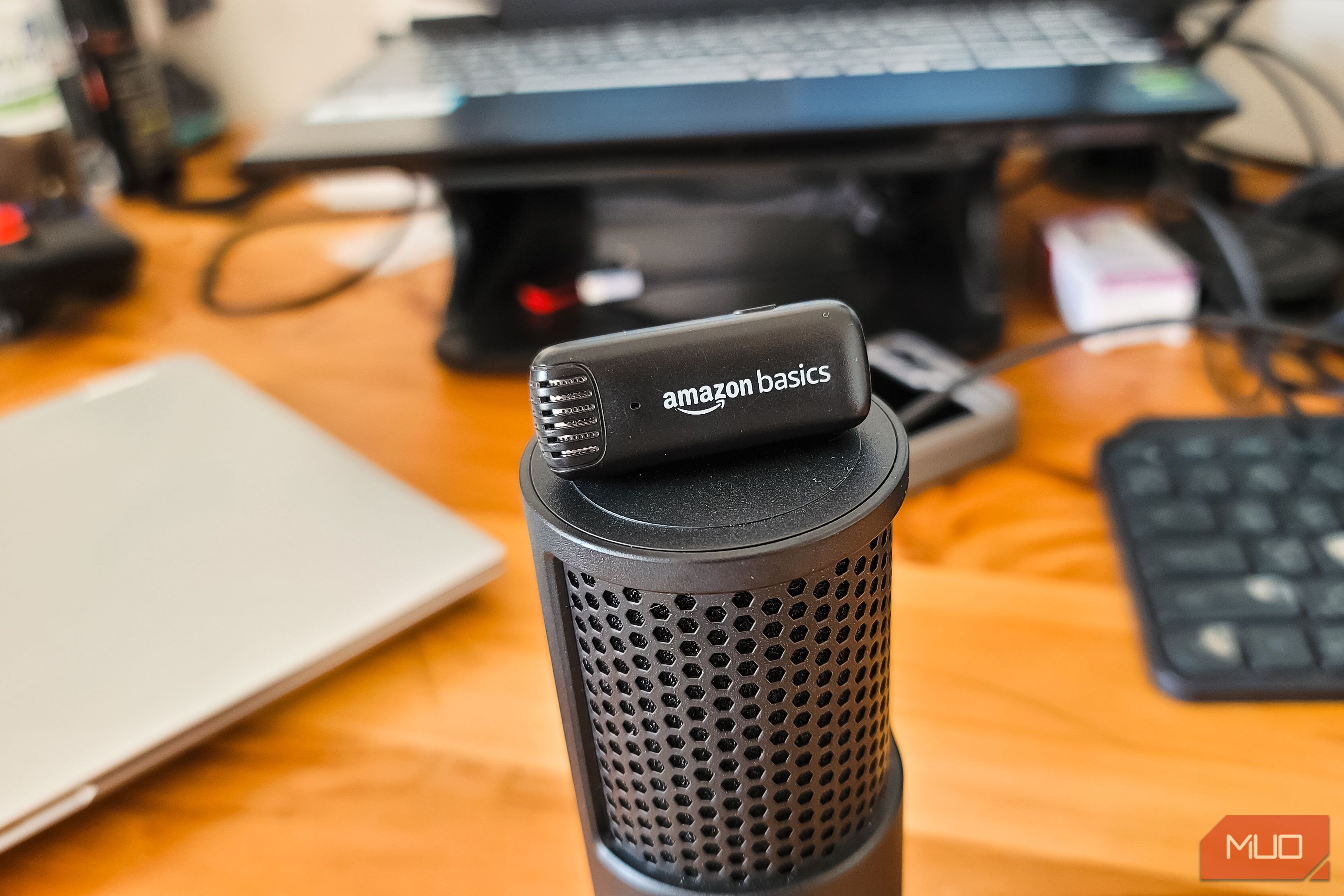
Upgrading from my aging GTX 1650 to an RTX 4060 Ti was a no-brainer, as it offered better frame rates and DLSS support for demanding titles. But the new GPU also brought an unintended voice improvement with it. To get cleaner audio from my basic microphone, I installed NVIDIA Broadcast, a free app that uses your RTX GPU to strip out background noise using AI. The end result was studio-clean audio from a microphone that used to pick up every bit of background noise. I’ve used my phone as a meeting microphone before as a workaround, but Broadcast saved me at least $100 on a new microphone. NVIDIA Broadcast uses AI to deliver clear audio A free app that turns your RTX GPU into an audio processor NVIDIA originally released this app as RTX Voice back in 2020, and it has since evolved into a full-featured app called NVIDIA Broadcast. To make the magic happen, the app creates a virtual microphone that sits between your real mic and your apps. Your voice passes through the RTX GPU, where AI models strip out background noise, room echo, and other unwanted sounds. You then select Microphone (NVIDIA Broadcast) as your input in Discord, Zoom, OBS, or whatever app you use, and it does the rest. I use a basic wireless microphone from Amazon. It’s fine for casual conversations, but it picks up just about everything in my room: the PC fans running at full speed during a gaming session, my loud mechanical keyboard, and whatever else is happening around me. I tend to run warm, so my room usually has a fan or the AC going, which adds even more noise. Broadcast’s core features center around three tabs: Microphone, Speakers, and Camera. In that, Noise Removal is the main feature, and it does exactly what the name suggests. There’s also Room Echo Removal, which cleans up the hollow, echoey sound you get when your mic picks up audio bouncing off walls. And if you want to push things further, Studio Voice makes a cheap mic sound closer to a studio microphone, though it needs an RTX 3060 desktop GPU or better to work. Using NVIDIA Broadcast Setting up the virtual microphone takes just a few minutes Setting up NVIDIA Broadcast for your microphone is easy, provided you have an NVIDIA RTX GPU (RTX 2060 or newer) running on Windows 10 or 11, along with a driver from the R570 branch or newer. Next, the requirement is the app itself, so download NVIDIA Broadcast and complete the installation. Once done:
- Open NVIDIA Broadcast and go to the Microphone section.
- Choose your real mic from the input dropdown at the top.
- Turn on Noise Removal with its toggle. Start the strength slider in the middle and raise it only if noise still gets through. Pushing it too high can make your voice sound robotic or muffled.
- If your room has a lot of echo, enable Room Echo Removal as well. Since version 2.0, you can stack multiple effects and toggle each one independently.
- In your apps, pick Microphone (NVIDIA Broadcast) as your input device instead of your actual microphone. In Discord, you’ll find this under Settings > Voice & Video > Input Device. In Zoom, it’s Settings > Audio > Microphone. Turn off the noise suppression built into your apps. Discord has Krisp, Zoom has its own background noise suppression, and if you leave those running alongside Broadcast, they’ll fight each other and muffle your voice. We’ve recorded two audio clips to show the difference. The first clip is our raw microphone without any processing. You can hear the PC fans, the keyboard clicks, and some ambient noise from the room. The second clip has NVIDIA Broadcast enabled. There’s a short burst of keyboard noise right at the start while the AI adjusts, but after that, the background noise is almost completely gone. The feature also works on headset microphones. If you’re gaming with a headset and your teammates can hear your keyboard or your fan, Broadcast cleans that up the same way. Each effect does add some GPU load, and since version 2.0 there’s a GPU usage meter built in so you can keep an eye on how much overhead it’s adding. The video tweaks are impressive as well Background effects that work across every app NVIDIA Broadcast has another trick up its sleeve, and it’s useful if you tend to be on camera. The Camera tab has background effects that let you blur your background, replace it with an image, or remove it entirely for a chroma key effect that works well for streaming. Zoom and Google Meet have similar features, but Broadcast works the same way across every app, whether you’re in a video call, a live stream on OBS, or using your phone as a wireless webcam with your PC. To set up the video effects:
- Open NVIDIA Broadcast and go to the Camera tab.
- Pick your webcam from the Camera Source dropdown, then choose a resolution and frame rate.
- Select an effect: Background Blur lets you adjust the strength with a slider, Background Removal strips out the background completely, and Background Replacement lets you pick an image from your PC to use instead.
- Choose between Performance or Quality mode depending on how much GPU power you can spare.
- To add another effect, click Add effect. Options include Auto Frame, which keeps your face centered as you move around, and Video Noise Removal, which cleans up grain from low-quality webcams.
- In your video app, go to the camera settings and select Camera (NVIDIA Broadcast) as your webcam instead of the physical one. These effects run on your GPU, so you may lose some performance if you’re gaming and streaming at the same time. My room is a fun place to work, but it doesn’t always look professional on camera. Background blur or replacement handles that without me needing to tidy up before every call. You can also stack Auto Frame on top of a background effect, which keeps your face centered in the frame as you move around. It’s a small thing, but handy if you shift in your chair a lot. It’s an NVIDIA-only tool, but a good one As the name suggests, NVIDIA Broadcast only works with NVIDIA RTX GPUs. You won’t find an AMD or Intel equivalent that works the same way, though apps like Discord and Zoom have their own built-in noise suppression. The difference is that Broadcast handles it at the system level, so every app benefits from the same processing without needing separate settings. You can even repurpose an old Android phone as a webcam and run the video through Broadcast for cleaner output. If your current microphone works but picks up too much background noise, Broadcast can use your RTX GPU to clean the audio in real time. It can sometimes make your voice sound a little muffled when the noise removal strength is set too high, but dial it back to the middle. It does a solid job removing fan noise, keyboard clicks, and room echo.