Summary
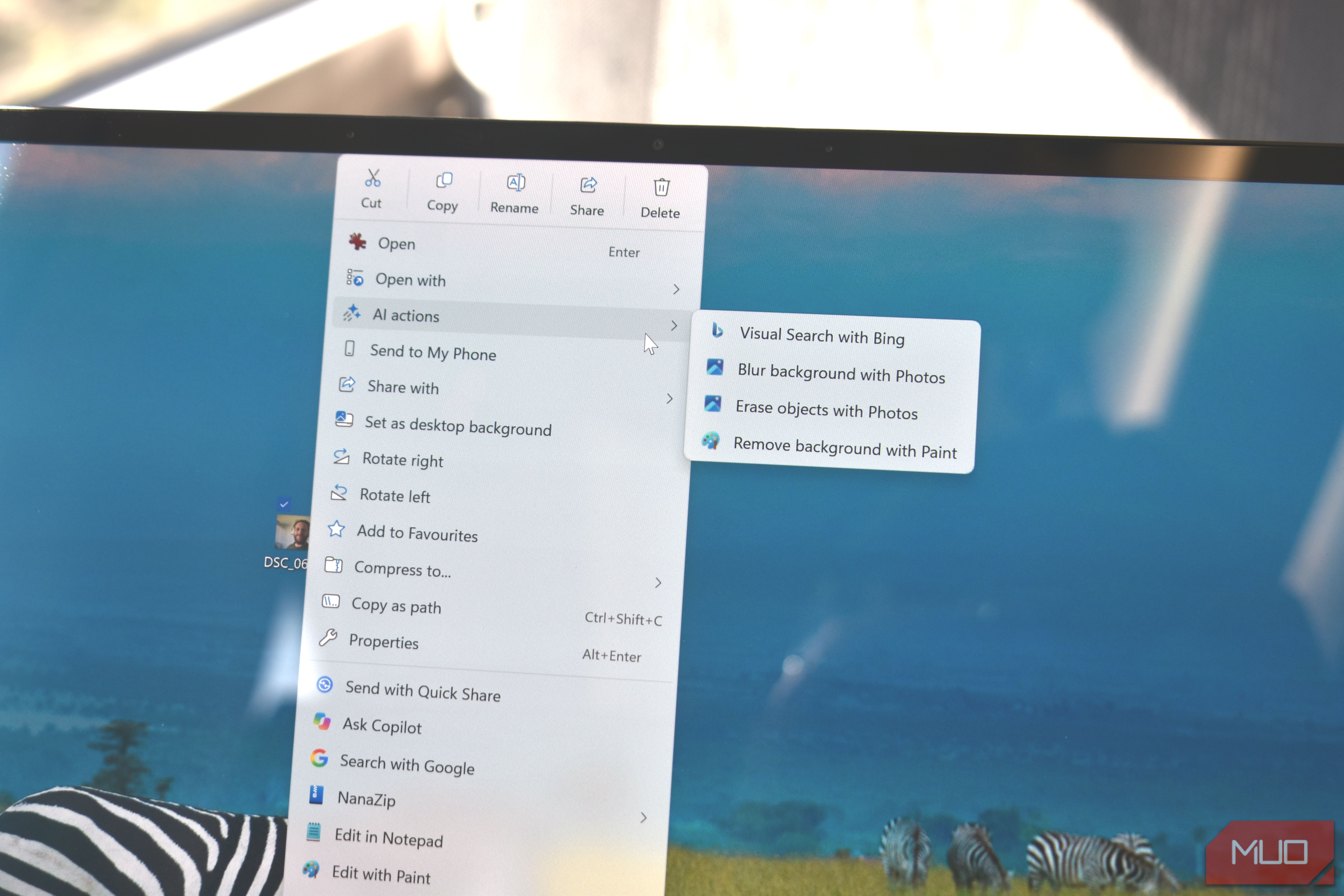
The Windows right-click context menu is one of the most powerful tools every Windows user has access to. So of course it makes sense that in Microsoft’s never-ending drive to push AI into every aspect of its operating system, we now find AI actions to help speed us along. Currently, the AI actions are limited to a few default Windows apps, with other integrations for certain apps you might have installed, like Zoom, Manus, and similar, apparently arriving in a future update. It’s useful in part, but I’m not convinced I really want more AI in my operating system, despite what Microsoft thinks. There’s AI in your context menu, whether you like it or not Quick access to Copilot-powered actions Lurking in the right-click context menu, you’ll find the AI actions option, typically located towards the top — it’s very important, after all. It appears when you right-click image files, giving you the four current options:
- Visual Search with Bing
- Blur background with Photos
- Erase objects with Photos
- Remove background with Paint Limited, but potentially useful if you’re in the market for a visual online search or need to remove a background or… well, that’s it really. The AI actions work, but they’re of limited use Visual Search with Bing Not one to be deterred by a lack of usefulness, I set about putting the AI actions through my rigorous testing procedure. First, Visual Search with Bing using images on my machine used across various MakeUseOf articles, which means screenshots, review photos, and so on. The tool works, in that it opens a new tab in your browser and makes the search using Bing. Bonus point to Microsoft for not forcing Microsoft Edge open here. The Bing search results leave a little to be desired, but I specifically used images with ambiguous information. For example, an image of my troublesome TP-Link Deco BE65 router returned a different type of TP-Link Deco router; understandable, as they have very similar designs and my image didn’t give its model, Wi-Fi standard, or anything else away. I also tried Visual Search on a close-up photo of the Moto Watch Ultra revealed at IFA 2026, and received an array of smartwatches in response. Again, I’m not surprised given how similar watch faces are across most smartwatches. Other Visual Search attempts were more emphatic. I uploaded an image of DNS Speed Test used across several MakeUseOf articles, and Bing returned an outline of what the online app does, along with some MakeUseOf articles featuring the image. A clear win in this case. Blur background and erase objects with Photos and Paint If you’ve used the Windows Photos app on a Copilot-enabled device, you know exactly what you’re getting here: another experience firmly in the “almost useful” camp. The AI action process works perfectly fine, prepping your image to have its background removed or for you to add some general blur to the image. The blur feature works, and you can remove your background with ease depending on the level of detail. It made short work of a selfie, for example, but the more detail in the image, the more difficult the AI finds it to process the detail of what you want to keep. It’s similar for the object-erase function, which isn’t approaching the accuracy or power now found in “proper” AI apps like ChatGPT or Adobe’s various image editing tools. Removing a router from an image created a blurred mush, while attempting to remove my headphones from a selfie made it look like I’d opted for a headband to keep my long hair tied back. The situation isn’t improved by switching to Paint, either. Where is the AI actually being used? Yet another “throw AI at it” from Microsoft When the AI actions launched in late 2025, Microsoft announced that other apps would eventually join the AI action roster, making it easier to add files to your to-do list, use AI search, and similar. I’m writing almost exactly a year later, and it looks like none of that happened. Some of the functionality merged with Microsoft’s other Windows Copilot feature, Click to Do, but that’s similarly stunted and lacking real use cases most of the time for regular folks. I’d also question where some of the supposed “AI” in this process is working. Do we really need artificial intelligence to run an image search on Bing? Where is it even being used in this process? Background removal and blur have a slightly stronger claim to using it, but these are also basic functions found in many image editing apps; ease of use is definitely improved, so there’s that, I guess. The AI actions are another symptom and casualty of Microsoft’s AI-everything drive. Why doesn’t the AI action menu even have a “search for this in Copilot” option, given it forced the Copilot key onto every device? Surely we could find more powerful uses of AI than “find a picture online for me?” The AI actions menu has potential, but I struggle to see that potential being truly realized with Microsoft’s join-the-dots backwards approach to most things AI.