Summary
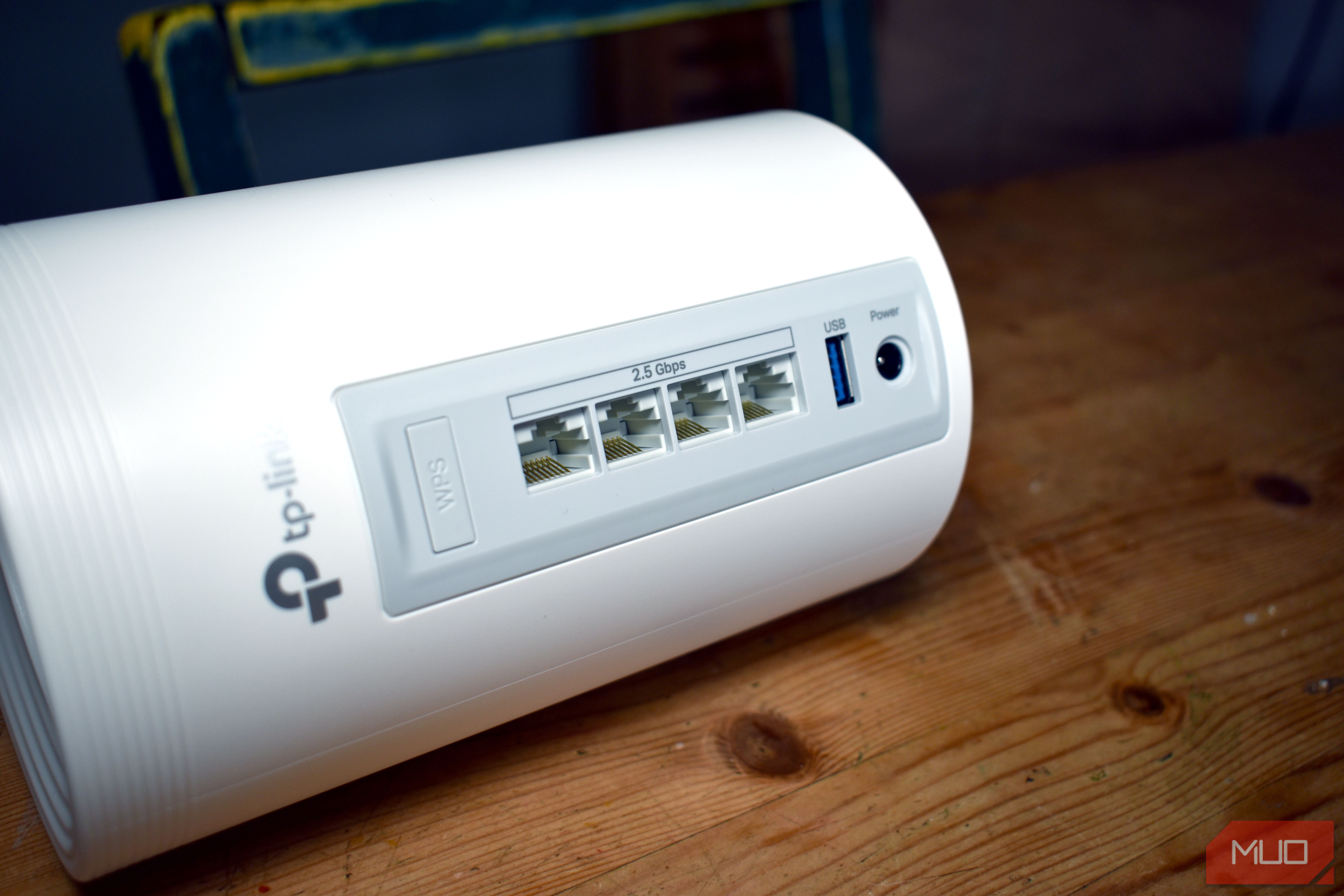
Routers often include a USB port. This feature may feel ornamental because you probably aren’t using it, but it doesn’t have to be. From acting as a real file server to sharing a printer, it offers several options that make your home network more robust. This underrated port has helped me eliminate a number of friction points on my home network that may have otherwise needed additional hardware. Once you start maximizing its use, you’ll realize how much value you’ve been leaving on the table. A server hiding in plain sight One USB drive turns your router into shared storage Many consumer routers are small Linux-based computers with a processor, memory, and flash storage for firmware. That hardware makes the USB port a natural place to add storage. With the drive plugged in, on most routers, you only have to switch on the sharing service for other devices on the network to read from or write to it. After I made this change, I no longer needed a dedicated file server computer that stays awake 24/7. I’ve adapted this perfectly for my home use. Installer files and a working folder stay on the 64GB flash drive plugged into my router. Now, I’m no longer emailing files to myself or hunting down cables when I need a file in a different room. To access the share through Windows File Explorer on my TP-Link Archer AX55, I navigate to Advanced > USB > USB Storage Device and enable Samba for Windows under Access Method. The steps may vary slightly on other routers. In my experience, it is not always straightforward. Sometimes the drive may not show up right away. Issues often stem from the drive’s filesystem, the port’s power output, or the sharing service being disabled; troubleshooting this is usually straightforward. The internet lifeline A backup connection must be configured before an outage occurs Experience has taught me the importance of a backup connection. I’ve had my broadband drop at the worst moment without realizing this same underrated port could have kept me online. On supported routers, you can use a tethered phone or a compatible USB modem as a second internet connection, which the router may automatically switch to if the main one drops. ASUS calls it the Dual WAN feature, using the USB as the secondary WAN. On TP-Link routers, this feature may be called 3G/4G Backup (sometimes shown as 3G/4G Backup for Internet access) or WAN Priority, depending on the model. Because the router first needs to detect that the internet is gone, there is a brief period where nothing loads. Your public IP could change after the switch, causing a video call to drop and reconnect. But after the failover, everything works fine. It’s faster than switching devices or manually changing to a different internet source. The goal of this backup is to get automatic reconnection. It doesn’t necessarily keep every existing connection alive throughout the switch. This won’t work on every router. It needs several separate capabilities (USB modem support, phone tethering, and automatic failover), not just one. It’s worth double-checking what a specific router can do before making a purchase. The features nobody can find The same USB port has a different name on every router It’s not possible to tell what a USB port can do simply by looking at it. Brands name the feature differently, and the menu location is rarely the same. This may be why most people never find it, let alone explore it. | Brand / documented router family | Official feature name | Documented menu path | |---|---|---| | ASUS routers with ASUSWRT | Network Place (Samba) Share / Cloud Disk | USB Application > Servers Center > Network Place (Samba) Share / Cloud Disk | | NETGEAR Nighthawk routers covered by its support guide | ReadySHARE Storage | ADVANCED > USB Functions > ReadySHARE Storage | | TP-Link Archer AX6000 V1 | USB Storage Device | Advanced > USB Sharing > USB Storage Device | | TP-Link Archer C5 V2, C8 and C9 | File Sharing | Advanced > USB > File Sharing (the guide’s setup flow first checks USB Settings > Device Settings) | | TP-Link Archer VR900 modem router | Network Neighborhood / USB storage sharing | Advanced > USB Settings > Disk Settings | | TP-Link ISP-customized routers listed in its support guide | USB Storage Device | Advanced > USB Sharing > USB Storage Device | | Linksys E9450 | External Storage | Advanced Setup > External Storage | | Linksys Smart Wi-Fi routers with newer firmware | External Storage (older firmware: USB Storage) | Click External Storage in the router’s web interface; older firmware labels it USB Storage. | Paths vary by model and firmware. These vary by brand and are listed in each brand’s documentation. More importantly, a USB port doesn’t automatically guarantee specific features. The price of leaving the USB port on Why does a feature this useful go unused? There may be several reasons, but the security risk can’t be glossed over. When you switch on a service, you are enabling something an attacker can attempt to access. ASUS disclosed CVE-2025-2492 in April 2025. This authentication bypass affected routers with AiCloud enabled; remote attackers could trigger it with a crafted request that required no login. On ASUS routers, AiCloud gives remote access to files on a router’s USB drive. ASUS has since patched this flaw, yet it’s a reminder that you don’t have to use every feature simply because it’s available. If a feature isn’t essential to my specific workflows, I’ve learned to leave it off. For safe use, here is the rule of thumb: keep your firmware updated, disable USB services you don’t use, and don’t expose the share to the internet. That said, it’s wise to check what your router already does before buying a NAS, a hotspot, or a print server. For most homes, the port has likely been sufficient.