Summary
A little while ago, I bought a Gigabyte 512 GB NVMe SSD to use in a USB-C enclosure as a portable hard drive. The enclosure project never came to fruition, so the SSD sat in my drawer for months.
It was still sitting unused when I built my Xeon-based Proxmox server out of decade-old hardware. There was one really obvious problem, however. Its motherboard didn’t have an M.2 socket.
A cheap PCIe adapter gave me somewhere to install it, adding much-needed storage to the server. What I didn’t expect, though, was the massive performance boost it gave my VMs.
My server needed storage, and my SSD needed somewhere to go
A cheap adapter gave it a job in hardware I already owned
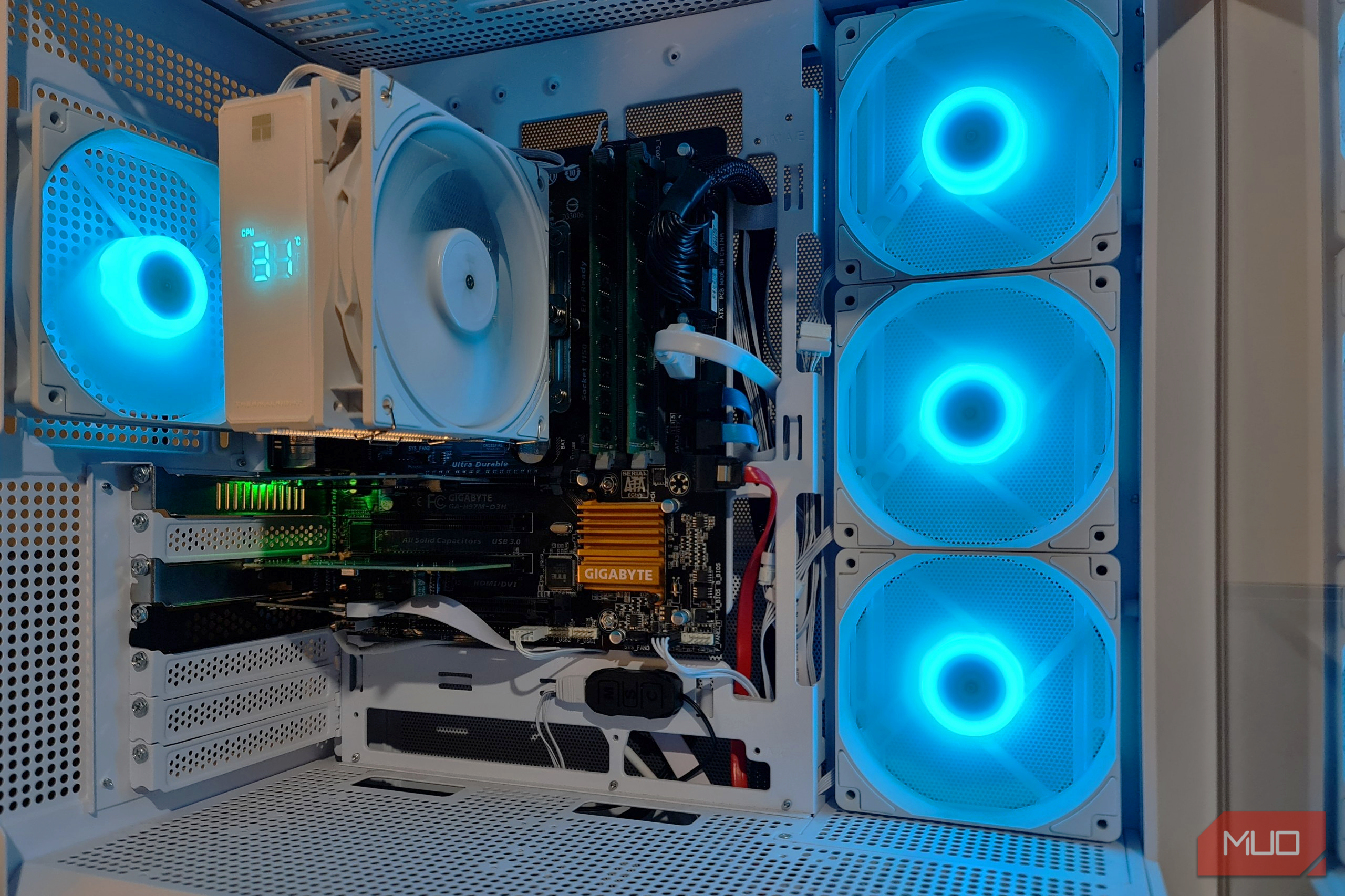
My server runs an old Xeon E3-1225 v3 on a Gigabyte LGA1150-socket motherboard, with two SATA SSDs and one old mechanical hard drive for storage. It’s old hardware that firmly sits in the “if it’s not broken, don’t fix it” category, and it still runs the virtual machines I need.
Replacing the motherboard to accommodate one lonely NVMe drive would’ve involved upgrading, and I just wasn’t ready to say goodbye to working hardware just yet. Instead, I bought a PCIe-to-M.2 adapter for just over $17. The card gives the NVMe drive a socket and connects it through one of the motherboard’s PCIe expansion slots.
I fitted the SSD into the adapter’s NVMe socket, secured it with a tiny screw, and installed the assembled card in the top PCIe slot above the PCI NIC card. The drive had now found a home inside a server I actually use on a daily basis.
The two M.2 sockets on my adapter do deserve a closer look, mainly because I made a silly mistake when buying it. I didn’t read the fine print and assumed both slots would accommodate an NVMe drive. Unfortunately, only one accepts an NVMe SSD, and the other takes a SATA M.2 SSD and requires a separate SATA data cable.
They aren’t interchangeable, and the card will never support two NVMe drives. I only needed one socket, but having the option for two would’ve been nice.
 Dual M.2 PCIE Adapter for SATA or PCIE NVMe SSD
- Brand
- MHQJRH
- Input
- PCIe 3.0 x4 and SATA The MHQJRH Dual M.2 PCIe Adapter adds connections for one NVMe SSD and one SATA M.2 SSD to a desktop PC. The NVMe drive uses PCIe 3.0 x4, while the SATA drive requires a separate SATA data cable.
- Output
- 1x M.2 NVMe socket and 1x M.2 SATA socket
- Cable Included
- SATA data cable
- DATA TRANSFER RATE
- PCIe 3.0 x4 for NVMe, up to 6Gbps for SATA
- CONNECTOR
- PCIe x4, M.2 M-key, M.2 B-key, 7-pin SATA Proxmox saw the drive on the first boot Recognizing it and making it useful were two separate jobs The Gigabyte NVMe drive appeared in Proxmox as /dev/nvme0n1 , with a capacity of 476.9 GiB. That’s around what I was expecting for a drive sold as 512 GB, since the capacity is counted differently. I checked it alongside the existing SATA drives with this command: lsblk -d -o NAME,MODEL,SIZE,TRAN The hardware was recognized, but I still had to tell Proxmox how to use it. Through the web interface, I created an LVM-thin storage pool aptly named vm-nvme . For Proxmox, this was somewhere for the hypervisor to store virtual disks. After creating the storage, Proxmox’s summary showed the pool as active, with a generous 501.74 GB of storage capacity now added. The next job was to move my Windows 11 VM off of the SATA SSD and onto the brand-new NVMe drive. I shut down the VM and used Proxmox’s Move Storage option to transfer its 64 GB system disk from the Intel SATA SSD over to the new pool. I kept the original copy on the old drive just in case, then deleted it once I’d confirmed the VM successfully booted. Windows started happily from the relocated system disk, with the existing installation intact and ready to test out. Better performance on the Windows VM made the upgrade feel worthwhile I felt the difference even before I confirmed it with numbers Booting up the Windows 11 VM on the new storage pool felt noticeably faster. Even booting to the desktop was faster. Now, because I didn’t get out a stopwatch, this performance increase was purely subjective, but the difference caught my attention immediately. To make sure I wasn’t imagining things, I decided to take a measured comparison. I ran the benchmarking tool CrystalDiskMark before and after moving the system from the SATA SSD to the Gigabyte NVMe drive. Both of these tests used three runs and a 4 GiB test size. For both tests, the VM kept the same compute resources of two vCPU cores, 8 GB of RAM, and the VirtIO SCSI controller. These two rows show the biggest improvement and substantial results. Sequential tests measure large, consecutive transfers, while random 4K tests measure the small, scattered accesses a drive would experience in the real world. Each cell lists read speed followed by its write speed: | Test | Intel SATA SSD | Gigabyte NVMe SSD | | Sequential Q8T1 | 454 / 150 MB/s | 1,896 / 1,846 MB/s | | Random 4K Q1T1 | 8.27 / 39.82 MB/s | 21.70 / 51.34 MB/s | Sequential read throughput climbed 4.2 times the previous result. Random Q1T1 writes improved by 29%, showing the gains weren’t uniform across the board. The figures definitely explained what I had felt when booting into the VM’s desktop off of the NVMe storage, representing the improvement in speed while using the same Windows installation. I’d check the slot before buying an adapter Just because it fits doesn’t automatically mean it’s compatible After the successful installation, I checked the NVMe controller’s PCIe connection. It supported PCIe 3.0 x4 and thankfully had negotiated exactly that. That meant the slot I’d chosen wasn’t reducing its link speed or lane count, nor was it impacting its performance. That’s something I’d advise checking before buying anything. My motherboard’s specifications list PCIe 3.0 support for the top slot only, while the second bottom slot runs at PCIe 2.0 x4. Yes, both can physically accommodate the adapter, but only one could use it to its full potential. A SATA SSD would still have been a good choice if I didn’t have a slot available, but unfortunately my case can only fit three 2.5-inch drives. Having to buy both an NVMe drive and the adapter would have also changed the cost calculation. In my case, I already owned the SSD and had room for the card, making it a worthwhile 17, I gained useful storage from a motherboard that was never meant to support NVMe in the first place. The price was right because I already owned the drive. Still, I would’ve bought one for this upgrade anyway. I needed the extra storage, and with RAM tight on the server, I desperately needed the performance boost the NVMe SSD provided as well. Having the drive sitting unused essentially gave me a reason to just get on with it. In the end, I’m glad this older machine was able to accommodate both without having to consider buying a new motherboard.