Summary
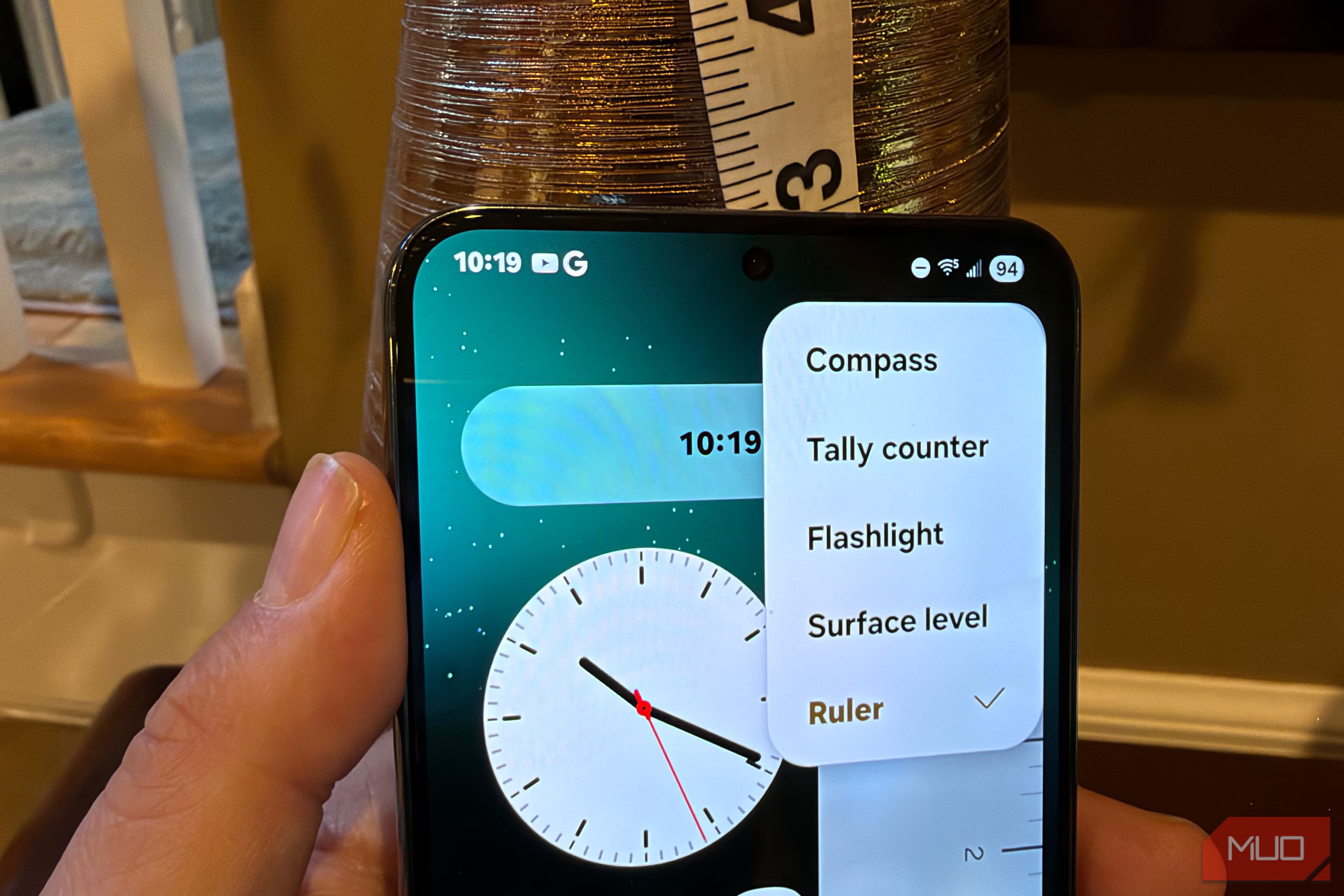
I wish I had taken Edge panels on my Samsung Galaxy more seriously. For years, I assumed it was just a fancy app launcher until I explored it further and found that it had a handful of genuinely useful tools, including two that are literally hiding in Edge panels and can’t be accessed from anywhere else on the phone. Here’s what you’re missing out on if you have a Samsung Galaxy and how to enable these useful features. Turning on Edge panels enables features not found anywhere else on Galaxy Here’s how to turn it on First things first, you have to make sure you have Edge Panels turned on and that you’re aware that you can add multiple panels beyond the app shortcuts you see. To do that, go to Settings > Display > Edge panels > On. Then, if you scroll down on that Edge panels page, you can tap on the Panels button and see all the available panels, like Tools (which contains the Ruler we’ll talk about below), Clipboard (which we’ll also talk about below), plus other things like People, Tasks, Weather and Reminders. I was surprised by how useful this first tool was to help me measure things. Access an accurate ruler Measure stuff in the real world I was surprised by how useful having a pre-calibrated ruler on my phone turned out to be. Whether you need to quickly measure a box for shipping or cut a piece of rope, the Ruler tool on Samsung Galaxy’s Edge panels is very useful. I confirmed with a real tape measure that the ruler was accurate in terms of measuring both inches and centimeters, but in case it’s a bit off, there’s a Calibrate button that lets you make small adjustments to the scale of the ruler to get it just right. To use the Ruler tool as an Edge panel, you must first enable the Tools Edge panel by going to Settings > Display > Edge panels > Panels > Tools. But then there’s another step to actually see the Ruler, since the default tool is Compass. From Compass, tap the three-dot icon in the upper right, and select Ruler. You can then toggle between inches and centimeters. The next tool makes your phone feel more like a desktop computer if you do any real work from your device. Enable your Galaxy’s clipboard history Keep your copied content within easy reach Clipboard History, like the one included in Windows 11, is a lifesaver if you’re doing any real work on your device. Your Samsung Galaxy has a clipboard history tool available as an Edge panel if you enable it, and it works with both text and images. Since this is not available as a standalone app on Galaxy, you probably aren’t aware that this exists unless you have it on via the Edge panel. To enable it, go back to Settings > Display > Edge panels > Panels > enable Clipboard. To access it, swipe open your Edge panel and keep swiping right until you get to the clipboard, where your Samsung Galaxy will remember up to 40 items that you’ve copied, with a shortcut to copy any of the items with a Copy button. The next tool will be your best friend if you travel and don’t speak the native language. Turn on your real-time translator Interpreter lets you communicate in 30 languages If you’re traveling, having quick access to the built-in Interpreter app is a lifesaver. While this app is already available in your app tray, having it within easy reach via Edge panels makes it much more likely you’ll use it when you need it. It supports 30 languages and even has a listening mode that provides nearly real-time translation between two languages if you’re trying to converse with someone. But it will require you have an internet connection to work (however Google can give you offline translation). Interpreter is one of the default options in Edge panel if you have the Apps panel turned on, but you might have missed it. To make sure the apps panel is turned on, go to Settings > Display > Edge panels > Panels > enable Apps. Then you’ll see Interpreter right at the top. When you open it, you can tap the language and download (for free) dozens of language packs depending on your needs. This last tool will turn your sketches and doodles into something that you can actually use. Turn your doodles into real images Sketch to image with AI does a great job of turning your sketches into a usable image I’m a terrible artist. Sometimes I like to doodle or sketch out a mind map if I’m brainstorming, but my circles are never round and my arrows are never straight. But with Sketch to image, accessible from the Apps panel, your Galaxy will take your drawings and turn them into something useful using AI. After making a sketch, just tap the Generate button, and your phone will present multiple image options. Edge panels offer useful tools You just have to enable them I don’t blame you if you didn’t know about some of these tools, especially the ones that can only be found in Edge panels like Ruler and Clipboard. So often we pass over Samsung features, assuming they’re useless, but in the case of some of the tools mentioned in this article, there are some real gems hiding.