Summary
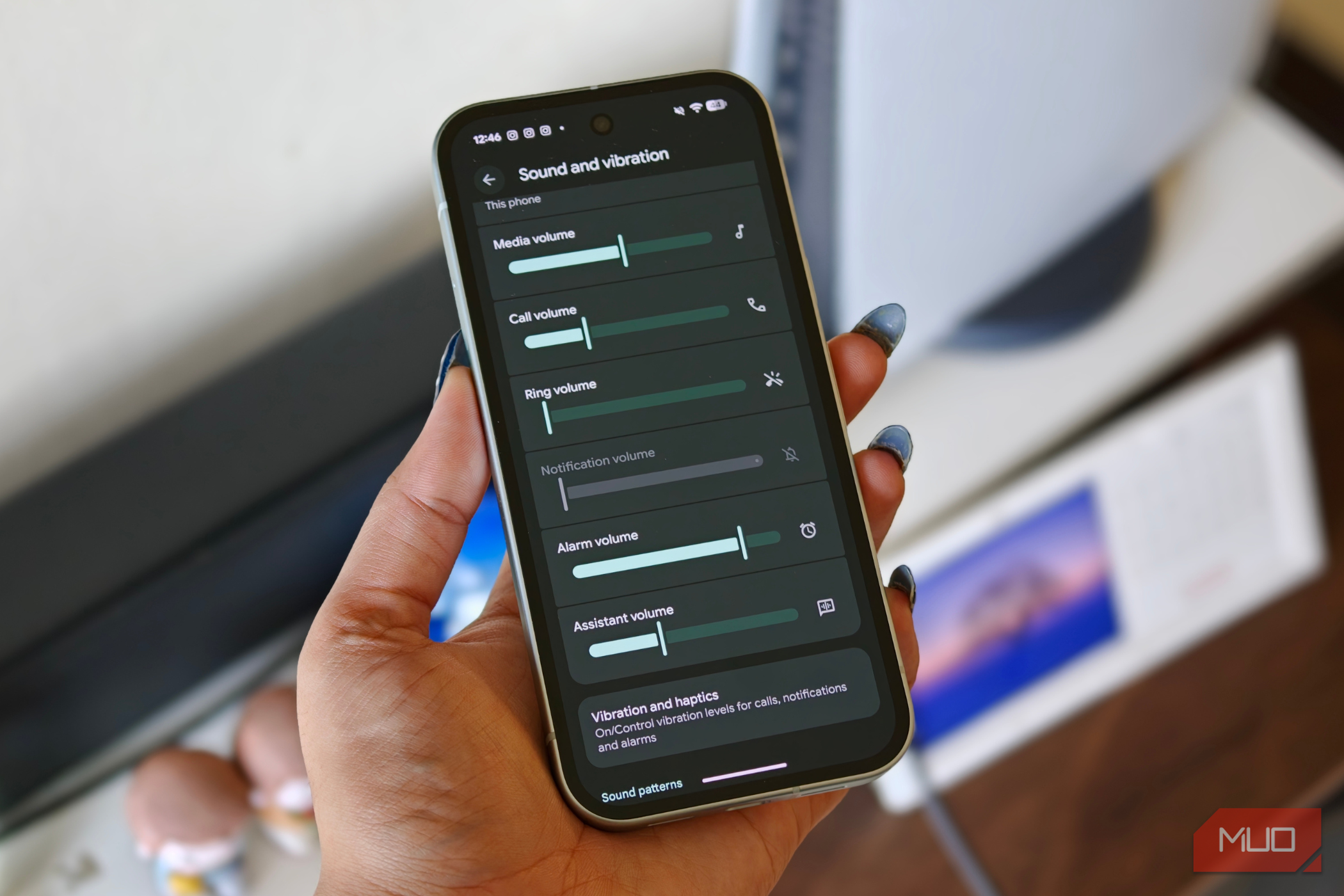
If your smartphone is in ringer mode when you’re in the middle of a meeting or an important task, it can be distracting. You could be tempted to check your device and may lose focus on the task at hand, which can be annoying. On the other hand, if you set your device to silent mode, you may miss important calls and other notifications. The only feasible middle ground seems to be letting the device vibrate without ringing. But that too may not tell you much about the nature of the notification. You could either end up checking your phone more often than not or miss important notifications. I never thought about digging deeper to customize the haptics of my device until recently. By using a combination of your device’s inbuilt features and using third-party apps, you can personalize the experience to find out more about the nature of incoming notifications without having to access your device. Use your smartphone’s built-in vibration features The exact features may vary depending on the device Before you download any third-party apps, try having a look at your smartphone’s built-in options. I navigated to the settings app on my Vivo X300 Pro and found options to tweak the vibration intensity for notifications, calls, and alarms. So, if my device was in silent mode, I would still get to know whether my device was vibrating because of a call or a message. Even on my Pixel 8, I was able to control the intensity of vibration separately for notifications and for alarms. You can also switch on Adaptive Vibration, which will adjust your device’s vibration based on the surroundings. While the exact settings may differ slightly based on the Android smartphone and UI, they should be more or less similar.
- Open the Settings app on your device.
- Go to Sound & vibration.
- Select Vibration & haptics.
- Adjust the vibration intensity for notifications and alarms.
- To enable Adaptive Vibration, look for the option under Vibration & haptics and turn it on. iPhone users can use Apple’s powerful built-in custom vibration creator tool in Settings. Compared to Android, iPhones get more built-in options to tune vibrations and create patterns.
- Open the Settings app on your iPhone.
- Navigate to the Sounds & Haptics section.
- Select Ringtone, Text Tone, New Mail, or another notification category to customize its ringtone and vibration pattern.
- Select the Haptics option at the top of the screen.
- Choose a preset pattern or tap on Create New Vibration.
- Tap the screen to create a rhythm. Once you are done, you can save the pattern and use it for notifications and calls. You can assign different vibration patterns for calls, texts, emails, and more. I found the iPhone’s implementation to be rock solid. You can create as many patterns as you like. To achieve something similar on an Android device, you need to download a third-party app. Use third-party apps for added features I used the Good Vibrations app For Android, you can check out dedicated vibration apps that allow you to fine-tune the pattern and intensity. For the purpose of my testing, I have been using Good Vibrations. While Android’s built-in features might give you some basic control, the Good Vibrations app offers a ton of features. You can choose from a list of default pattern choices or create your own. The interface is pretty user-friendly, and you get access to a custom canvas where you can tap the screen to create a custom rhythm for your vibration pattern. After you create a pattern, you can also use the editor to tweak the timing of the vibration bursts and pauses. This is particularly useful for manually adjusting the pauses to create the perfect tempo without the need to re-record the whole sequence. I was able to create different rhythms for different contacts. So if someone called me, I didn’t have to check my device to know who was calling. The app supports a plethora of platforms, such as WhatsApp, Telegram, Messenger, Gmail, and more. I was able to configure different vibration patterns for different apps. It may take you a few days to get comfortable with the app. But once you do, it will become a part of your muscle memory. It is worth noting that the app is no longer available on the Play Store, and you will need to download it from third-party sources. For this reason, it may not work perfectly at all times and on all devices. Customize the haptics as per your needs If you’re spending a lot of time clinging to your device and want to find a way to not get distracted as much, exploring haptics makes a lot of sense. First, I would recommend that you try working with and customizing the built-in features that are supported by your device. Once you get the hang of it and want more customization options, using a third party app can step up the experience to a whole new level. Give custom haptics a try today, and you might be surprised by how much peace of mind a simple change in vibrations can bring.