Summary
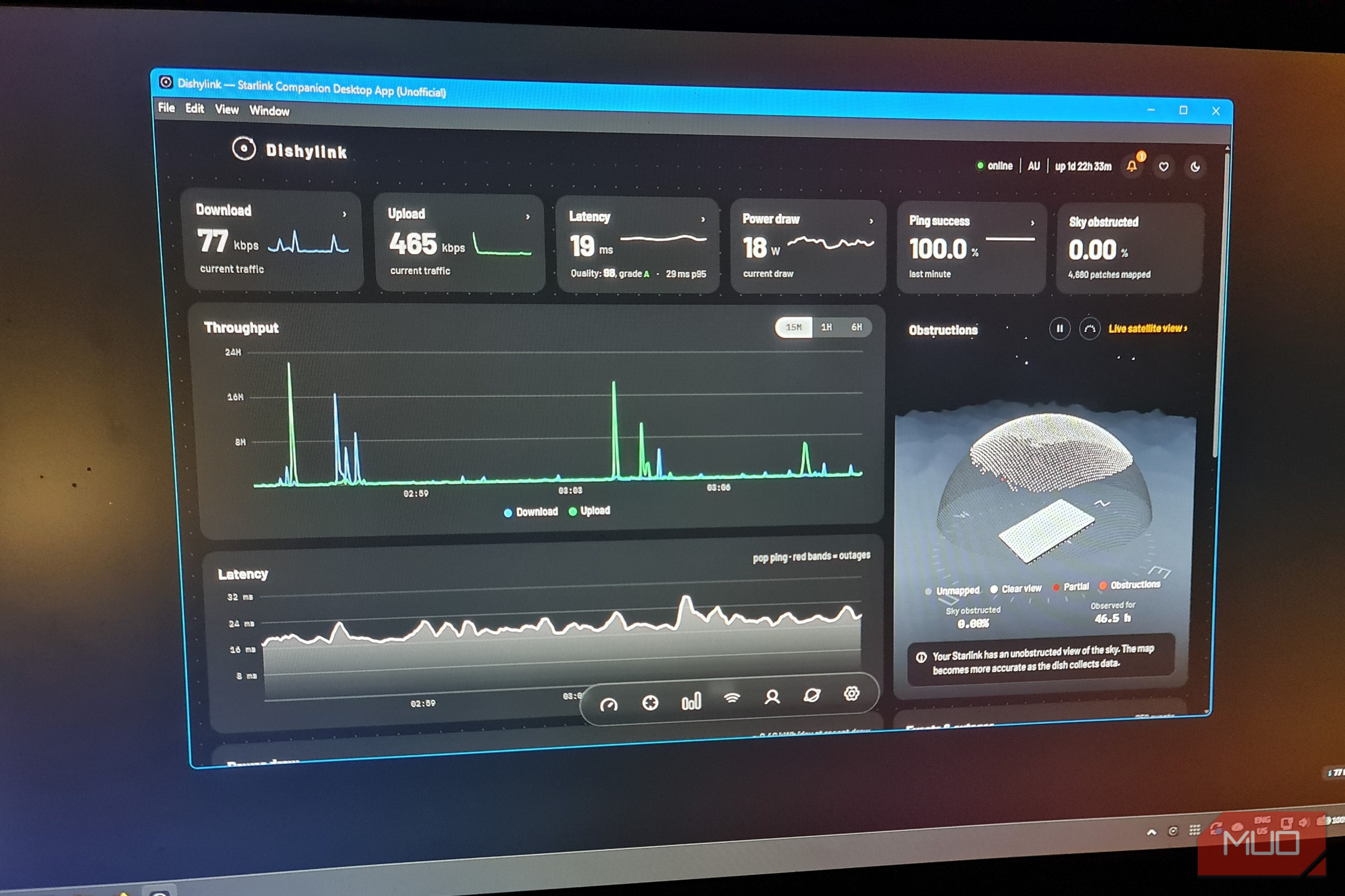
Imagine having to reach for your phone every time you want to configure your router because it doesn’t come with a web interface. That’s what Starlink users have dealt with forever, and it was honestly one of my biggest gripes with Starlink. I wanted to manage my connection from the desktop, not a mobile app. Dishylink finally gave me a desktop interface with just as much power and network controls as the Starlink app. It also comes with a satellite visualization that kept me entertained for an hour, but more on that later. It’s a third-party app, so SpaceX doesn’t get the credit for this one. Getting some of the satellite view features working did take a small workaround, but as you’re about to see, it was well worth the effort. I wanted Starlink on my desktop Checking my connection shouldn’t mean reaching for my phone I installed Dishylink’s native app on my Windows PC and also tried its Firefox browser extension. Both more or less gave me a way to check Starlink from my computer, but the desktop app became the version I stuck with. The appeal is pretty obvious. Take the genuinely useful features from the Starlink mobile app, like inspecting connected devices and looking at stats, and package them in a desktop app instead. Having those tools in a desktop window gives these tools and graphs room to breathe. A phone screen does work, but it’s never my first choice for comparing network stats. If you’ve ever used the Starlink mobile app, Dishylink’s functions are going to be familiar. Bringing them together on my desktop was more than enough to get me interested. I didn’t really need or want anything unprecedented. After admiring the flashy graphs on the dashboard, the built-in speed test was an easy place to start exploring. My run returned 267.3 Mbps / 40.9 Mbps, which Dishylink states uses Cloudflare’s infrastructure. Now, there’s also Starlink’s local web page at 192.168.100.1 , but calling it a web configuration interface gives it far too much credit. It’s extremely limited, even compared to the phone app. Dishylink, on the other hand, gave me an interface that lived in the Taskbar and could actually spend time in. Dishylink is a free, open-source app for monitoring and managing Starlink from your desktop. It combines connection statistics, network controls, power monitoring, and a 3D satellite view.
- Developer(s)
- David Herbert (DaveyHert)
- Platform(s)
- Desktop app - Chrome, Edge, and Firefox extensions
- Price model
- Free The monitoring made it worth keeping open There’s so much more to Dishylink than a speed test Dishylink’s dashboard puts current traffic, latency, power draw, and connection health together in one spot. It can achieve this because, unlike the mobile app, it has the desktop real estate to do it. I could glance at it for quick updates, then open the individual panels when I needed more detail. Latency was one of the first panels I explored. My hour-long capture showed a 24 ms average, complete with histories and distributions for both Starlink and router ping measurements. A single reading tells me what’s happening at that moment. The history makes it easy to spot spikes and backtrack to see whether it was a one-time event or part of a long-term inconsistent performance. Power monitoring was an unexpected bonus. During the hour I had the app running, the dish averaged 18 W and recorded 0.018 kWh of power consumption. That’s only a short sample, but I could definitely see the benefit of continuing to monitor it alongside network statistics. The connected-device list showed eight clients, including their Wi-Fi bands or Ethernet connections when connected to the Starlink Wi-Fi-Ethernet bridge. Opening my Samsung phone’s details revealed that it was connected to the mesh access point, its signal strength, and upload and download histories. Again, this is the same information that’s available in the Starlink phone app, just far more accessible and convenient. The live satellite view was fun to play with, but the monitoring gave me a reason to keep the app open on my desktop. The event history was clear and showed events in chronological order. However, in my opinion, the mobile app does present these events more cleanly with its timeline and color coding. The big difference, though, is that Dishylink can push event notifications to the desktop. I tested this by pulling out my Ethernet cable and immediately received the warning and red-coded notification on my desktop. This feature alone makes keeping Dishylink running on my desktop worthwhile, let alone its more geeky features like live satellite view. The satellite view was worth a little troubleshooting Getting the sky onto my screen took an unexpected detour on a mobile network The satellite view is where I stopped checking stats and events and started playing with the app. With this live satellite feature, I could rotate the scene, zoom toward the dish’s obstruction dome, and watch virtual Starlink satellites zoom across the surrounding sky relative to my dish. It’s cool, very nerdy, and actually goes a long way toward helping me understand the sheer scale of SpaceX’s infrastructure. The animation itself does have one important distinction worth mentioning. DishyLink calculates satellite positions from orbital data. It can’t literally report their live positions just from my Starlink dish interacting with them. Getting the view working actually took a bit of troubleshooting. Unlike everything else in Dishy, it didn’t work out of the box. My local Starlink information loaded fine, but the satellite panel had an error, stating it couldn’t reach the source data. I had a quick look at Dishylink’s source code and found that CelesTrak was the provider of its satellite orbital data. Specifically, it was using this link: https://celestrak.org/NORAD/elements/supplemental/sup-gp.php?FILE=starlink&FORMAT=tle I tried loading that URL in my browser, but it timed out. It did, however, load fine when I switched over to mobile internet. I temporarily changed the network route used to download the satellite data while still keeping local access to the dish available. Once Dishylink had the data, the visualization worked perfectly. Better still, it continued working after I returned to the normal Starlink connection. I never established why this issue was occurring. Given the CelesTrak website itself warns against repeated requests, I assumed that CGNAT and shared public IPs were responsible. The dish views also had practical value. The alignment panel showed my dish was aligned, but also included pointing measurements and suggested adjustments. When viewing the same feature in the Starlink mobile app, it only states that alignment is correct. I also zoomed into the obstruction map and spotted two tiny red marks. The mobile app also reported the same obstructions even though the dish has an open view of the sky. Both Dishylink and the mobile app reported 0.00% obstruction, so I couldn’t explain why those marks were there. Dishylink is more than a nerdy dashboard, with a few catches The controls are genuinely useful, but you’ll hit a wall unless you have a Starlink login Once I’d finished playing with the satellites and exploring the graphs, I looked through Dishylink’s settings. There’s more than enough there to make it useful beyond alignment and obstructions. The controls fall into these three main groups:
- Router settings that include DNS, subnet selection, and bypass mode for using your own router.
- Network rules to enforce data limits, schedules, and countdown timers for managing devices.
- Dish settings to cover sleep scheduling, software updates, rebooting, and snow melt. The Starlink Mini lacks a lot of advanced router functionality, so I do intend to run the Starlink router in bypass mode soon. Finding this setting in Dishylink, along with an explainer that Dishylink’s router settings will still be available in case I lock myself out, was reassuring. However, there’s a small catch. While viewing local statistics doesn’t require a Starlink account, some of the more advanced controls do. The network rule form, for example, explicitly warns that automatic pausing requires an account connection. Without a connected Starlink account, Dishylink can monitor a rule and announce when its threshold is reached, but it can’t actively pause a device. I didn’t connect my Starlink account for this exploration because I wanted to test the functionality without it. But if I did need rules to be enforced, say for setting screen time limits for family devices, I would definitely test the pause behavior before relying on it. My phone gets to sit this one out I came for the desktop version of the Starlink app, but stayed to watch satellites If you’re only checking Starlink occasionally, the official app is probably all you’re going to need. Dishylink is fantastic for those of us who have been wanting a desktop version of the app, but it also adds dependencies (as my live view satellite workaround demonstrated). But I really wanted monitoring and controls on my desktop, and that’s precisely what Dishylink delivered. The graphs, device details, and settings all gave me practical reasons to keep it installed. Watching satellites fly across the sky is a nice bonus, but what I’d really love to see is more advanced router functionality like DHCP reservations added to Dishylink. SpaceX would obviously need to support that on the router before Dishylink could offer the control. So, Elon, if you’re reading this, consider this my official feature request.