Summary
Getting a new PC is always exciting, but tuning it for your workflow takes time. Microsoft makes this even more difficult by adding all sorts of unsolicited changes to the OS.
I recently got a new Windows PC, but didn’t spend an hour on this mechanical task. Instead, I used a PowerShell script called Win11Debloat to optimize the device for my style — and I think everyone should try it.
One line of PowerShell replaced an hour in Settings
My first boot lasted about as long as a coffee refill
For starters, Win11Debloat is a PowerShell script that helps declutter and customize the Windows 11 experience. You can use it to remove annoying apps, disable questionable features, customize interface elements, and easily access hard-to-reach settings. As you may guess, most people need something like Win11Debloat.
It’s mostly because OEMs and Microsoft keep adding never-asked-for features to your PC. It creates a situation where a significant portion of your device’s resources are consumed by apps and other utilities you don’t need. By the end, your PC takes more time to even boot up.
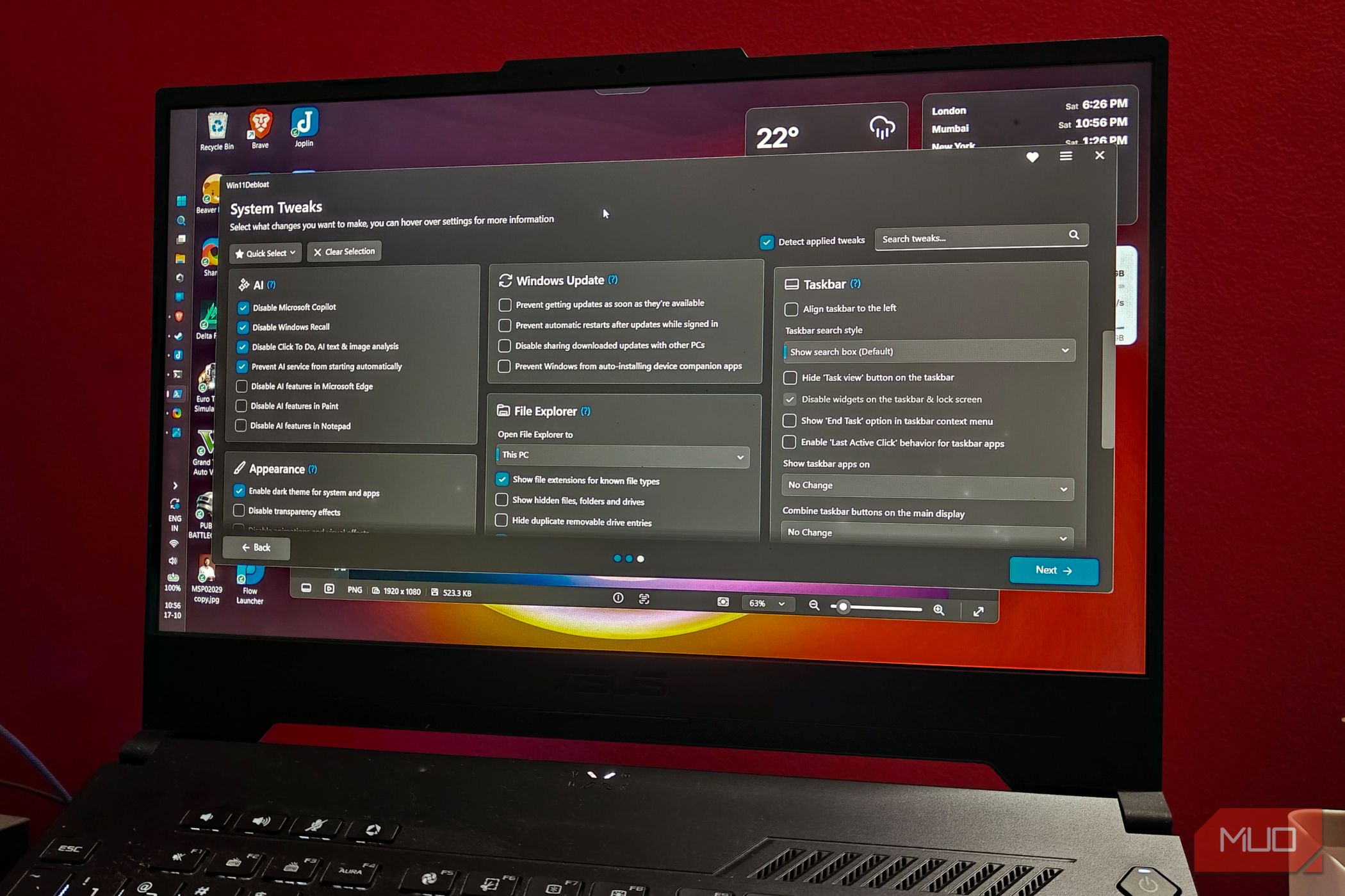
Fortunately, Win11Debloat lets you fix all these issues through a single interface. The best part? You don’t even install anything on your PC. Instead, you run the following PowerShell command, and the script will download and launch Win11Debloat. Once you’re done with the changes, you can exit the interface.
& ([scriptblock]::Create((irm “https://debloat.raphi.re/”)))
As you can guess, the script requests admin permissions via a UAC prompt. The first thing I noticed about Win11Debloat is how many precautionary steps it recommends. Before you perform any action, the utility asks you to make a Registry backup, a Start menu layout backup, and a System Restore point. Once I was past this, decluttering and optimizing my PC took only a few clicks.
 Win11Debloat
- OS
- Windows
- Individual pricing
- Free Win11Debloat is an open-source tool for removing preinstalled Windows apps and telemetry. It also configures system-wide settings on Windows 11. My new PC shipped with apps I never asked for I get to say goodbye in an instant Most laptops these days ship with many apps and utilities that I don’t really need! Microsoft also plays a part in this because of all those built-in apps. Win11Debloat makes it effortless to remove these apps and reclaim space and resources. You can choose between two options: Default Mode and Custom Setup. It also lets you decide which user accounts are affected. Default Mode on Win11Debloat removes a slew of built-in apps from both Microsoft and OEM. These include HP Easy Clean, HP WorkWell, myHP, Lenovo Vantage, and Microsoft apps like Microsoft News, Office Hub, and Microsoft Teams. This isn’t to say you can’t uninstall them otherwise, but this PowerShell script makes it effortless. Win11Debloat categorizes apps into three: Recommended, Optional, and Not Recommended. You don’t want to remove the apps in the third category because many Windows features depend on them. My ASUS laptop didn’t have many such promotional apps, but removing some apps helped me save storage space, which matters on a PC I use for work and occasional gaming. Nevertheless, if your device ships with promotional apps like TikTok, Facebook, LinkedIn, or Candy Crush Saga, Win11Debloat can remove them. Windows stopped trying to sell me things Copilot got the shortest onboarding in history Decluttering features in Win11Debloat also let you stop Windows from trying to sell you products or services. I’m talking about those annoying suggestions and ads you come across on the lock screen and in Microsoft Edge. You can turn on the following options under the Privacy section:
- Disable telemetry, tracking, and targeted ads
- Turn off tips, tricks, and suggested content options
- Disable tips and tricks on the lock screen
- Get rid of ads and suggestions in Microsoft Edge You can also use the same section to hide Microsoft 365 Copilot ads you may have seen on the Settings page. My device didn’t have them, but Win11Debloat can also help you disable AI features like Microsoft Copilot and Windows Recall, as well as AI features in specific apps like Microsoft Edge, Paint, and Notepad. While you’re at it, you can use this tool to toggle other options as well. For instance, Win11Debloat makes it easy to disable multitasking features such as window snapping, app suggestions, and Alt+Tab behavior. I also loved the single-click options to enable Windows Sandbox and Windows Subsystem for Linux. The Windows 10 habits this script gave back to me Muscle memory finally got its right-click menu back This nifty PowerShell script also makes it effortless to tailor Windows 11 to your preferences. For many, it means bringing back a few Windows 10 behaviors. For instance, I used the script to bring back the Windows 10-style context menu, which better suits my muscle memory. Similarly, you can modify how elements like the Start Menu, Search, and File Explorer work. For instance, I’ve used this tool to hide recommended sections in the Start menu, turn off Bing search options, or toggle Microsoft Store app suggestions in Search. In File Explorer, I use it to ensure extensions show alongside the file name and to keep extra entries like Home, Gallery, and OneDrive from clogging the navigation pane. Once you’ve made all the changes in Win11Debloat, you can export the configuration, import it onto another PC, and set it up the same way! I also made sure to turn off the automated Windows Update options. My new PC doesn’t get updates as soon as they’re available, and my system doesn’t restart automatically either. In addition to the Windows-based modifications this tool helped me with, it also let me disable bloatware in Brave Browser. As you may have noticed, this PowerShell script does not invent anything. Instead, it offers you a way to quickly access settings that would otherwise require a couple of other PowerShell scripts or registry modifications. Not every switch deserves a flip While Win11Debloat deserves a lot of time, you can’t turn on every switch in this application. Some options, such as turning off BitLocker encryption or Storage Sense, can have consequences that you have to deal with. It means you need to pay more attention while dealing with the script. However, that’s not a reason to stay away from this super useful script, which I will make sure to use on every other new PC I set up.