Summary
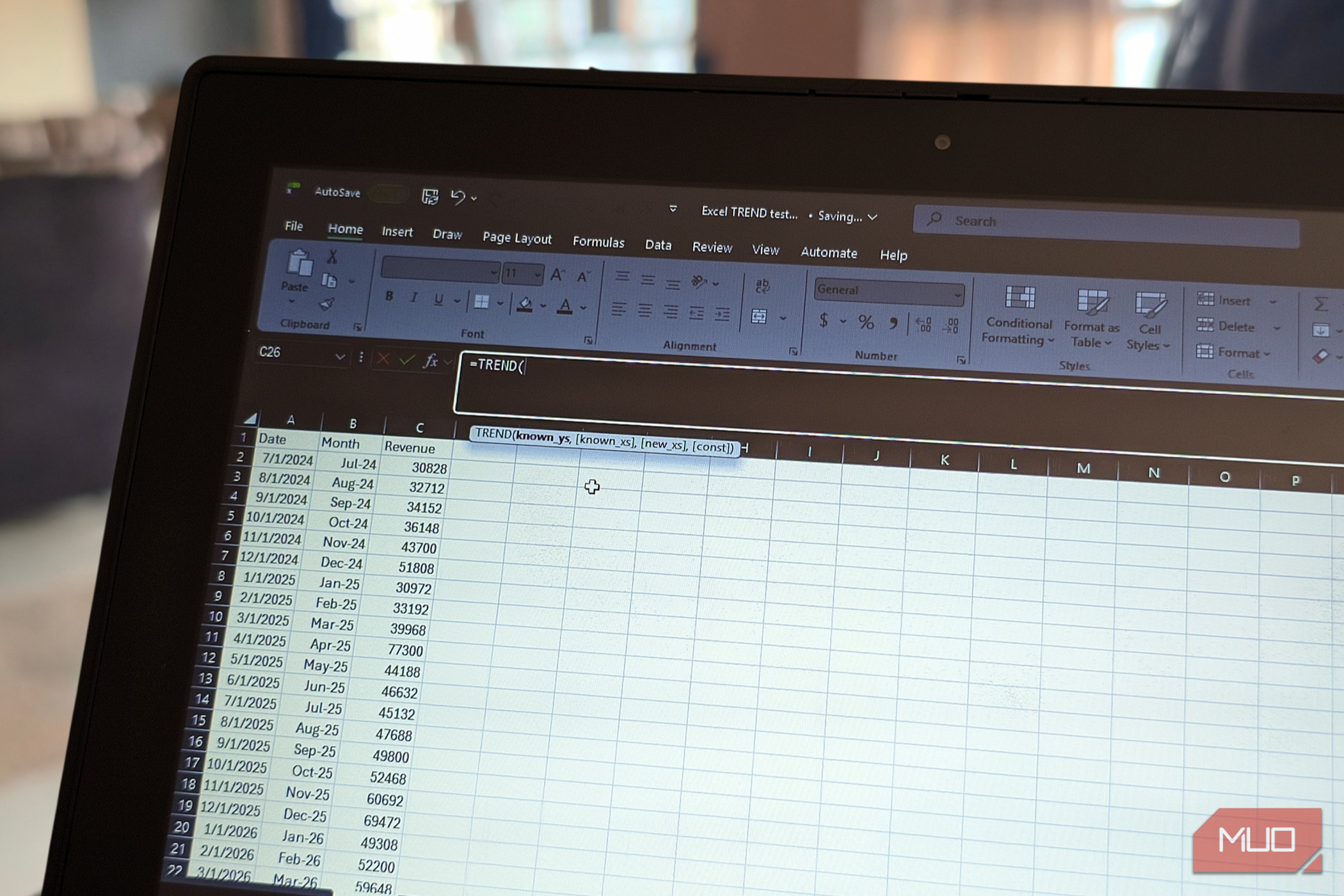
You might assume that you need complex statistical software or manual regression formulas to predict how much your business will earn over the next few months. However, with modern dynamic arrays in Excel for Microsoft 365 and Excel 2021 or later, you can enter a single formula into a cell and instantly project months of future revenue. You probably already have all the data you need, too. As long as you have revenue figures covering a sufficient, continuous period, you’re all set to use Excel’s TREND function. Forecast revenue with Excel’s TREND function One formula is all it takes to project months of future sales Excel’s TREND function uses linear regression to identify the relationship between an outcome or metric you want to predict and the factors that influence it. In simple terms, it finds a straight line that best fits your existing data using the equation y = mx + b . In this equation, y represents the dependent variable (such as revenue, prices, scores, or expenses), x represents the independent variable (such as time, advertising spend, study hours, or distance traveled), m represents the slope, and b represents the intercept. Once Excel establishes this relationship, it can estimate new values for your dependent variable, such as future revenue, based on new values for your independent variable, such as upcoming months. For example, let’s say you have 24 months of sales data on your worksheet, with the timeline running from A2:A25 and the corresponding revenue figures in B2:B25 . You now want to forecast revenue for the next twelve months, with the future months entered in A26:A37 . In cell B26, enter the following formula: =TREND(B2:B25,A2:A25,A26:A37) If you’re using Excel for Microsoft 365 or Excel 2021 or later, press Enter, and the formula will automatically spill twelve forecast figures into the cells below, provided those cells are empty. The function’s arguments follow a straightforward pattern: | Known_y’s | The first argument contains your existing revenue figures and is required. | |---|---| | Known_x’s | The second argument contains the corresponding timeline values, such as months. Although this argument is optional, Excel will assume sequential periods if you leave it out, using the array | | New_x’s | The third argument contains the independent variable values for which you want Excel to predict new revenue figures. In this example, those are the upcoming months listed in | | Const | This final argument accepts | If you’re using an older Excel version without dynamic arrays, you may need to select all twelve output cells before entering the formula and then confirm it with Ctrl+Shift+Enter. Common TREND function mistakes If your forecast looks off, one of these issues could be to blame It’s quite easy to get the TREND function to work. However, a few easy-to-miss mistakes can throw your results off. Remember that TREND expects your known_y’s (historical revenue) first and your known_x’s (the timeline) second. If you swap them, Excel will treat your timeline as the dependent variable and revenue as the independent variable, which is the wrong relationship and can only lead to unrealistic results. This is an easy mistake to make if you’re familiar with FORECAST.LINEAR, which uses a different argument order. Another common problem is working with incomplete or inconsistent data. Before forecasting, check your historical revenue range for blanks, errors, and missing periods. TREND doesn’t automatically skip missing observations, so you may need to clean your messy Excel data before using the function. Otherwise, your formula could return common Excel errors or produce a forecast based on data that doesn’t accurately represent your sales history. You should also make sure your timeline reflects the actual sequence of months. If your sales figures cover January, February, March, and May, for example, treating those observations as four consecutive months would ignore the missing April figures and distort your forecast (unless you don’t sell in April). Use actual Excel dates or consistent period numbers to ensure the function accounts for the correct intervals between observations. Keeping your ranges contiguous is important, too. Selecting individual cells, such as B2 , B4 , and B12 , instead of a continuous range, such as B2:B12 , can lead to problems if you intend to pass those cells as a single argument. Use the appropriate ranges for your historical revenue, timeline, and future periods so Excel interprets each argument correctly and returns the expected forecast values. Finally, don’t assume your forecast is reliable simply because Excel returns numbers. Plot your historical sales and projected figures on a chart, then compare the results with a linear trendline. If the equation displayed on your chart produces slightly different values, check the decimal precision. Excel calculates TREND using its underlying precision, while chart trendline equations may round the slope and intercept displayed on the chart. Those rounded values can produce slightly different results when you use them in a separate calculation. When to use Excel’s TREND function Your revenue might need more than a straight-line forecast TREND works best when your historical revenue follows a reasonably consistent upward or downward trajectory. If your revenue spikes during festive periods, dips during slow seasons, or fluctuates from month to month, a straight line may not capture those patterns accurately. In these situations, your forecast could miss important changes in your business’s typical sales cycle. If your revenue growth accelerates or slows over time, you can explore polynomial regression by supplying multiple predictor columns for your known_x’s, such as time and its powers {(x), (x^2), and (x^3)} . This approach allows you to model curved relationships rather than relying on a straight line. For seasonal patterns, Excel’s Forecast Sheet, one of Excel’s lesser-known AI features, or other time-series forecasting methods may be more appropriate, as they can help account for recurring fluctuations that a basic linear trend won’t capture. You should also watch out for unusual revenue months. A one-off bulk order or an exceptional downturn can pull the trendline away from your typical performance, especially with limited historical data. Investigate these outliers before deciding whether they should influence your forecast, as they may represent unusual circumstances rather than a pattern you’re likely to repeat. Make sure your numbers tell the right story Excel’s TREND function can save you time and give you a practical starting point for revenue planning. Although it can’t account for a new competitor, an upcoming price change, or a shift in customer demand, it can give you a baseline prediction to work from. Enter arguments in the correct order, keep your data ranges consistent, check whether your sales patterns follow a linear trend, and validate your results against chart trendlines. With these checks in place, you can build a useful revenue forecast from your existing sales data, even if it can’t account for every factor that might influence your future earnings.