Summary
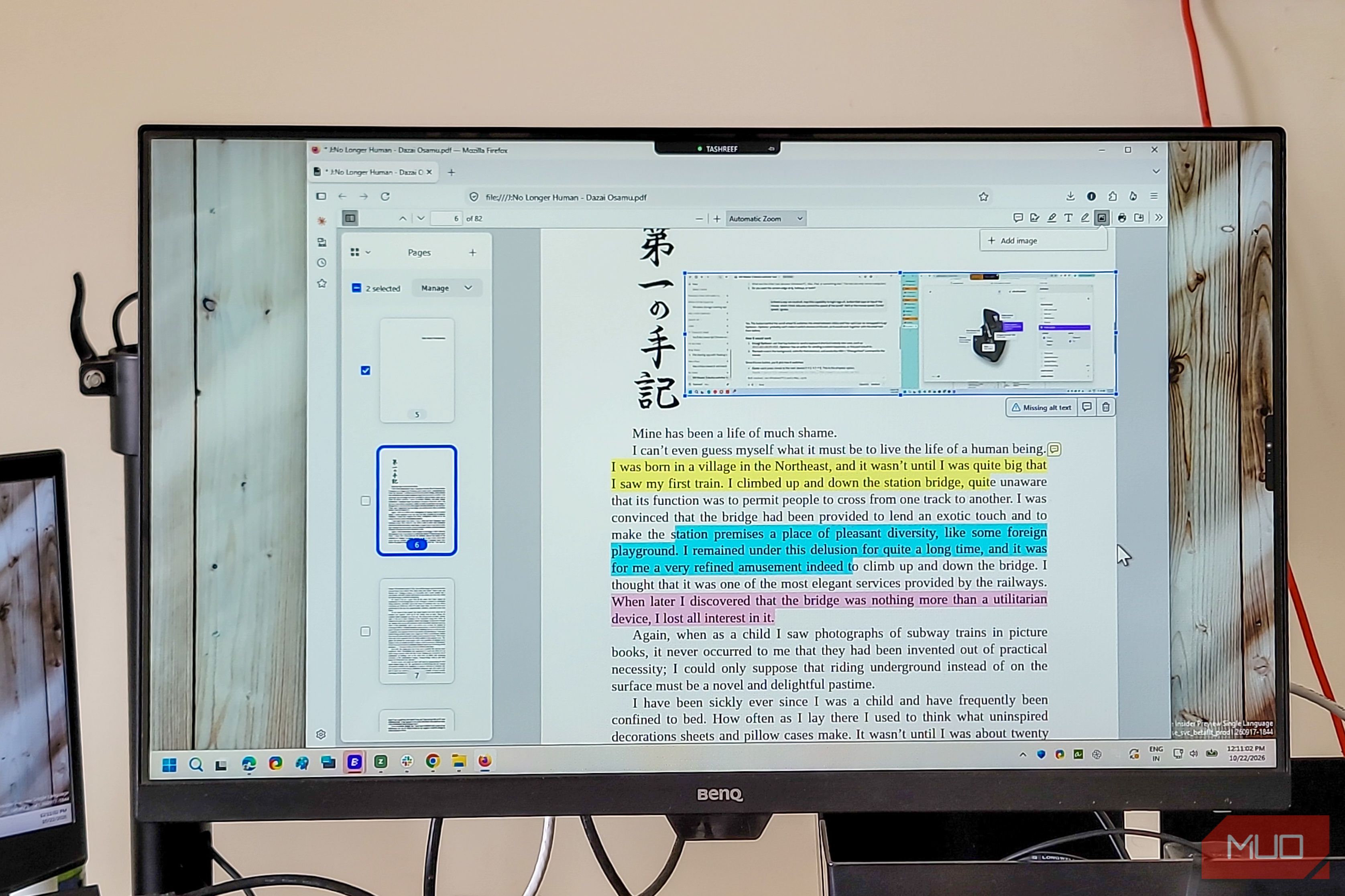
Most web browsers, including Chrome and Microsoft Edge, let you do basic PDF editing. You can view PDFs, annotate them, and then print them to save in a PDF format. Firefox, on the other hand, has taken its PDF editing features a bit too seriously and now offers an advanced PDF editing suite built right into the browser. From adding text to creating signatures, Firefox is slowly becoming the PDF app I used to pay for. The basic tools Firefox’s PDF viewer has more than meets the eye Firefox shows a Tools menu in the top-right corner of a PDF page with some useful options that go beyond just viewing. For instance, the Presentation Mode opens the PDF in full screen and lets you scroll through it one page at a time. It’s great for when you’re sharing your screen in a meeting and don’t want the toolbar clutter. Then there’s the Current Page option, which gives you a unique URL for the page you’re viewing. You can bookmark it to jump straight to a specific page the next time you open the same PDF. Small feature, but surprisingly handy when you’re working through a long document and need to pick up where you left off. You can also change how pages are displayed. No Spreads shows single pages, Odd Spreads shows pages in pairs, and Even Spreads shows page 1 alone as a cover and then pairs up the rest. Finally, there are the navigation basics. You can jump to the first or last page, rotate pages, and switch between vertical, horizontal, and wrapped scrolling. Advanced PDF editing Highlight, annotate, add text, and insert images Beyond the basics, Firefox has turned its browser into a proper in-browser PDF editor. From the top-right toolbar, click the Highlight icon to highlight a selection. You get to choose from different colors and adjust the thickness of the brush. If you need to change the color after applying a highlight, click the highlight and pick a new one from the dropdown. Selecting a highlight also brings up a Comment button, letting you attach notes to specific sections. There’s a Delete button too, so you can clean things up if you’ve gone overboard. Chrome and Edge offer similar highlighting, so this part isn’t unique to Firefox. What is less common is the ability to add text. No, you can’t modify the existing text in the PDF, but you can place additional text anywhere on the page in different colors and sizes. I’ve used this to add missing dates to invoices and to drop quick notes on reference documents before sharing them. It’s a small thing, but it saves you from opening a dedicated PDF editor for a two-second job. You can also add images to your PDF. Click the Add Image option in the toolbar, choose your file, and place it wherever you want. Firefox even gives you the option to add alt text manually, or you can enable Create alt text automatically and let the browser generate one for you. Adding signatures Sign documents without leaving your browser If you often need to sign documents online, Firefox’s built-in signature feature is probably the only thing you need. This has saved me from the hassle of installing a standalone PDF editor just to sign a document. To add a signature, click Add New Signature in the toolbar. You get three options: type your name and let Firefox turn it into a signature, draw one freehand, or upload an image of your scanned signature. Each signature can have a description and a comment attached to it. Once you’ve created a signature, Firefox saves it for future use, so you don’t have to recreate it every time. When you’re done, click Save to download the PDF with all your changes intact. I wouldn’t rely on this for legally binding contracts, as Firefox’s signatures aren’t certified e-signatures. But for everyday paperwork like rental agreements, school forms, or approval sheets that need a name on them, it works well enough. Page management & AI Manage pages and chat with your PDFs The PDF editor also handles the boring but necessary bits of managing pages quite well. From the left pane, you can select pages to copy, cut, or delete them. You can also export a few pages from a large document, so you can share just the annotated pages while keeping the original file untouched. What’s more interesting is that Firefox’s built-in Chatbot feature works inside PDFs too. Highlight a section and click the Chatbot option to summarize the document, explain a sentence, create quizzes from the content, or proofread sections. Firefox doesn’t offer its own AI, so you’ll need to connect your preferred chatbot like Claude, ChatGPT, or Gemini to get answers. I use this mostly for summarizing research papers and proofreading sections of long reports. It’s not a replacement for reading the whole thing, but when you have a 40-page document and need to quickly grasp the key points, the chatbot shortcut saves a lot of scrolling. Firefox’s PDF viewer won’t replace a full editor, but it doesn’t need to Firefox’s built-in PDF viewer can’t modify existing text in a document, so there’s still room for a full-fledged PDF editor. I don’t expect Firefox to support that anytime soon, if ever. But for the things most people do with PDFs on a daily basis, annotation, highlighting, adding text and images, signing documents, and rearranging pages, the built-in viewer can replace a paid alternative without installing anything extra.