Summary
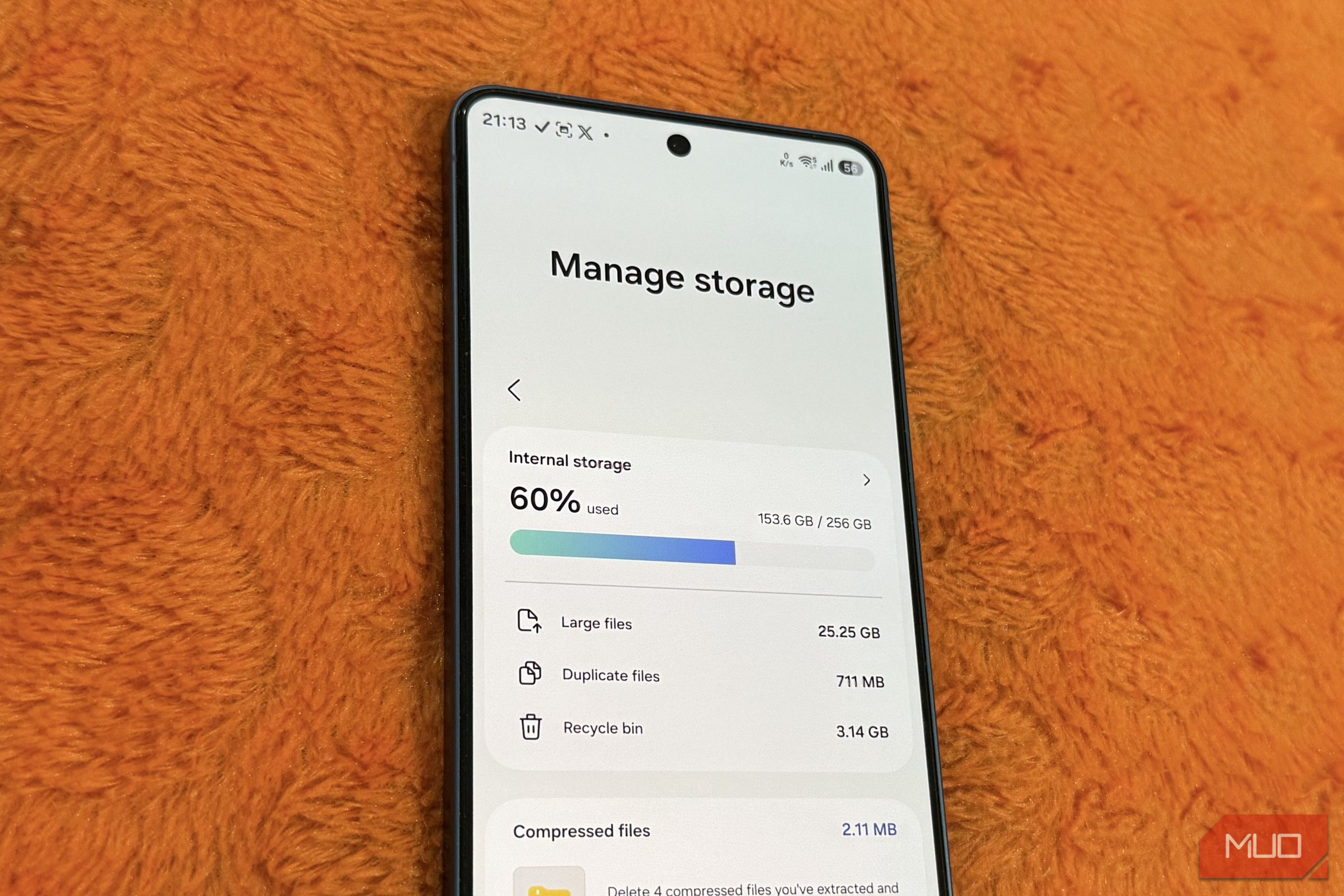
Fixed internal storage with no SD card slot is a recipe for disaster. Sadly, though, that’s the reality on most phones now, including my Galaxy S26. But all hope is not lost. Galaxy phones do come with useful tools for freeing up storage space, so you don’t need third-party apps to help you with the storage situation. I never bothered using these suggestions until recently, but after seeing how much space they helped me reclaim, I can’t stop talking about them. One UI’s storage menu shows more than just a simple breakdown Go beyond the basics Every Android phone comes with a storage menu, but they’re usually pretty basic. They show a breakdown of how storage is used across apps, games, photos, videos, documents, and other files. That tells you where your storage is going but doesn’t actually help you clear it. Galaxy phones do it differently. If you go to Settings > Device care > Storage, you’ll see various suggestions to free up storage space. At the top, you’ll see three categories: Large files, Duplicate files, and Recycle bin, each labeled with exactly how much storage it’s taking. Tap into any one of them and you’ll see a list of files. From there, select anything you don’t need and delete it. This is just the start, though. Scroll further down in the storage menu, and you’ll see sections like old media files, installation files, downloads, pre-edit backups, compressed files, unused apps, and old app data. Most of these are pretty self-explanatory, but each section also includes a brief description of what it includes. So yes, the storage menu is essentially doing the same thing the “Clean” tab in Files by Google app does, and since it’s built-in, there’s no need to install anything extra. If you don’t see a specific section like “Compressed files” or “Other app data,” it means One UI couldn’t find any files that fall into that category. Not everything that’s old is useless, of course. But these sections let you see files that’ve been on your phone for months, so you can review them easily from one place. On my Galaxy S26, going through all these suggestions helped me claw back close to 12GB. Most importantly, I didn’t lose any important files or apps while doing this. Don’t forget about those “Other files” This is where the real clutter hides One UI’s storage cleanup suggestions are helpful, but they don’t cover everything. If you go to Internal storage and check the full breakdown, you’ll also see the “Other files” section. Tap it, and you’ll see three subsections: Pre-edit backups, Pending files, and Uncategorized. Pre-edit backups are older versions of photos and videos that Samsung keeps every time you edit something. When you overwrite edits on an image or a video, the Gallery app keeps the older versions as a backup, in case you want to undo those changes later. Most of the time, you don’t need these backups, and thankfully, you can easily delete them from the Other files menu. Pending files are a little different. These are downloads, uploads, moves, or deletions that never finished for some reason. It could be a download that stopped halfway through or an upload that didn’t complete. Since these files are technically still in progress, they come under this section. The big catch here is that you can’t remove these files directly from this menu. You’ll need to tap the info icon next to each file in this section to see where it’s located, then use the Files app to delete them manually. Finally, the Uncategorized section is the catch-all for everything else that doesn’t fit into any of the other two categories. These could be temporary files or cached data that won’t show up inside the Gallery app or anywhere else, but are still stored on your phone. Nine times out of ten, you don’t need any of it. You can see where they are stored and delete them manually using the Files app. For me, deleting these “Other files” helped free up 15GB of storage. This number will obviously be different for you. It all comes down to how long you’ve been using your Galaxy phone and when was the last time you did a cleanup. There’s still more to do… The above suggestions are helpful, but there’s still more you can do. You can use Android’s app archiving feature to reduce the size of apps you aren’t using but don’t want to delete. For the rest of your apps, deleting cache data is a great help. Doing these things won’t affect your personal data, so there’s no reason you shouldn’t try.