Summary
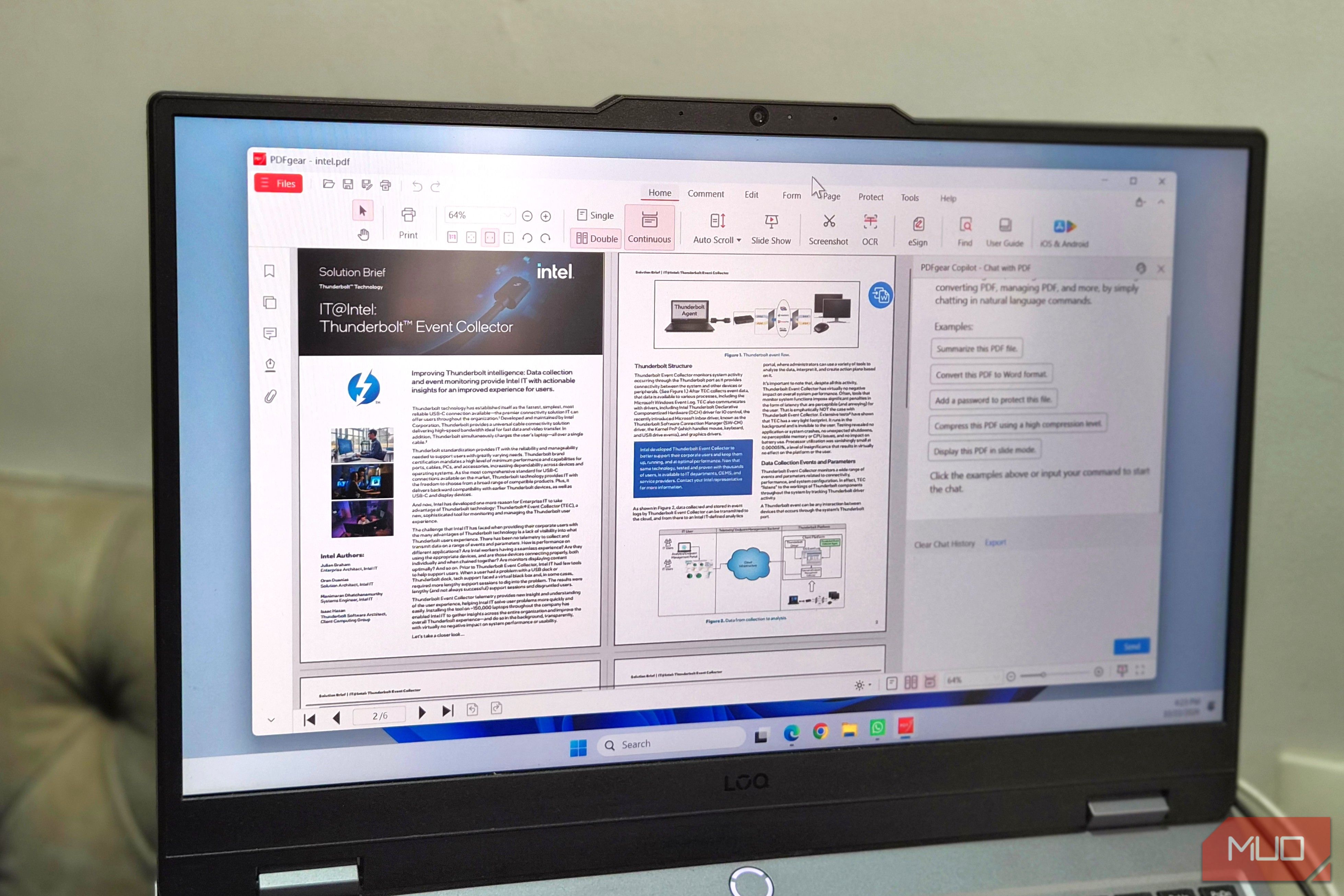
Until a few weeks ago, I had three different apps on my PC for working with PDFs. I used Sumatra PDF to view documents, LibreOffice Draw to edit them, and PDF24 to convert and compress files. It worked, but it also meant I had to switch between apps to get the job done. That changed when I tried PDFgear. It can do almost everything these three apps can and it’s completely free. PDFgear lets me view, edit, and create PDFs for free Free doesn’t mean stripped-down There’s no shortage of good PDF apps for Windows, but I went with PDFgear because it doesn’t require an account and has pretty much every useful tool I need. PDFgear can work as a PDF viewer app, and yes, it’s really fast. There are no weird prompts, ads, or distractions when you open a document. At the same time, it offers all the usual options for viewing, printing, annotating, and managing pages. There are also tools for OCR, auto scroll, slideshow, and comments. The editing features are the main reason to try PDFgear. You can add or delete text, drop in images, draw shapes, and sign documents. If it’s a form, PDFgear can highlight all the fields to save you some time. It can even add or remove watermarks from a PDF. What I like the most is how easy it is to access everything. Everything is laid out on the toolbar, and you can switch between sections like Home, Edit, Comment, Page, and Form, depending on what you’re doing. Creating new PDFs from scratch is just as easy if you don’t want to use Word or similar other tools. You can start with a blank page and add text boxes, images, signature boxes, and pretty much anything else you want, then export the file as a PDF. It replaces several PDF tools I used to rely on Convert, compress, split, and merge, all from one place Before PDFgear, I relied heavily on PDF24 and online tools for anything beyond viewing and editing the PDF. I’d use them to compress documents, convert them into different formats, and even split or merge PDFs. That’s no longer necessary, though, because PDFgear can also do all of that. Its tools tab lists options for converting PDFs into other formats and vice versa. It supports formats like Word, Excel, PowerPoint, JPG, PNG, and a few more. There are even tools for merging, splitting, and compressing the document. And if you want to secure the document, PDFgear lets you add passwords to a document and remove them in case you want to make a document accessible. The big win here is that everything happens locally. I’m not using an online tool that requires the internet, shows ads, or asks for an account to do something basic. I also don’t have to worry about privacy since I’m not uploading anything to a third-party server. PDFgear’s AI chatbot is the real surprise I didn’t expect to like this You might be able to find a free tool that can do almost all the things PDFgear can, but there’s one feature it likely won’t have, which is AI support. Now, I’m not a fan of AI being shoehorned into every app, but a PDF tool is something where AI can genuinely make life easy. Once you have a PDF open, you can use the chatbot icon in the bottom right corner to summarize it with one click or even ask specific questions about it. It’s powered by ChatGPT, and it’s a huge time saver when you’re working with long documents with hundreds of pages. What surprised me, though, is PDFgear Copilot. It’s inspired by Windows Copilot, and you can use it to interact with a PDF using plain text. You can ask the chatbot to do something basic like start a slideshow of the PDF or change the zoom level. Or you can ask it to convert the PDF to a Word file, or compress the document using high compression. The chatbot opens a dialog box where you can review everything and hit a button to proceed. It’s hard to find flaws… I mostly use PDFgear on Windows, but it’s also available on the web in case you don’t want to install it. I’ve tried PDFgear on Android too, and it’s just as impressive there. Besides, you can use it on iPhone, iPad, and Mac too, if you’re team Apple. Of course, tools like Adobe Acrobat still have some advantages, like better collaboration tools, cloud integration, more capable AI, and better with popular third-party apps. But not everyone needs these things. I certainly don’t. So yes, I don’t see myself needing any other PDF tool as long as I have PDFgear.