Summary
I assumed my Logitech mouse needed Logitech’s app to be anything more than a pointer. To test it, then, I didn’t install Logi Options+ at all and installed X-Mouse Button Control (XMBC), a free Windows utility that promises to enable any mouse’s higher-end capabilities.
Most of what you pay for in a premium mouse comes down to software: per-app buttons, shortcuts, and clever combos. X-Mouse Button Control gives any mouse with up to five buttons that same layer for free, and you don’t need to sign in to the Logitech app and have it run in the background. Within less than an hour, I had a right-click chord changing my volume and a side button closing Chrome tabs and switching virtual desktops. The only thing it couldn’t do came down to the individual mouse I used and how it reports button presses.
Premium mice earn their price in software
A lot of the 80 at launch, and the other mouse I use, Logitech’s MX Master 4 (the follow-up to the stellar MX Master 3), is available for $120. The headline features for these mice (app-specific button customization, Smart Actions, and Flow) are all enabled in Logi Options+, the company’s mouse software.
The Actions Ring, the MX Master 4’s big feature, is software too; it works on older MX mice, and the 4 just adds a haptic click. Of course, the build quality and hardware matter in the price, too. That’s why I buy Logitech mice in the first place: they last and work well. Scrolling, solid sensors, and the new haptics on the MX Master 4, all work as advertised (though the last bit is also software enabled).
My Logitech mouse already worked without Options+
Windows handles the hardware on its own
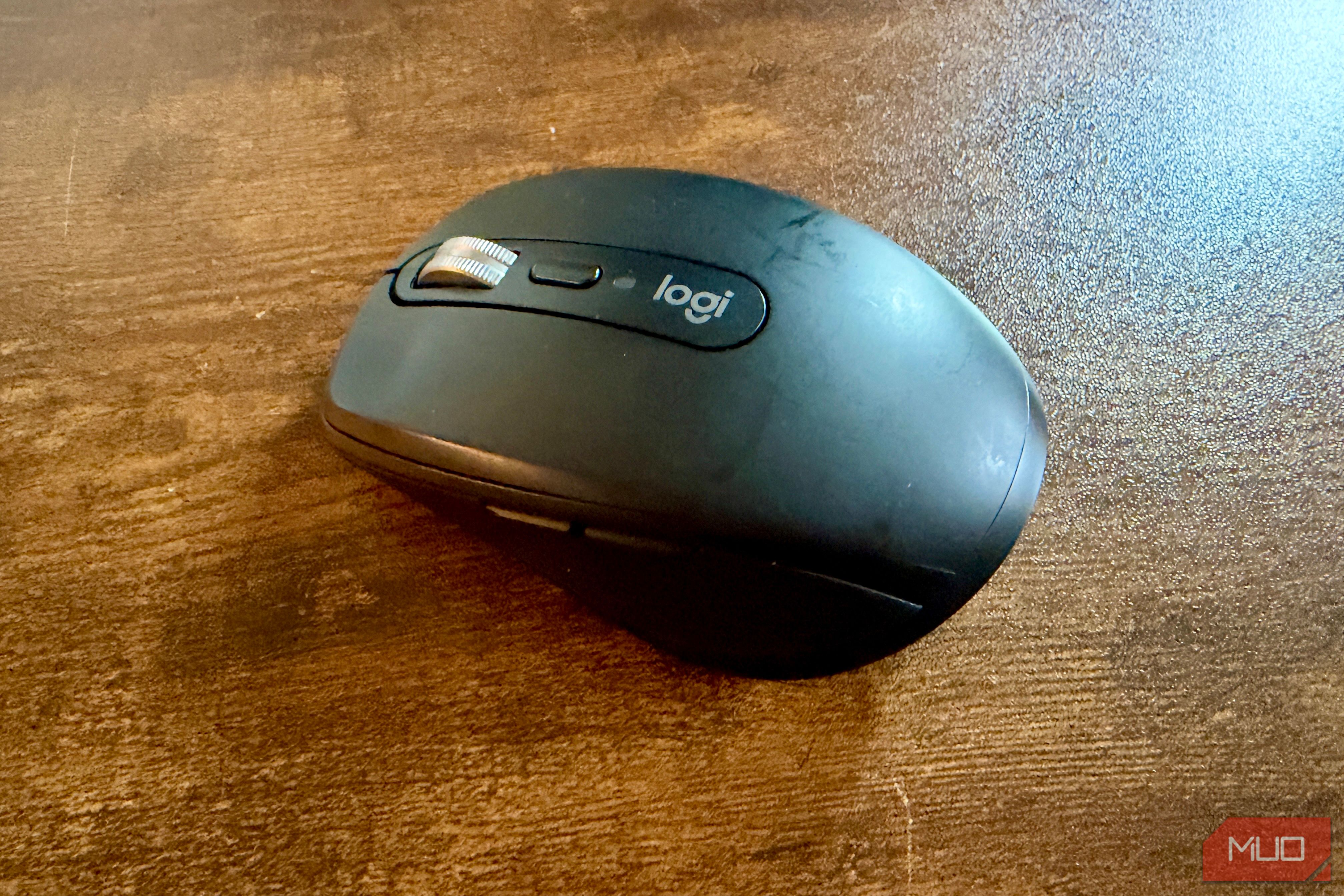
I connected the MX Anywhere 3S to my Windows PC via Bluetooth, and didn’t install Options +. Left and right clicks, middle clicks, back and forward all worked. Middle click opened Chrome links in a new tab and scrolled in Steam. The button behind the scroll wheel switched between notched and free-range scrolling, so that’s also a hardware option.
All of the rest is customization that Logitech provides in Options+, which can be replaced via XMBC. Why would you want to skip Options+, though? It’s a free app, sure, but it’s another background process that syncs to a Logitech account, which is pretty much the definition of bloatware.
And don’t get me started on when it breaks. My MX Master 4 only gets the basic button control since Options+ won’t load onto my MacBook, and the Yeti GX (run through Logitech’s GHub app) has stopped working altogether. I’m deep in tech support for these issues, with no end in sight.
X-Mouse Button Control turns five buttons into dozens of actions
What it is and what it sees
XMBC is a free hobby project by developer Phillip Gibbons, built for Windows 10 and 11, with no bundled software. It works for mice with up to five buttons that connects to Windows via the standard drivers. That means any budget mouse you can get gets the same toolbox my MX Anywhere 3s does.
I tested it real quick to see what buttons it could handle. Pressing a button highlights its row in the app. All five of the buttons on my mouse lit up in the XMBC control center, except for the Tilt Wheel options, which the mouse doesn’t support anyway. XMBC calls the side buttons Mouse Button 4 (the back button on the mouse) and Mouse Button 5 (the forward button). Every dropdown in the panel starts with No Change (don’t intercept).
The coolest thing I was able to do was to set up a chord, which is when you press one button to modify another. I made the right button be the modifier, with the Wheel Up and Wheel Down mapped to my Volume controls. That way, whenever I hold down the right click button and scroll to change the volume. It’s also set so that a plain right-click still does the regular stuff, like bring up context menus.
I also set Mouse Button 5 to Virtual Desktop: Switch Right for an easy desktop switch on the fly, no keyboard shortcut needed (though that still works).
Those changes are just the start. Each button’s dropdown has a ton of options, including launching an app, controlling media playback, copying and pasting, or grabbing a screenshot. If five buttons aren’t enough, layers give you up to 10 complete sets of mappings per profile, and you can flip between them with a hotkey or a mouse button. XMBC shows only two layers out of the box, which keeps the menu from getting overwhelming.
You can find even odder extras, too, in the changelog, like dragging to move or resize windows, a precision mode that slows the cursor while you hold a button, and a built-in mouse jiggler that keeps your PC from going to sleep.
Per-app profiles are like my mouse’s brain
Hover over Chrome and the functionality changes
Profiles can target an app, a window, or a screen region, and by default, they activate as the cursor moves over them, similar to Logitech’s app-specific customizations, but without an account sign in.
I was able to set up a profile that focused on Chrome. I set Mouse Button 5 to close the current tab. It works when I’m hovering over Chrome, but not when I’m on the Desktop, where the button switches desktops.
There’s no built-in “close tab” action, so this uses Simulated Keys, which sends any keyboard shortcut. Anything with a shortcut can live on a mouse button.
Setting it up is super easy. Just open Chrome, then XMBC from the system tray icon (right-click and choose Setup). Click Add under the profile list and pick Chrome from the running apps. With that profile selected in the left pane, set Mouse Button 5 to Simulated Keys and type {CTRL}w
. Then you’ll click OK, and Apply. That’s it.
It gets you most of the way, but not all
My side buttons wouldn’t hold
XMBC’s Button Held feature is supposed to let a single button do different things based on how long you press it. I couldn’t get that to work on my MX Anywhere 3S. The side buttons registered as single taps no matter how long I held them, so the app couldn’t act on them being held. The wheel and main buttons report holds just fine, so this seems to be limited to the side buttons, not an XMBC issue.
If you have a mouse with more than five buttons, of course, since it relies on the standard Windows mouse messages, which tops out at five. Anything beyond that, like Options+ gestures and any extra buttons that need a manufacturer’s driver.
It’s Windows-only, which makes this Mac user sad. The latest release is from 2023, too, and the developer says he’s working on bugs instead of new features. The interface does look its age, though, so that could put some folks off.
Your mouse is smarter than its price tag
I’d love it if I could take advantage of my newer MX Master 4 on my Mac, so I’d want to use Options+ if I could there. XMBC is also free, though, and will never bundle other software. The developer also turns down monetization offers, which is a rare promise for a freeware app.
If you want stuff like haptic feedback, gestures and Flow for moving between a Mac and a PC, though, you’ll need to get the Logitech mouse that supports those features (like the MX Master 4) and use Options+.
Still, for the rest of us, XMBC is a fantastic, ahem, option.
 Logitech MX Anywhere 3S
Logitech’s MX Anywhere 3S packs MX-series features into a compact travel mouse. Its 8,000 DPI sensor tracks on nearly any surface, including glass, and the MagSpeed wheel scrolls up to 1,000 lines per second. It has quiet clicks, pairs with up to three devices, and gets up to 70 days per USB-C charge.
Logitech MX Anywhere 3S
Logitech’s MX Anywhere 3S packs MX-series features into a compact travel mouse. Its 8,000 DPI sensor tracks on nearly any surface, including glass, and the MagSpeed wheel scrolls up to 1,000 lines per second. It has quiet clicks, pairs with up to three devices, and gets up to 70 days per USB-C charge.
 Logitech MX Master 4
Logitech’s flagship productivity mouse adds a haptic Sense Panel and the Actions Ring, which puts shortcuts on a pop-up menu right at your cursor. It also has an 8,000 DPI sensor, a MagSpeed wheel that scrolls 1,000 lines per second, quieter clicks, and pairing with up to three devices. Its 70-day battery charges over USB-C.
Logitech MX Master 4
Logitech’s flagship productivity mouse adds a haptic Sense Panel and the Actions Ring, which puts shortcuts on a pop-up menu right at your cursor. It also has an 8,000 DPI sensor, a MagSpeed wheel that scrolls 1,000 lines per second, quieter clicks, and pairing with up to three devices. Its 70-day battery charges over USB-C.