Summary
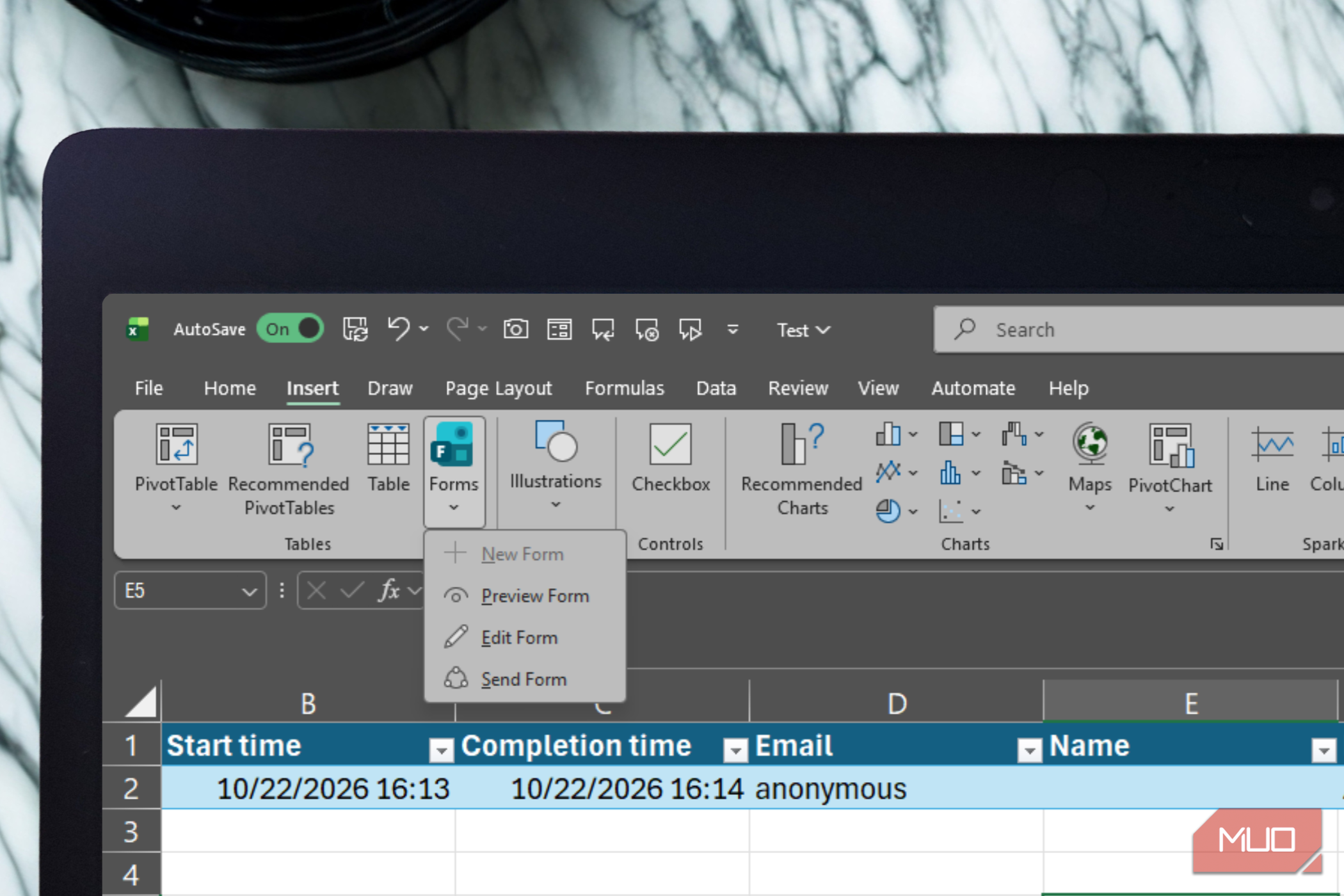
Google Forms used to be my go-to for creating a quick survey, collecting customer feedback, or running a simple poll. It’s straightforward, easy to share, and gets the job done without much fuss. However, I usually end up collecting responses in Google Forms before exporting the Google Sheets file to Excel, where I keep my reports and records. Eventually, I realized there was no real need to collect responses in one workspace suite and then move the data to another when Microsoft Forms works so well with Excel. That integration made me reconsider whether Google Forms was still the most practical choice for the way I work. The same seamless spreadsheet workflow An Excel-native form that syncs just as smoothly as Google Forms with Sheets I know how difficult it can be to move on from Google Forms because it’s so simple to use. You open the builder in your browser or through Google Drive, add your questions, and share a link. Respondents can open that link in any browser, fill out the form, and you can link their responses to a Google Sheets spreadsheet for easy tracking. The whole process is so simple. However, Microsoft Forms isn’t exactly complicated or clunky either, especially if Excel is already central to your workflow. Instead of building a form separately and connecting it to a spreadsheet afterward, you can open an Excel workbook stored in your OneDrive for work or school and select Insert > Forms > New Form. This launches the form builder in your browser and connects the form to that workbook. If you’re on Excel Version 2410 (Build 16.0.18227.20000) or later, you can even open a live-connected response workbook directly in your desktop app. If you’ve used Google Forms before, Microsoft Forms should feel familiar, since the menus and options are laid out in a similar way. The response workflow is also similar: as responses come in, they appear as rows in an Excel table, with each question mapped to its own column, much like responses from Google Forms populate a linked Google Sheets spreadsheet. The catch is that not every Forms-to-Excel workflow behaves the same way. Any form you create through OneDrive for work or school, Excel for the web, SharePoint, Teams, and certain other Microsoft 365 entry points can maintain a live workbook connection. Microsoft also offers a Download a copy option, but that creates an offline Excel file with no ongoing connection to the form. If you want new responses to keep appearing automatically, you need to make sure you’re using one of the connected workbook options. If you’re managing requests across several office locations, instead of having employees edit a shared spreadsheet, you can create a form with fields for location, issue type, description, and urgency. Employees can submit requests from their phones, and their responses will automatically populate the connected workbook. Your team gets a centralized record without giving everyone access to the spreadsheet’s formulas, formatting, or other sensitive information. The same approach also works for customer inquiries, questionnaires, and just about any other type of form you want people to fill out. You can take the process further with Power Automate. For example, a new submission could trigger an email notification, start an approval process, or update another supported system. Of course, this setup is most useful if you already depend on Excel. If you only collect responses and don’t need to move the data elsewhere for analysis, there’s little reason to switch from Google Forms. However, if you already work with Excel, OneDrive, SharePoint, and Outlook, Microsoft Forms fits naturally into that workflow without requiring you to build an entirely separate data pipeline. Excel takes things further More room for advanced analysis, automation, and integration Consider a business that collects customer details through a form before preparing proposals. With the responses stored in Excel, the business can use that data for a Word mail merge, automatically populating a document template with customer names, addresses, and other relevant information. You can do something similar in Google’s ecosystem, but you’ll generally need a third-party add-on or an Apps Script workflow, and the latter may require you to write code. The same applies to more advanced data analysis. Google Sheets has plenty of tools for filtering, querying, and summarizing data, but Excel offers powerful functions such as PIVOTBY and GROUPBY, which make it easier to group, aggregate, and analyze large datasets directly with formulas. Excel’s Power Automate can also take a Microsoft Forms submission and feed it into workflows involving Excel, Outlook, approvals, and other supported services. Microsoft Forms also supports pre-filled links, although this feature isn’t unique to Microsoft’s form builder. Essentially, you can share a URL that opens a form with certain fields already completed, such as an address, department, or reference code. This is useful when you already know a customer’s business name, an employee’s department, or another detail and don’t want respondents entering it again. Of course, Microsoft Forms with Excel isn’t perfect either. Direct, automatic Excel integration depends on your account type and how you create the form. Microsoft reserves the tightest Forms-to-Excel integration for Microsoft 365 work and school accounts. If you use a personal Microsoft account, you can still create forms and export responses to Excel, but some of the live-connected workbook features I’ve described depend on organizational storage, such as OneDrive for work or school or SharePoint. Another consideration is that a form may be accessible to your respondents while its linked workbook remains restricted to specific employees. That separation is often desirable, but it also means you need to configure your OneDrive and SharePoint permissions correctly. Otherwise, a colleague may be able to access the form but not the underlying data, or an automated workflow may fail because its owner no longer has the required access. The takeaway is to choose between these tools based on what happens after someone submits the form, not just how quickly you can build it. If your responses eventually need to become reports, documents, automated workflows, or part of a larger Excel-based process, Microsoft Forms can make that next step considerably easier. It comes down to what you need to do with your data Google Forms remains a sensible choice for quick surveys, straightforward sharing, and teams that live in Google Workspace. However, I find Microsoft Forms a better fit for my workflow because I store, analyze, and manage almost all my spreadsheet data in Excel. Neither tool needs to win every category. What matters more is choosing the one that makes it easier to work with the responses after they come in.