Summary
I’ve been using Restic for my Windows backups for a while now, and the reasons I switched to it still hold up. My backups are fully encrypted, the repositories are portable, and I love that the tool is completely transparent. Plus, I’m totally comfortable working in the command line. The real headache came later. Routine backups meant constantly remembering the exact syntax, double-checking schedules, and digging up commands I hadn’t used in months. However, Backrest let me keep Restic doing the actual backup work while handling all that repetitive admin from a browser. Restic didn’t need replacing; my workflow did It’s really the same engine with a dashboard attached Installing Backrest on Windows was a breeze. I stuck with the default local port (9898) and checked the box to let it launch automatically whenever I log in. The app instantly opened at localhost in Chrome, where I named my instance and jumped right into setting up the repository. If you’ve used Restic before, this next part will feel incredibly familiar. Backrest still asks for a repository location and password, which means it isn’t inventing some weird new backup format or trapping your data in a proprietary system.
I pointed it to an external drive at D:\Backrest-Article-Repo
- I turned on Auto Unlock since this is a single-PC setup
- I generated the repository password If you replicate this setup, make sure to save that password somewhere safe. If your computer crashes and you lose the only copy of that key, your perfectly healthy, encrypted backup becomes completely useless. I also left repository-wide Forget disabled and scheduled Check and Prune every 30 days. Plan-level retention makes more sense for how I’m using this setup, while Check verifies repository integrity and Prune clears out data that old snapshots no longer reference. I already knew those jobs from Restic, but having them sitting in a settings page I can come back to later is a lot nicer than rebuilding the commands from memory. Windows still has File History for versioned file backups, and it works fine if that’s all you need. I built a backup policy without translating it into commands The plan is the part I’d actually revisit Backrest adds one more layer above the repository called a plan. Think of it this way: the repository tells Backrest where your backups live, while the plan decides what gets backed up, when the job runs, and how long old snapshots stick around. For my Documents_Backup plan, I pointed it at a test folder under my Documents directory and excluded the Cache subfolder.
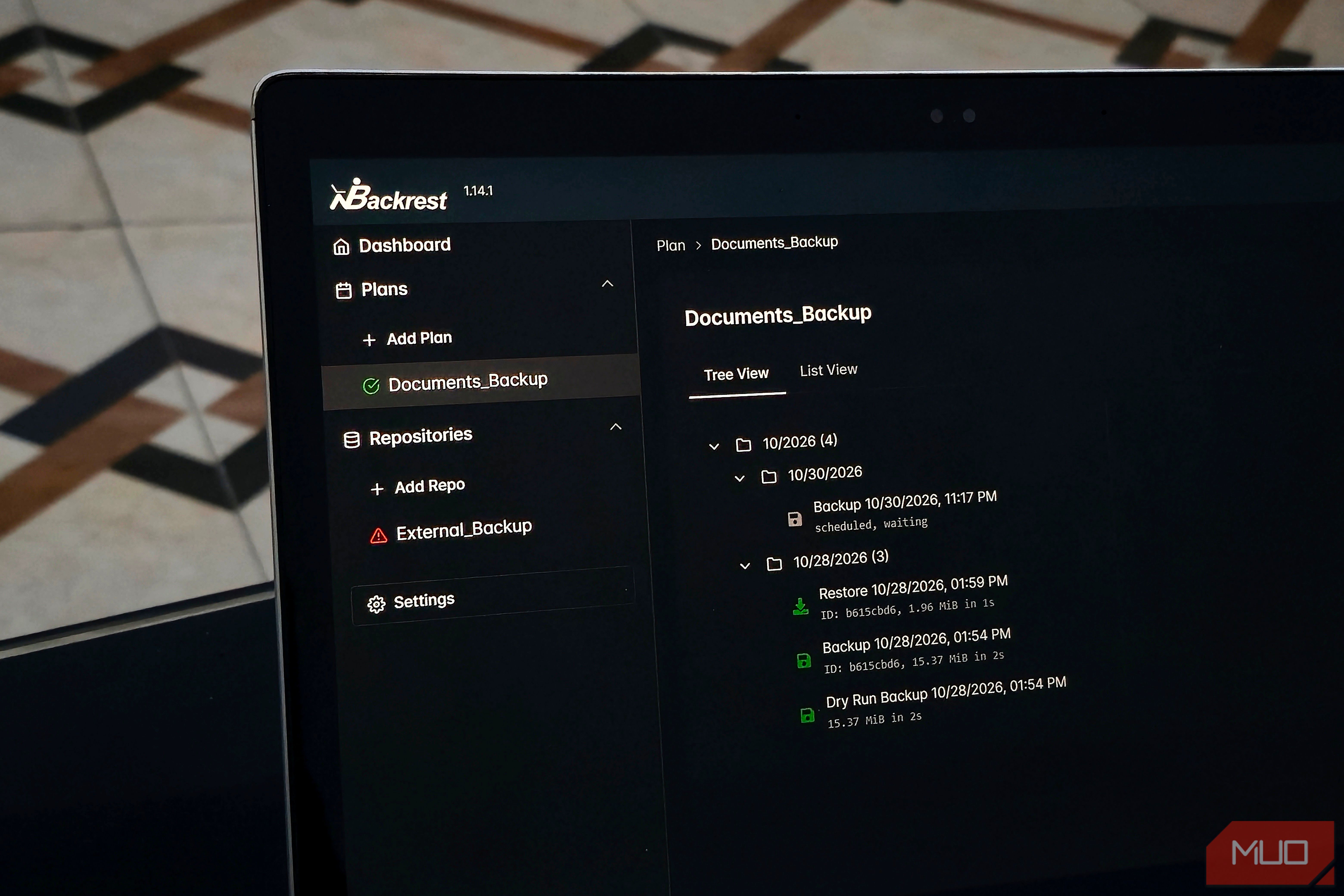
- Schedule: I set it to run every 12 hours based on my local clock.
- Retention: I configured it to keep 24 hourly, 30 daily, 4 weekly, and 12 monthly snapshots. The nice part is that the whole retention policy is sitting there in plain English. Six months from now, I won’t have to decipher a complex restic forget command just to remember what I was trying to do. Automating tasks on Windows can be a pain because you usually end up dealing with Windows Task Scheduler—even if a good front-end wrapper makes it a bit more bearable. For example, FreeFileSync is another great file-backup tool, but to automate it, you’re forced to mess with Task Scheduler or RealTimeSync. Backrest, on the other hand, keeps your schedule right next to your backup settings, which is exactly where it belongs. Before actually backing anything up, I used the Dry Run Backup feature. Backrest scanned eight files totaling about 15 MB without creating a snapshot, letting me double-check my work first. Once everything looked good, I hit Backup Now to trigger an immediate snapshot, all while my next automatic backup stayed queued up for the next morning. I’ve also used Duplicati for automated backups through a browser interface, but Backrest was the clear winner for me because I wanted to keep Restic’s bulletproof engine under the hood. The restore test is what sold me A green checkmark wasn’t enough A successful backup log only proves that the job finished—not that your data is safe. Before relying on it, I wanted to make sure I could actually recover a file without digging through manuals or guessing at restore commands. Backrest’s Snapshot Browser lets you dive straight into your backed-up folder tree right from your plan history. When I checked, my excluded Cache folder was gone, and the eight files I wanted were exactly where they belonged. To test it out:
- I picked a 2 MB JPEG.
- I clicked Restore to path.
- I sent it to a temporary Backrest-Restore-Test folder in my Downloads. Backrest instantly reported a successful restore, and the image popped right up in Windows File Explorer. That restore test also gave me a better sense of what using Backrest day-to-day would look like. The operation tree shows whether jobs actually ran, Dry Run Backup lets me check the scope before committing anything, and the repository already has integrity checks and pruning on its own schedule. If I need finer control, Run Command is still there for dropping back into Restic. To be fair, there’s still some Restic vocabulary to learn. Terms like Repository, Forget, Prune, and the various retention buckets are easier to parse if you’re already familiar with Restic. Plus, setting up remote cloud storage is always going to take a bit more legwork than just plugging in an external drive. But Backrest gives these advanced features a clean UI and clear context without dumbing down the underlying system. Honestly, I prefer that over a overly simplified, glossy interface that hides every important decision from you. A local external drive also shouldn’t be your only copy. A proper 3-2-1 backup strategy still calls for another copy on different media and one off-site, regardless of how polished the software managing the first backup is. Boring is a compliment for backup software I don’t plan to spend much time in Backrest now. If I only open it to investigate a failed run, adjust a policy, or recover a file, the setup is doing the job I wanted from the start.