Summary
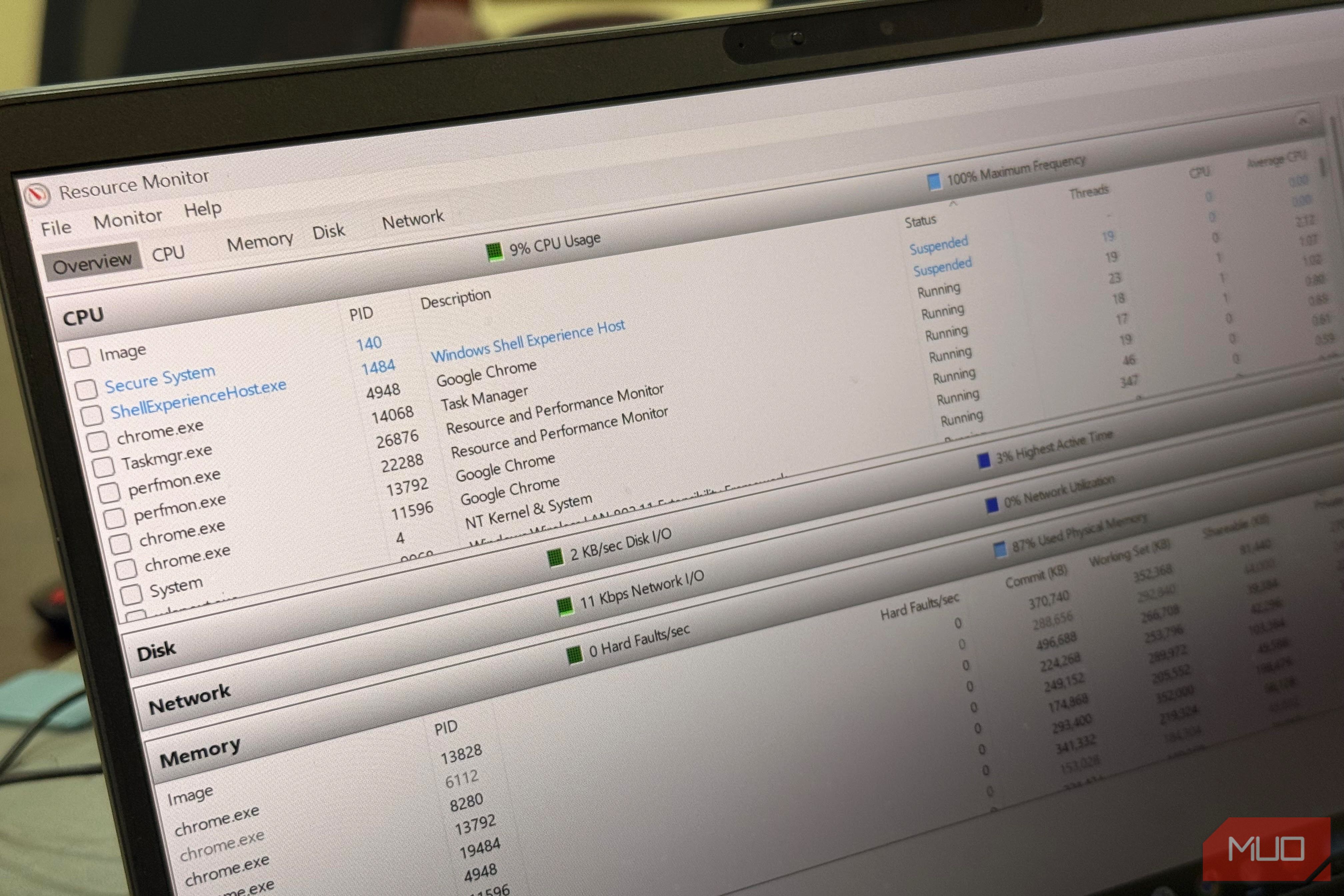
There’s often this big, scary percentage on Task Manager whenever my PC is slow. The problem is that this usually leaves me guessing what the real cause may be. Do I restart, reinstall, or blame my antivirus? I’ve lived with this confusion for years, so I started opening Resource Monitor. This tool is built into Windows but seems rarely touched. Resource Monitor has pointed me to an actual file, connection, or program that triggered the spike. It can help you fix the problem without the typical guesswork. The 100% disk scare A drive can be maxed out and barely moving My laptop’s hard drive was maxed out on Task Manager’s Performance tab and just underneath, it produced accompanying numbers underneath that told a different story. Reads: 1.3MB/s, Writes: 0.4MB/s, and an average response time of 1,240ms. I assumed my hard drive was dying. A hard drive moving data in a straight line can top 80MB/s, and mine seemed to be barely moving. Even though active time shows the amount of time the drive had work waiting, it doesn’t tell you how much work got done. Task Manager’s Processes tab showed Steam as the busiest process, which didn’t explain the slow speeds. I launched Resource Monitor (press Win+R and type resmon) and navigated to the Disk tab. When I expanded Disk Activity, I could see the actual files, which revealed several small files being read and written inside a steamapps\downloading folder. I could clear every other thing from the lower pane by ticking the box beside steam.exe. The problem this time was that Steam was unpacking a game patch; one of the worst jobs for a hard drive. There wasn’t anything wrong. About twenty minutes later everything was back to normal, with the response time under 20ms. Now I reserve big updates for bedtime. The upload I never asked for Following a crawling connection back to one program Sometimes, despite video calls stuttering and pages crawling, Task Manager may not identify anything that looks alarming. Once, when I experienced this, I had OneDrive at the top of the Processes tab. I got the better clue from Resource Monitor’s Network tab. It revealed that OneDrive.exe was sending close to 480KB/s across nine open connections. I could easily trace the addresses to Microsoft through a quick lookup. On my home connection, uploads top out at about 5Mbps, so about 600–625KB/s and OneDrive held on to most of this. Once uploads are jammed, downloads can feel slow. There was also a svchost.exe line that was sending, but it was just a trickle and only to 192.168.x.x addresses on my network. On Resource Monitor it only said svchost, but I got clarity by matching its PID against the Services pane displayed on the CPU tab. It turned out to be Delivery Optimization, and I left it alone since my Delivery Optimization settings were set to local network only. While it’s not possible to know who else is on the Wi-Fi from Resource Monitor, you can see where the traffic goes and how fast. The initial symptoms smoothed out within a few minutes of pausing OneDrive from the tray icon. The file that wouldn’t let go Naming the program behind a stuck folder or frozen app One funny scenario I often run into is Windows refusing to eject my USB drive. It is often followed by a message to close any programs that might be using it. Sadly, it never says what the programs are and I end up closing whatever I can think of. Resource Monitor now helps me fix this. I opened its CPU tab and expanded its Associated Handles pane. A handle is a program’s grip on a file or folder. I can type the drive letter (for instance, D:) in the search box to see every process holding something on that drive. Sometimes, it shows me my Edge browser where I’ve opened a PDF. Other times, it may be my computer’s Photos app that I used to view an image from the USB drive. Closing the program usually works. On some occasions, you may have to end that specific task. You can do the same thing using the right-click menu for PowerToys’ File Locksmith. However, Resource Monitor doesn’t involve installing anything. It’s the same treatment when an app is frozen. I right-click the program on the CPU tab and click Analyze Wait Chain. This can identify a stuck disk or another process, and a few times it may be no help at all. A decoder for the names that keep showing up Many times when I hunt for slowdowns on my computer, a specific set of names keeps recurring. In Task Manager, I see the friendly name in brackets while Resource Monitor lists the .exe. | Name | What it’s doing | Usual move | |---|---|---| | SearchIndexer.exe | Windows Search building its file index | Often temporary after large file changes | | MsMpEng.exe (Antimalware Service Executable) | Microsoft Defender scanning files | Allow the scan to finish | | TiWorker.exe (Windows Modules Installer Worker) | Windows Update installing | Finish the update, then restart | | CompatTelRunner.exe (Microsoft Compatibility Telemetry) | Windows checking app compatibility | Runs on a schedule and ends on its own | The Performance tab in Task Manager splits memory into In use, Modified, Standby, and Free. A low Free figure isn’t a problem on its own, because Standby is cached memory Windows can release. On Resource Monitor, there’s no history, which means a spike may be gone by the time you open it. So it’s nice to open and note what it looks like when the laptop is behaving well. For my specific system, this is the disk idling at 1 to 3% active time with a response time of 10 to 20ms. It’s my normal, and when it changes drastically, I may need to investigate.