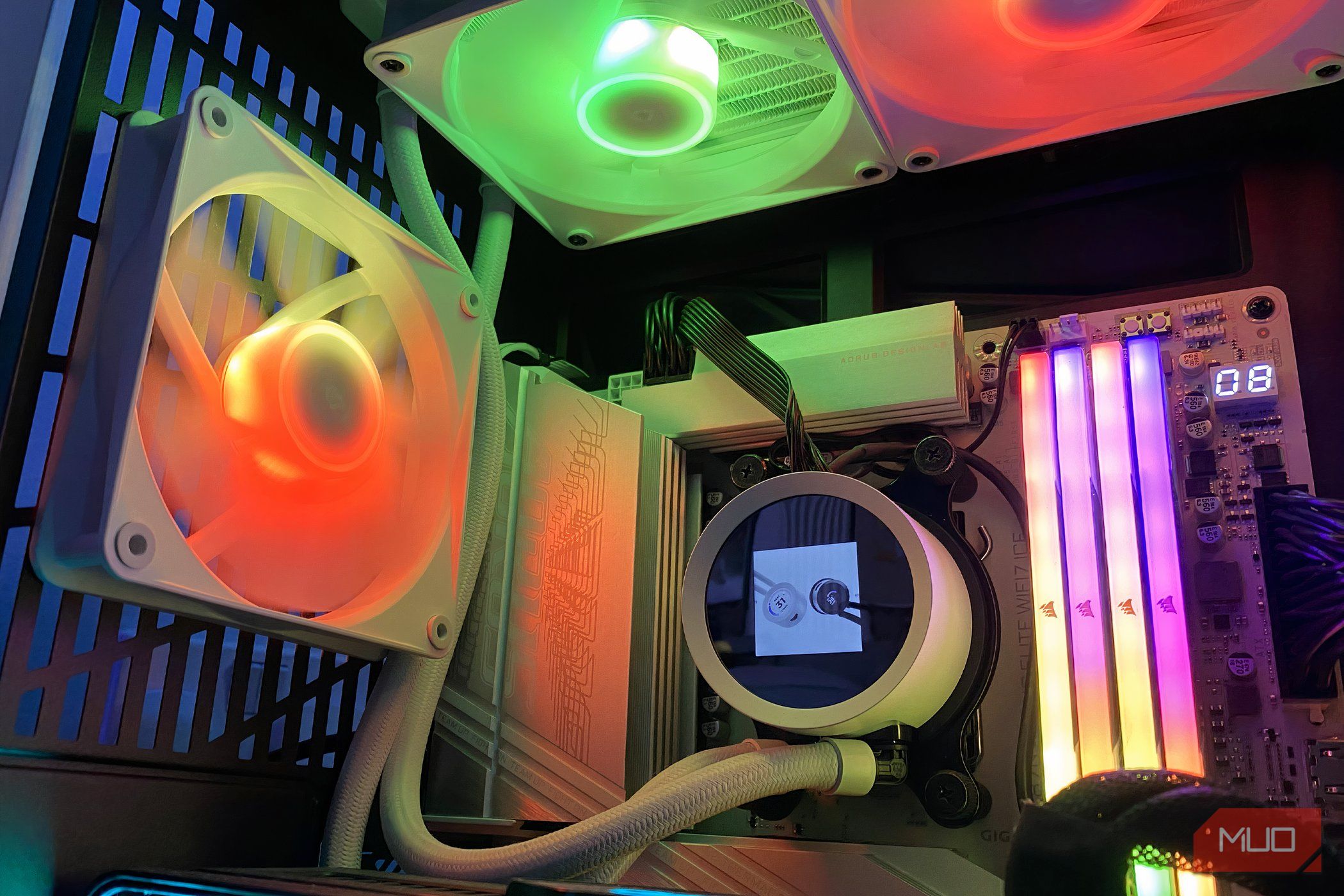
Summary
My Windows 11 PC sounds like a jet because the fans are working harder than they should. They tend to spin up to their maximum when I play a video game or perform heavy tasks like rendering or running a local LLM. What doesn’t make sense is that the short, aggressive fan bursts happen when I’m opening multiple browser tabs. This happens because the default fan curve is tuned for safety rather than optimal cooling or sound. Now, I can adjust fan curves for my PC using different apps, AMD Software: Adrenalin Edition for the GPU, and the BIOS menu for the CPU and case fans, but this setup gets cluttered and becomes a hassle to manage across different platforms. Fortunately, there’s a much more convenient way to manage all your PC fans in one place. It’s with a free utility called FanControl. Why do your fans react to every tiny spike? Short CPU bursts trigger fast ramps that the default curve never smooths out Your CPU constantly shifts between clock speeds, and when opening a new app, let’s say, a browser, the usage spikes. The fans are pre-configured to ramp up when these thresholds are hit; they start spinning fast. However, the CPU usage does drop a few seconds after opening the app, while your fans keep spinning fast. While the fans do eventually slow down, the constant back-and-forth in the speeds ramping up and down makes that whooshing sound, and even though my fans are quiet, so is my room; even the slightest change in RPM is noticeable and bothersome. This is where FanControl comes in. Unlike a basic fan curve app, FanControl offers different settings to address these underlying issues, but you must complete a few steps before setting it up. Clear the BIOS out of the way first FanControl can only take over fans if your motherboard has stopped managing them Your GPU fans are managed by the driver, whereas CPU and case fans are managed by the BIOS. FanControl needs the BIOS to stop managing motherboard fans, which is why you need to disable them there at the firmware level. Specifically, there’s a BIOS setting called Smart Fan Control (the name might be different across motherboards) that adjusts the fan curve. Here’s what you’ll need to do to disable it:
- Open BIOS by pressing Delete/F2 at startup.
- Switch to Advanced Mode.
- Search for Fan Control or a similarly named setting.
- Select all fans and disable Smart Fan Control.
- Set their speeds to 50%. Now that the BIOS settings won’t conflict with FanControl, you can start setting up the fan curve inside the app for optimal sound levels and temperature control. Build your first fan curve Link a temperature sensor to each fan and shape the ramp When setting up FanControl for the first time, the app automatically configures all fan controls and speed sensors, and you can then assign them to their respective components, though some, like the GPU, may appear automatically. I’m using a controller in my system to access my fan speeds, and they show up as a single fan for me in FanControl, but that works too, since this would be configuring all the case fans in conjunction, rather than independently. Then, you have the GPU and the CPU cooler, the components that especially need a custom fan curve, to lower the RPM at low utilization and temperatures, to keep the PC quieter. However, each curve might differ as per the total power draw, airflow, and the room temperature. It’s fall right now, and my PC doesn’t run too hot, so I’ll reduce the fan speeds until the weather changes back. To create a curve in FanControl, follow these steps:
- Download FanControl from GitHub.
- Install the app and let it configure each fan.
- In the bottom-right section, click the + sign to create a new graph.
- Assign the curve to the fan, such as the GPU’s.
- Manually adjust the curve to set the fan percentage at specific temperature thresholds. After making a graph for one component, you can copy it over to the other components, like all the case fans, to create a unified graph. Smooth out the ramps with delays Hysteresis and step delays stop fans from chasing every spike Setting the fan curve is only half the story. Other FanControl settings can make your system quieter by preventing that aggressive whooshing from spikes. Hysteresis: When enabled, how many degrees the temperature moves before the fan speed changes. I recommend a 3–5°C temperature change so you’re sure it’s momentary, which ignores the spikes. Temperatures climbing higher make fans spinning a necessity to cool down the PC. You can find this setting under the graph. Step-up Delay: This setting controls the delay before the fan speeds change, separate from the temperature change. A 3–5 second wait is ideal, giving enough time for temperatures to drop; if not, the fans will start working. You can change the Step-up delay for a specific fan under Controls. Step-down delay: This setting doesn’t prevent noise build-up; it does the opposite, making your fans run longer than they need to after a temperature drop. If temperatures spike again, the fans slow down and speed up again. The step-down delay can be changed under Controls for the specific fan. Keep it quiet without losing cooling FanControl has tons of other features for temperature regulation and keeping your PC quiet, beyond setting a curve and enabling delays in temperature change. The Time Average sensor is a custom sensor that checks temperature over time and smooths out spikes when they happen. You can also create different profiles for maximum performance or for when you want the PC to be as quiet as possible. Since using it, my temperatures have dropped significantly, but the real payoff is how quiet my PC runs now and it doesn’t sound like an airplane waiting to take off every time I take my headphones off.