Summary
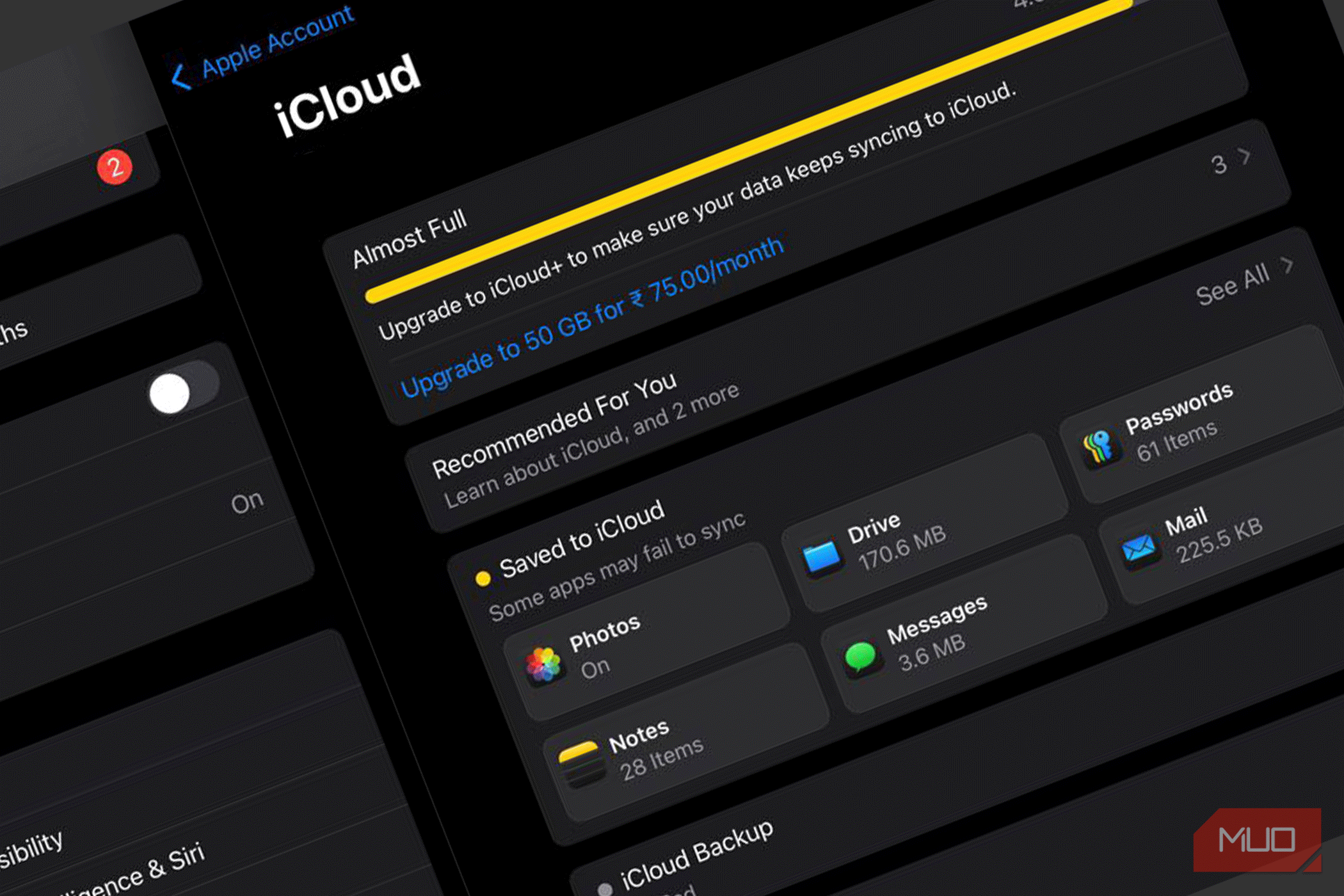
I take a lot of photos and screenshots on my phone, so I always assumed those (plus my videos) were taking up most of my iCloud storage. A few months ago, I upgraded to an iCloud+ plan, which gave me up to 50GB of storage space, but I ran out of it sooner than expected. Now, before paying for more storage, I decided to check what was actually using my space. What I found was something unexpected: there were backups from phones I no longer own and videos I’d forgotten I’d recorded. I checked my iCloud storage breakdown first What was actually using my storage I did not want to delete random files, so I started by reviewing storage space on my iPhone. I opened Settings > [Name] > iCloud and selected Storage (it might be Manage Account Storage on your phone). That page gave me a snapshot of my iCloud usage by category, including Photos, Backups, Messages, iCloud Drive, and apps that store data. This made it easier for me to identify the biggest contributors. I don’t have to assume one service is responsible for everything. It’s worth knowing that iCloud storage and iPhone storage aren’t the same thing. Your iPhone’s storage covers what’s stored locally on the device, whereas iCloud storage includes stuff like synced files and backups. When you delete an app or clear your iPhone’s storage, you don’t automatically get back the same amount of iCloud space. Photos and videos They took the biggest slice of my iCloud storage Photos and videos took a whopping 19.8GB of my precious storage. iCloud Photos keeps every picture and video at full quality across all my devices, so anything I shoot stays in my storage until I remove it. On a free 5GB account, that’s a full tank in no time, and even my paid plan is exhausted way too quickly. To check yours, go to Settings → Apps → Photos and look for the iCloud Photos options. Download and Keep Originals stores full-resolution copies on your iPhone, while Optimize iPhone Storage keeps smaller versions on the device and full-resolution originals in iCloud. The latter helps free up your iPhone’s local storage, but it doesn’t reduce the space your photo library uses in iCloud. I opened my Photos app and started with the easy wins. Screenshots came first: hundreds of them, and I had taken most for articles. I also found some receipts and chats that stopped mattering long ago. In the Albums tab, scroll down to Media Types, tap Screenshots, then select to delete them in bulk. I did the same with videos. I found a handful of long clips took up a surprising amount of space, and most were test recordings. Next, I opened the Duplicates album under Utilities (you’ll find them in iOS 16 and later). It groups identical and near-identical photos, and Merge keeps the best version and discards the rest. I had 1,212 items waiting. When I delete a photo on my iPhone, it doesn’t free up space right away. Everything goes to Recently Deleted, where it sits for 30 days and still counts against my iCloud quota. I opened the album, permanently deleted photos I didn’t need, and reclaimed my space immediately. When you delete photos from iCloud Photos, it also deletes them from your synced devices. If you want some images, make sure to keep a copy beforehand. Old device backups I forgot about I reviewed what I no longer need I’ve been in the Apple ecosystem for more than 12 years now, and I’ve moved to various devices. I have a habit of backing up my data, so when I opened Manage Account Storage → Backups, it showed me every device that has backed up my Apple account, including ones I retired long ago. I found an iPhone I had traded in months earlier and an iPad I had stopped using. Each device was holding gigabytes that I would never restore. If you also wish to review/delete your older backups, tap on the device name, check its size, and choose Delete Backup. When you do this, it will also turn off backups for that device. I don’t mind this because I no longer use those devices and I don’t wish to restore that data. If you also plan to do this, just check the device name and the last backup date first, so you don’t delete your current phone’s backup by mistake. Message attachments and iCloud Drive This came as a surprise The next thing that deserved my attention was iCloud Drive. I opened the Files app → iCloud Drive and sorted my saved items by size. There, I found a folder of finished projects and several copies of the same PDF. I also spotted several files that I didn’t even remember saving or opening in months. Just like the Photos app, the same 30-day rule applies here. So, I made sure to check the Recently Deleted folder under Locations in the Files app. Again, when you delete a file from iCloud Drive, it’s deleted everywhere you’re signed in, so don’t treat it as a local Downloads folder. Most folks don’t even think about their messages until they realize how many years of photos, videos, and GIFs it has been quietly storing for them. If you’ve turned on Messages in iCloud, all your message attachments count towards your storage. You can go to Settings → General → iPhone Storage → Messages and Review Large Attachments. Your files are sorted by size; you can simply swipe and delete the worst offenders. In just five minutes, you can clear a pile of forwarded videos and old group-chat photos. I found app data that didn’t need to stay in iCloud Apps can quietly eat up your precious storage Some apps use iCloud to store documents, sync information, or preserve data between your devices. I scrolled down the Manage Storage screen and found a list of apps using my iCloud space. Each app showed how much iCloud space its data uses, and I found some apps I had deleted from my phone months earlier were still holding data. Some apps gave me an option to delete their data from iCloud. In my case, notes apps and photo editors were the main suspects, and I recovered around 1 GB from apps I no longer use. There’s one thing I want to mention here: Some apps (like games) keep saved progress or documents in iCloud, and deleting that data is permanent. If you’re not sure what an app stores, I would recommend that you open the app and check it properly. After all, you wouldn’t want to sacrifice useful information just to make the storage bar look better. I went back to the storage breakdown When I finished, I wanted to check whether the available space had increased. The figures took some time to update, which is common when you delete large amounts of data or items are still in Recently Deleted. I recovered about 20GB of space, and that allows me to sit comfortably under my current plan’s limit. My goal wasn’t to delete everything; that doesn’t even make sense. I just wanted to make sure that I didn’t have unnecessary files hogging my iCloud storage. If your iCloud storage is nearly full, you must take a closer look before spending money on a bigger plan.