Summary
Though there are thousands of YouTube tutorials on RAW processing, most haven’t actually helped me. Sure, YouTube tutorials explain the technicalities well.
Yet the moment I open a different photo to edit, I wonder what I grasped in the last hour or so.
So, when I heard of a free RAW processor that explains each edit, I wanted to try it. I’ve been testing Photon for a few weeks now, and it beats the YouTube tutorials I was using
A RAW editor built like Lightroom, but with a coach to guide me
Same sliders I knew, minus the menu maze
Photon is essentially a free RAW editor that packs some great AI features and is available for Windows and macOS. With the AI Coach switched off, Photon works much like Lightroom’s Develop module. So, if you’re familiar with the tools and layout of Adobe suites, getting used to Photon will be a piece of cake.
Setting up Photon is straightforward for the most part. You download the installer, run it, and the app is ready. Though everything is free, I had to create an Aftershoot account to download Photon. Right after installation, the app asks you to download and install the Adobe DNG Converter to work with a wider variety of RAW files. I’d have loved to see this feature built in.
Photon’s manual toolset includes Light, White Balance, Color, Tone curves, Detail, Crop and straighten, Masking, and Histogram. The Adjustments tab gives you access to all these features, while the Presets tab offers decent presets and the ability to add more. I also love how familiar these sliders are, and it helps that Photon doesn’t bombard you with too many menus.
If you want to use Photon as a standard RAW processor and editor, the app delivers. I keep coming back to Photon because it teaches me how to edit and develop RAW files.
 Photon
- OS
- Windows, macOS
- Individual pricing
- Free Photon is a free-to-use raw processor and photo editor from Aftershoot that lets you learn editing as you make them.
- Developer(s)
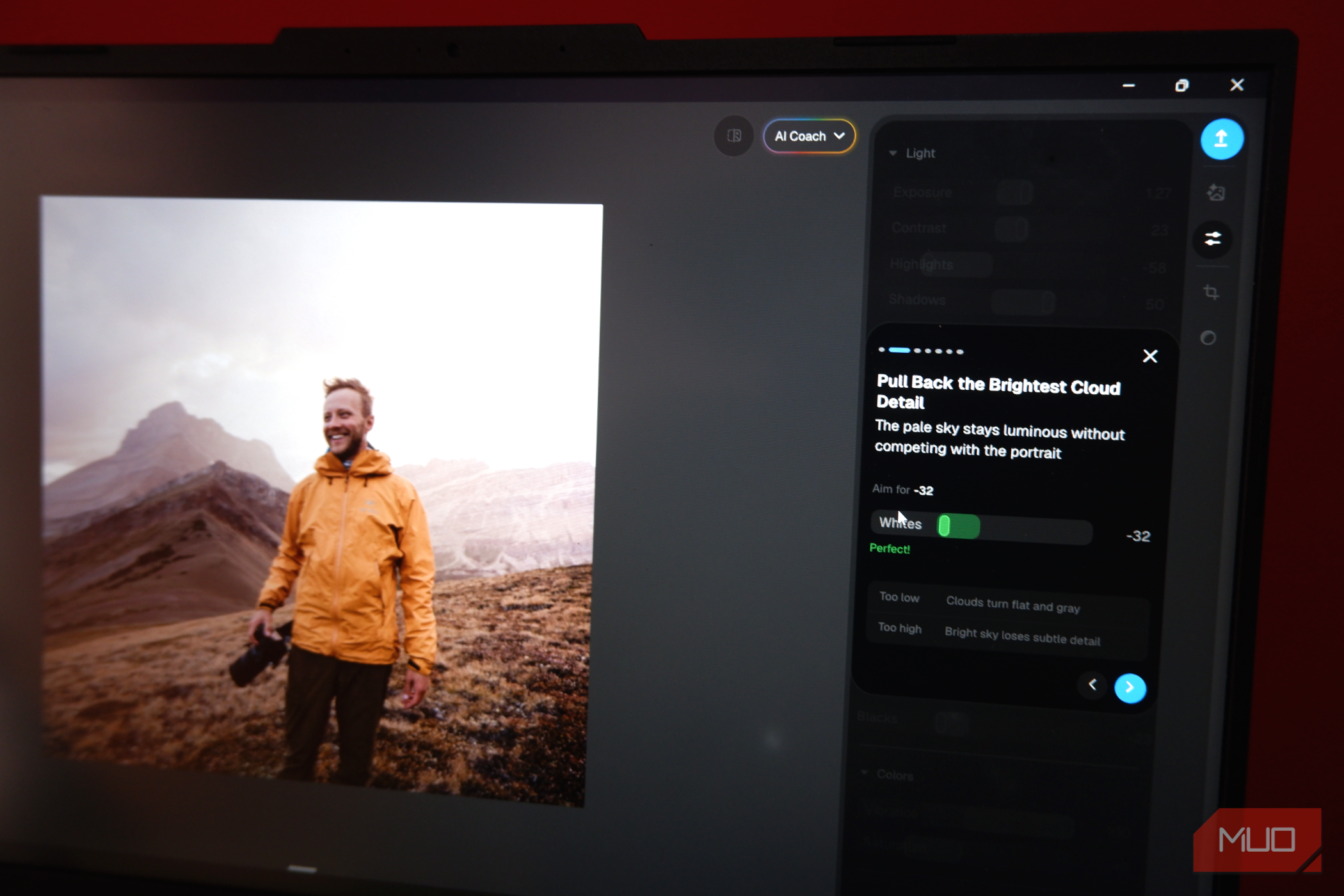
- Aftershoot The AI Coach explains why, not just the slider Like a teacher who actually looked at my photo AI Coach is a Photon feature that guides you as you edit and develop your RAW file. Think of all the times when you open a RAW file and look at an array of sliders, confused about where to start. With Photon, however, you can click the AI Coach button on the left to choose from five presets. Before you begin, the Coach previews each style. Click the Learn this style button, and Photon’s AI Coach gets into action. The app takes a few seconds to load the AI-assisted editing interface. The app then takes you through multiple editing functions and displays an interactive slide. More importantly, each editing interface contains insights on why you should make a specific change. For instance, when editing the photo in the screenshots above, the Temperature toggle told me that a warmer balance suits the jacket and the sunlit grass. Similarly, when it asked me to crank up the contrast, Photon’s AI Coach told me how the jacket and ridgelines would look clearer against the sky. The AI Coach also takes me through tens of controls and suggests what to do. It also lets me continue editing or exporting the photo right away. Just to be sure, I compared two photos. I had edited the first one using the sliders without any help from the AI Coach, and the other followed the AI Coach’s suggestions. Unsurprisingly, the second one looked polished, with better-exposed skies and saturation, for example. I also noticed that Photon uses far fewer resources than Adobe Lightroom or darktable. I’ve felt that Photon’s AI Coach function solves the biggest problem with YouTube tutorials: they never look at your photo. Instead, you watch and listen to someone talk about a different image. With AI Coach, however, I get contextual guidance as I move between each toolset. As someone who’s still learning photo editing, this method has changed how I approach photos. It costs nothing, and you can edit without Wi-Fi Cheaper than Lightroom, by all means Probably the best part of this whole package is that it’s completely free. The company behind the app, Aftershoot, funds Photon so it’s available to users at no cost. Given that something like Adobe Lightroom comes with a hefty monthly fee, Photon’s standard feature set is great for most beginners. I’ve also tried using the app without an internet connection. As you’d guess, the AI Coach function doesn’t work, but everything else was smooth. Because the app uses Adobe’s DNG converter, compatibility with RAW files has been great too. I’ve tried loading RAW files from different mirrorless cameras, DSLRs, and smartphones, and they all work well. Overall, I feel Photon can be a better deal for many users, especially beginners who want to master RAW processing. Five styles, slow lessons, and a JPEG-only exit door Photon from Aftershoot does an impressive job of letting me not only edit and process RAW files but also learn to process them. It doesn’t mean Photon is a perfect package, though. One major restriction I found is that you can export your files only as JPEGs. Similarly, the limited number of styles and the time taken to load each AI Coach style may also delay things for some. Nevertheless, I still haven’t found another RAW processing app that runs this lightly and teaches me how to edit, which means I’m sticking with Photon.