Summary
Phone screens keep getting bigger, and there’s no stopping it. This also means Android’s notification shade is at the very top, which is the hardest spot to reach one-handed. You have to adjust your grip or sometimes use both hands just to pull down the notification shade to know who messaged you. This can be annoying, but there is a free app that fixes it. Bottom Notifications moves it down to where your thumb already is. If you’ve already been taming your Android notifications, this is the next logical step.
The problem with a top-of-the-screen notification shade
It’s not easily accessible
When you think of how you use your phone on a normal day, you aren’t just holding your phone. You’re holding a coffee, riding the bus, or lying in bed with one hand free. A message pops up, and you have to swipe down from the very top of a tall screen.
You have to bring the phone down your palm, stretch your thumb, and try to reach the top, hoping that you don’t drop it. This could be an annoying problem for people with small hands. Although I have big hands, I do this dance several times a day, and it’s honestly a bit painful, thanks to the sharp edges on my Samsung Galaxy S24 Ultra.
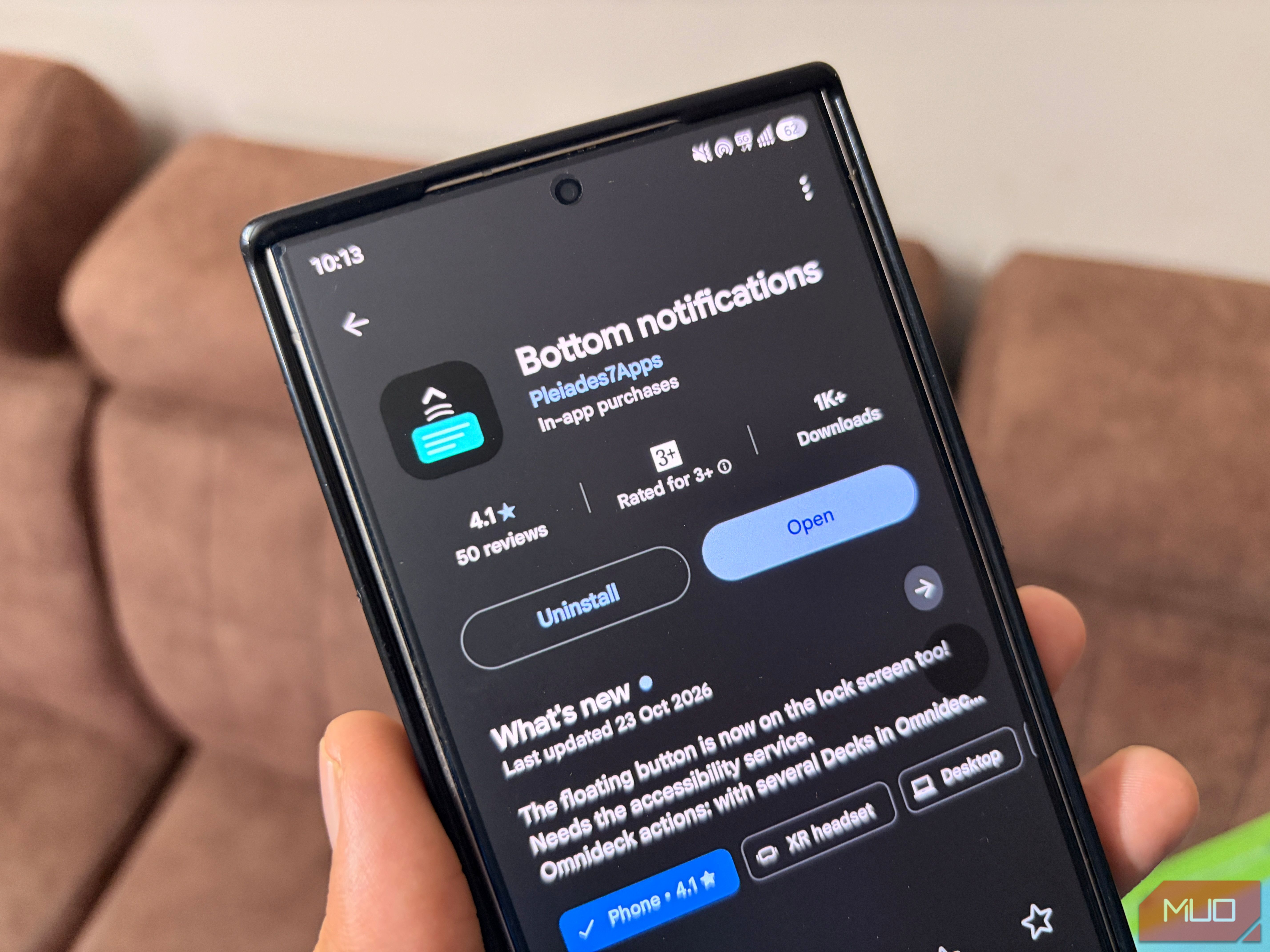
Enter Bottom Notifications. It’s a notification shade that slides up from the bottom of your screen instead of down from the top. It works on Android 10 and newer and is available for free, with an optional one-time Pro purchase. It’s fairly new and is built by a single developer, Pleiades7Apps.
 Bottom notifications
- OS
- Android Bottom Notifications makes it easy to access and manage your phone’s notifications from the bottom of the screen, with customizable gestures, a floating button, and a variety of themes and styles. Enjoy a personalized notification experience with powerful management features while keeping your data private on your device. You get two ways to view notifications Reply, snooze, and grab what you need You’ve got two options to open the notifications shade, and you can use both. The first is a floating button that sits on your screen. When you tap it, your notifications shade shows up. Then there is the second option, which is an edge swipe. You need to swipe from the side of the screen to pull the shade up. I choose the floating button option because it doesn’t interfere with my gesture navigation. After a couple of days, I also tried the edge swipe because it stays out of the way. But stuck with the floating button. If you think the floating button may obstruct your home screen, then Bottom Notifications lets you adjust the button’s shape, colors, and icons. It’s also designed in such a way that it moves out of the way when the keyboard or a full-screen app is showing. You can reply to a message right from the shade, swipe to dismiss, and snooze a notification with one tap. If you haven’t tried notification snoozing on Android, you’re missing out on something interesting. It also has an Actions feature that pulls useful details out of a notification and lists codes, links, phone numbers, and email addresses. This way, you can open, copy, or share them in an instant, without opening their separate apps. It also lets you view the full media player in the shade and pin important notifications to the top or bottom so you don’t accidentally swipe them away. The fun stuff nobody asked for You get plenty of customization options The app isn’t just an easy way to access the notifications shade, but also a notification manager. You can silence, snooze, dismiss, or hold notifications based on the app, certain words, contacts, time of day, etc. You also get an unread count with apps around it, so you don’t miss out on your app notifications. Bottom Notifications includes 20 rule templates to get you started, so you don’t need to build everything from scratch. You can set your own rules for a particular app you don’t want to disturb you. The app also gives you 20 browsing styles, from a clean list to a Ferris wheel, along with 35 open and close animations. There are 75 Material You themes, and you can upload icon packs of your choice. New notifications can light up the edge of your screen too. I personally liked the pixel-art dog or cat that wanders along the bottom of your screen. You don’t need it, but it’s hard not to smile at it. You can also assign gestures to the button, including taps and swipes, to open apps, control music, toggle the torch, or trigger Back and Home. If you’re a Tasker or MacroDroid fan, the app works with those too. It does what it says The option to reply without unlocking, change the theme, and show controls in notifications, backup and restore, etc., are part of the paid Pro version. If your phone has a big screen and you are having difficulty reaching the notification shade, then Bottom Notification is one of the best solutions. It takes about five minutes to set up, and it fixes something you’ve probably put up with for years. I would suggest going with the free version for some time to understand what this app can do, and then purchasing the Pro version if it works for you.