Summary
When my son was young, we used to take his phone from him at night so he wouldn’t stay up and watch YouTube.
Of course, he found a way to access the wild world of user-created content on his Nintendo DS, so we ended up turning the house internet off at night.
Imagine if we’d had a way to limit the internet on his own phone. We could have let him have it for reading or sleep music, comfortable that the internet wouldn’t be able to intrude.
That’s exactly what Samsung’s AI Network Guard does in One UI 9. Unfortunately, finding it is another story.
Android has never let you tell an app no to the internet
The permission nobody asks you about
Android’s permissions system is pretty robust; your phone will prompt you for camera, mic, location permissions when an app needs it. Oddly, internet access isn’t one you see. Google classes the internet as a single install-time permission that then the system grants automatically whenever an app installs. There’s no runtime prompt.
The existing tools only work at the edges. Samsung users have wanted a single per-app block for Wi-Fi and mobile data for a while now, since One UI only restricts each network type separately.
Digital Wellbeing app timers lock the whole app and some app timers, like the one on YouTube, blocks even offline downloads.
Other workarounds have a cost, as well. NetGuard routes traffic through Android’s VPN service and Android won’t let you chain VPNs, which means you lose your actual VPN when using it. GrapheneOS ships a true Network permission toggle, but that means you have to use a flashed Pixel.
Samsung built the switch, then buried it in a labs menu
How a focus tool became a firewall
Originally found in the One UI 9 beta by Android Authority, the setting grouped apps into buckets for Browser, Game, Social, Streaming, and Other. It protected the setting via a six-digit pin, which is how it works now (though it’s just Restrict Browsers and Restrict Games.
Samsung may have pitched the feature as a concentration aid, but it actually cuts an apps connection outright, making it a pretty great privacy tool. When a blocked app tries to connect in the background, your phone shows a banner telling you that access is blocked.
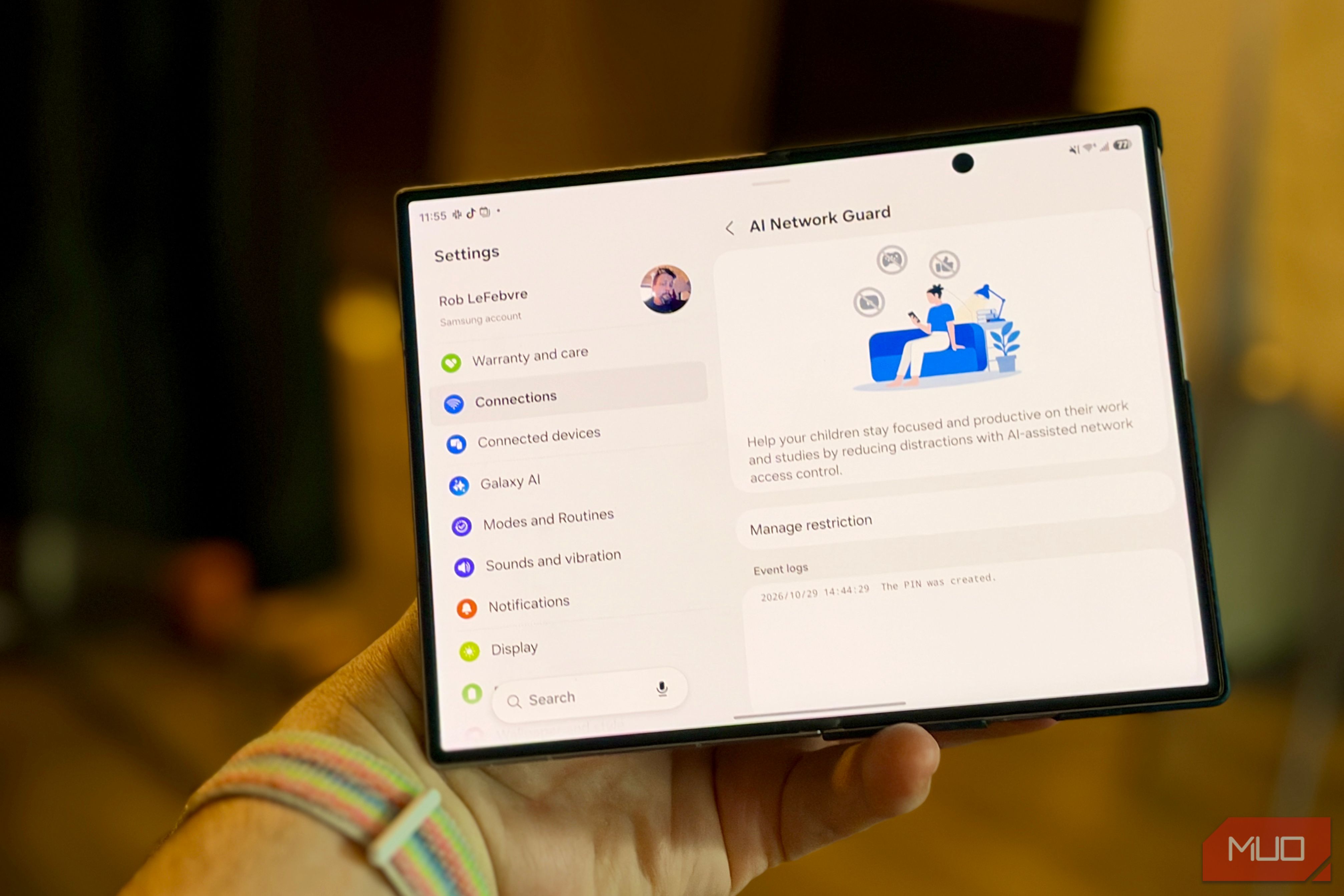
Looking on my Samsng Galaxy Z Fold 8 running One UI 9, the feature is called AI Network Guard.
Turning it on takes a minute, once you find it
It’s about seven taps, give or take
Open up Settings > Connections > Wi-Fi, tap the three-dot menu, and choose Intelligent Wi-Fi. Then tap the Intelligent Wi-Fi header repeatedly until Connectivity Labs unlocks. It took me about seven taps, similar to the way Developer options work in Android.
Open Connectivity Labs > AI Network Guard and tap Set up a Guardian PIN.
Tap Manage restriction, enter the PIN, choose Restrict apps, select apps, and tap Confirm.
For category blocks and scheduling, tap on the three-dot menu again, and then hit Advanced settings. That’s where the control is.
The Advanced menu is where it becomes a kill switch
Entire categories with one toggle
This is what I’d have done for my son: restrict browsers, put it on a Downtime schedule, then lock it with a PIN. Downtime schedules the restrictions with start and end times, though it only lets you set a single schedule, not different on weekdays versus weekends.
Restrict browsers closes the obvious loophole: blocking the YouTube app means little if Chrome still loads YouTube.com.
The PIN is what makes it stick: a kid can’t turn it off, and deleting the PIN resets every restriction.
Restrict games and Restrict browsers each cover every app in those category, and on my Z Fold 8 the on-screen description says that includes ones installed after the lock is placed, so a new game or browser isn’t able to slip past the block.
It’s a blunt instrument, and that’s mostly the point
What it won’t do for you
This is a network cutoff only. It’s not a smart filter that you can be super selective about which apps can get internet. Any app that requires a connection will break. It won’t purge apps that have ads cached, either. It’s still an experimental feature — all the tweaks in Labs are — so an update could change, move, or even remove it.
If you’re looking for logging and to make rules on a per-domain basis, NetGuard is still probably the one you want. Private DNS can still filter system-wide, too. Still, Samsung’s tool here has zero cost to set up, and doesn’t take up your VPN slot.
Google should steal this, then stop hiding it
Android lets every app access the internet by default; Samsung is the first major skin to give you a native off switch without a VPN. It’s a super useful feature, either for parents or people who want to manage their own connections, but it’s still hidden behind a hidden menu in Wi-Fi settings.
Ultimately, it’s up to you whether you’ll use Samsung’s AI Network Guard. I know I would have back in the day when I still controlled my kid’s access to the ‘net.
 Samsung Galaxy Z Fold 8
- Brand
- Samsung
- Battery
- 4,800 mAh silicon-carbon
- Weight
- 201g
- IP Rating
- IP48
- Processor
- Qualcomm Snapdragon Elite Gen 5 for Galaxy
- Cover screen
- 5.5-inch The Samsung Galaxy Z Fold 8 is an ultra-slim premium foldable smartphone featuring a 5.5-inch passport-style cover display and a 7.6-inch main internal screen. Measuring just 4.5mm thick when unfolded, it features a 50MP dual-camera system, a Snapdragon 8 Elite processor, and an IP48 durability rating.