Summary
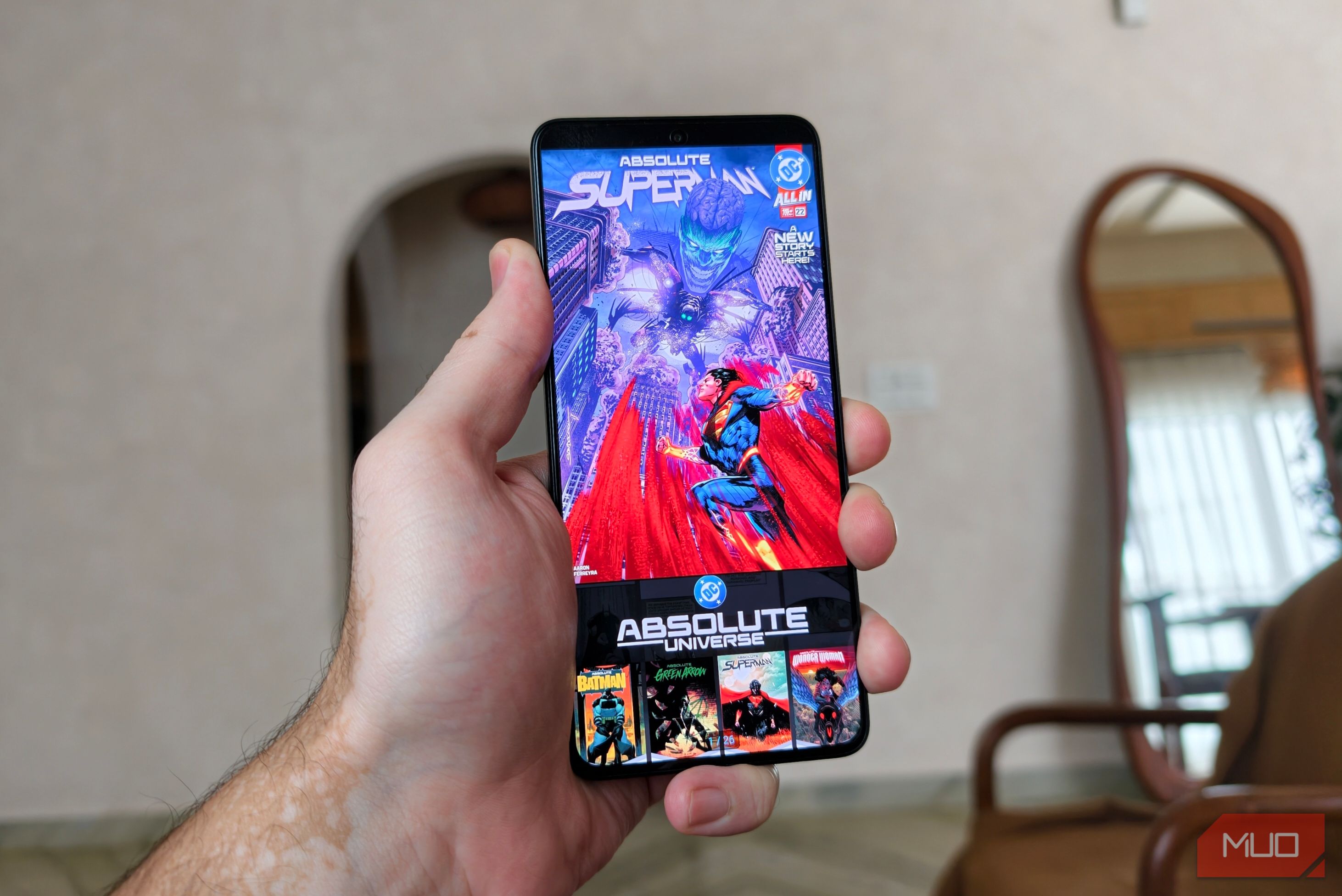
For anyone like me who has spent the better part of his childhood obsessing over DC Comics, the joy of holding a paperback or hardback comic is irreplaceable. But large graphic novels aren’t always easy to carry around, especially when traveling. That’s where digital comics come in. So, I decided to find out whether the convenience of digital comics could beat the nostalgia and experience of reading physical ones, and it’s much easier than I ever imagined. Setting up my dedicated comic book reader Repurpose your spare smartphone I have a bunch of old smartphones lying around the house, collecting dust. Recently, while researching the best apps for reading comics, I realized I could give my secondary device a new lease on life by turning it into a dedicated comic book reader. Reading comics on my primary phone had become frustrating. As soon as I started getting invested, a WhatsApp message or notification would kill my focus. I wanted a device that let me enjoy comics without those interruptions. So I decided to factory-reset my device for a distraction-free reading experience. It’s worth noting that cleaning your device isn’t necessary to read comics. You can simply install the app of choice on your existing phone. Getting rid of social media and messaging apps on the chosen device made the dedicated comic book reader device feel a little like a Kindle, except it has a vibrant, color-supported AMOLED screen that makes the artwork pop. Challenger Comics Viewer has been a game changer Don’t go by the interface The Play Store is full of comic reader apps, but most have ads or lock features behind paywalls. After researching, I found the free, feature-rich app Challenger Comics Viewer. It supports a bunch of formats, including CBR, CBZ, PDF, and EPUB files, making it easy to import from a huge range of sources. When you open the app for the first time, a configuration wizard greets you and lets you choose what appears at startup. You can pick the home screen, your comics’ library, or automatically reopen your last comic. I appreciated this small but thoughtful addition. Once it was configured, I noticed Challenger Comics Viewer had a dated, utilitarian interface. While it’s not winning any design awards, it’s also one reason the app works so well on older devices. It’s not animation-heavy, free of unnecessary background processes, and ad-free, which helps keep the reading experience smooth and responsive. Still, the app looks like it was built in Android’s early days, and the settings menu is a little intimidating, with a bunch of toggles, sliders, and checkboxes. Locating something as simple as screen rotation initially felt like searching for a needle in a haystack. The setting is tucked away under the three-dot menu > Options > System > Lock Orientation Auto Switch. So I set aside thirty minutes, sat down, and went through all the options so I could come back to them whenever needed. Older devices feature limited storage. If you binge-read, your storage space will likely fill up surprisingly quickly, making the old device even slower. That’s exactly why I love Challenger Comics Viewer: It lets you access cloud storage services directly from within the app. You get support for Google Drive, Dropbox, OneDrive, and more. Instead of storing my entire comic collection locally, I download only a few key ones. I stored the rest of them in the cloud. Challenger Comics Viewer makes reading on small screens easier The app has well-thought-out features Reading a full-sized comic page on a six-inch-ish screen can be frustrating. Thankfully, Challenger Comics Viewer comes with dedicated smartphone and tablet reading modes. On smartphones, limited screen estate can make speech bubbles look tiny. Plus, you need to constantly pinch to zoom; it interrupts the flow. Scanned comics often have white margins around the artwork, wasting essential screen space. The app’s automatic border cropping feature trims those margins and gives the artwork more room, making the text easier to read without repeated zooming. The difference is especially noticeable on a device with a smaller display. It’s a simple adjustment, but one that makes reading comics on a phone much more comfortable. You can also access settings while reading a comic without quitting. So, if I wanted the visuals to pop a wee bit more, I could increase the contrast and saturation. Challenger supports continuous scrolling, which can be useful for manga, webtoons, and other content that suits a scrolling format rather than traditional page-by-page navigation. You can also use the volume buttons to scroll, which is a nice touch. These features won’t transform every comic into a perfect reading experience, but they give you more control over how it looks and feels on your device. Digital comics are more convenient than ever So, does convenience beat nostalgia? I don’t see myself ever giving up on physical comic books, as there’s something special about flipping through the pages of a graphic novel at home. But when I’m on the move, carrying multiple comics isn’t feasible. And if the choice boils down to choosing between not reading my favorite comics at all or having them on my phone, I’d choose the latter every time. With Challenger Comics Viewer, I can carry my entire digital collection wherever I go and pick up a comic whenever I have some downtime. The app offers extensive customization options, support for multiple file formats, cloud storage integration, and features that make reading on smaller screens considerably more comfortable. It’s what helped me turn an old smartphone into a dedicated comic reader. Its dated interface takes some getting used to, but once configured, it is one of the most feature-rich, reliable comic apps, and it works well even on older devices.