Summary
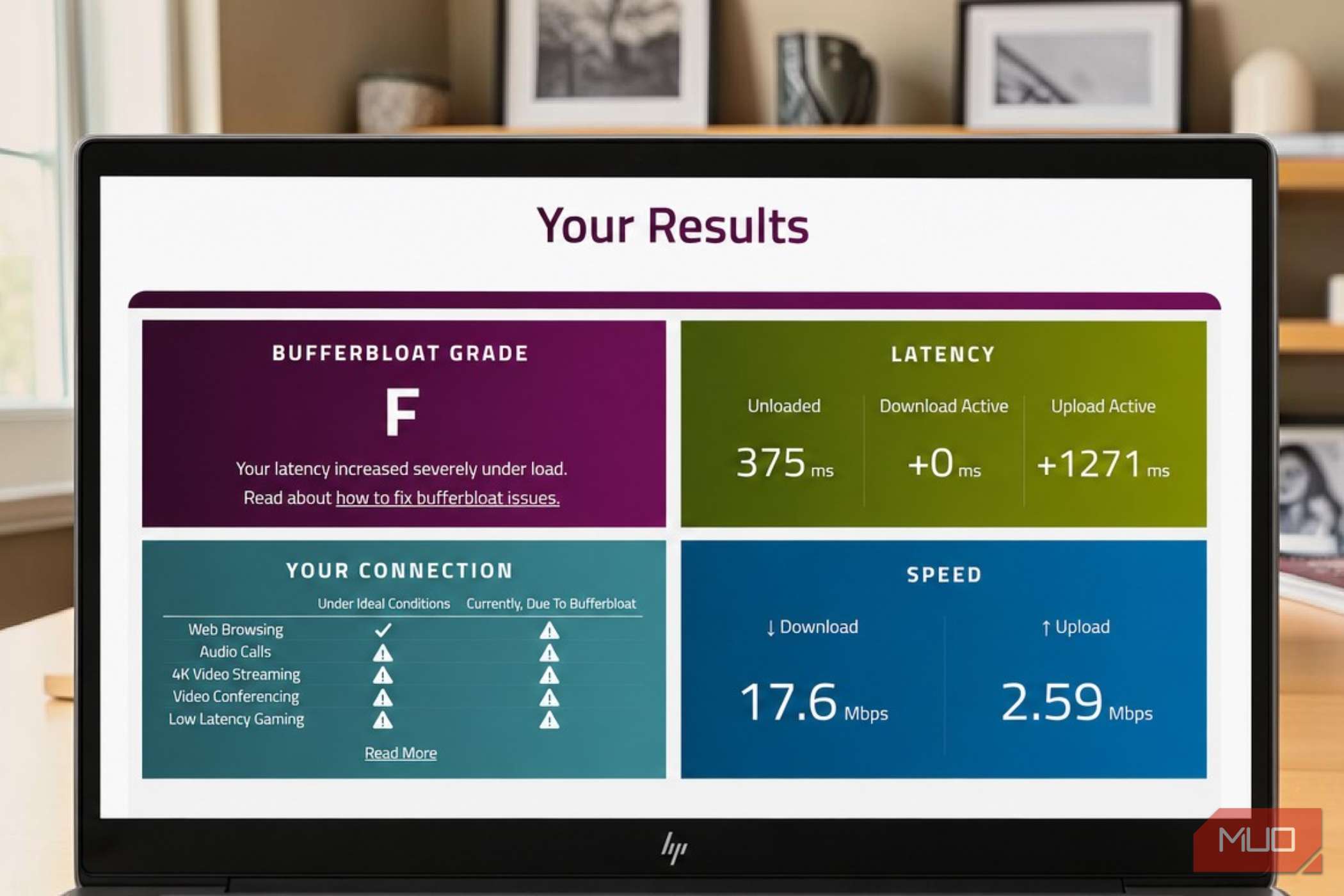
My internet plan promises a minimum of 500Mbps, and every speed test I ran agrees. My download speeds look good, and websites load quickly, yet every few days, a video call would lock up mid-sentence. One day, I was on a video call with my team lead, and his face froze in an unfortunate half-blink while his voice broke up into a robotic stutter. I had to disconnect and rejoin the meeting a couple of times; it was so annoying. That’s when I decided to take a deeper look, so I ran a free test in a browser to check how my internet connection performed under load, and found out my internet is stuttering for a whole different reason. A normal speed test doesn’t tell the whole story You see those numbers when your connection isn’t busy A speed test typically measures download speed, upload speed, and latency. They can tell you how quickly your internet connection can download and upload data. The ping number (under Mbps) usually shows your idle latency or how long data takes to travel to a server and back when your connection isn’t busy. As a result, you don’t get to know how your internet behaves when several devices are using it. Your internet might perform well for simple tasks like browsing or running a speed test, but things can change when you start uploading photos or downloading a large file. This has happened to me a couple of times when I try to upload Google Photos. Some speed tests can show you latency under load, but it’s easy to miss it when you see a big Mbps number. That’s where bufferbloat comes in. Bandwidth tells you how much data your connection can handle. Latency, on the other hand, is how long that data takes to reach its destination and return. When your network gets busy, you can have plenty of bandwidth but still experience delays. Now, you must be wondering when bufferbloat happens. It occurs when your router builds up a queue of data during heavy network traffic, and packets have to wait longer than they should. As a result, latency can jump when someone downloads or uploads files. This can cause your video calls to lag even if your internet speed looks good. That’s why I wanted to test more than my connection’s maximum speed and see what happened to latency under traffic, too. The free browser test I used Tested my connection under load I wanted a simple tool that does the job without any technical complexities. When searching for a reliable and quick way, I found Waveform’s free bufferbloat test. What I like most about this test is that you don’t need to download any application or create an account. It runs in any browser and takes about a minute. I opened its official website and hit the Start Test button. It measures your latency while the connection is idle, and then saturates the download and upload in turn to see how far latency climbs. The gap between the idle and loaded figures is your bufferbloat, and the result is graded from A+ down to F. Before you start the test, I recommend pausing tasks like streaming and downloads on other devices in your household. Since this test generates network traffic for checking, it’s best not to run any other speed tests simultaneously. How to read the bufferbloat test numbers Here’s your cheat sheet You can understand the results more easily when you know what each measurement means.
- Idle latency is your baseline ping speed when the network is relatively quiet. The lower, the better.
- Download-active latency measures latency while downloading data. It shows whether your connection becomes less responsive when it receives large amounts of data, such as when you download a game or stream content.
- Upload-active latency measures latency while uploading data. You must watch this number closely. It can help you spot delays that might occur when you’re backing up photos or uploading videos to the cloud.
- Loaded latency is measured while your connection is handling traffic, rather than sitting idle. It checks how much the delay increases under load compared with your normal, idle latency. When there’s a higher increase in idle and loaded latency, it means higher bufferbloat. Waveform compares the latency and assigns a grade from A+ to F. A higher grade generally indicates that your network performs well when it’s busy, while a lower grade suggests more room for improvement. If you notice the idle latency was already high before the test applied any load, it’s likely due to weak Wi-Fi and flaky lines. The exact thresholds vary by app, but here’s a good rule of thumb to interpret results: | Measurement | Healthy | Needs investigation | |---|---|---| | Idle latency | Under 30ms | Over 100ms | | Loaded latency | Rises by under 30ms | Rises by under 100ms or more | | Packet loss | 0% | Consistently above 1% | | Jitter | Under 10ms | Over 30ms | | Bufferbloat grade | A+ or A | C or lower | In my case, the latency shot past 800ms, and the grade was an F. That’s when it clicked. Upload is the weak spot on most home connections, and it often gives you a fraction of the download speed, so it saturates first. And a video call is the one activity that needs uploading to stay responsive. How to fix a poor bufferbloat result Try this before you upgrade your internet plan If the test shows a significant increase in latency under load, you don’t necessarily need a faster broadband package, as there are some free settings changes to try first.
Enable Smart Queue Management (SQM) if your router offers it. This will reduce delays when your network is busy. Some routers also offer QoS settings to manage traffic priorities. Many setups like eero, Asus, TP-Link, and OpenWrt include it. - You can connect your computer to the router with an Ethernet cable to rule out Wi-Fi interference or a weak signal.
- Pause large downloads or cloud backups during video calls. If the calls improve, other network activity was likely contributing to the problem.
- Follow your router’s instructions to configure traffic management, then rerun the bufferbloat test under similar conditions. If the results remain poor, check for firmware updates. When I turned on QoS, it finally fixed my Wi-Fi issues. The upload latency rose by only about 30ms, and the grade jumped to a B, and I no longer had to deal with choppy and slow video calls. If nothing works, you can contact your ISP or consider upgrading your router. Fast internet doesn’t always mean a reliable connection If you’re facing issues with video calls, 4K streaming, or gaming, despite a great speed test, there’s no use running the same test again. I would advise running a bufferbloat test that puts the line under pressure to check how your network performs. You may find, as I did, that the fix takes ten minutes and one setting.