Summary
The default settings on your Windows PC are designed to play it safe for various reasons, and that also means your PC doesn’t run at full strength. That’s not necessarily a problem when it comes to raw processing power, since you don’t need maximum performance for everything you do. But when it comes to internet speeds, you want your connection to perform at its best almost all the time. And one setting that can help is disabling power-saving mode for your wireless network adapter. Disable power saving mode for wireless adapter Stop Windows from babying your Wi-Fi adapter By default, every Windows PC is set to “Balanced” power mode, which tries to give you the best of both worlds — performance and battery life. And this also applies to your wireless adapter. When your laptop is plugged in, the wireless adapter runs at maximum performance, but when you’re on battery power, the adapter is set to “Medium Power Saving,” which is good news for battery life, but not so much for internet speeds. Because of this, you can sometimes experience latency spikes, dropped throughput, and those random moments where the page takes too long to load. And it’s not like the power savings are huge either. There are far better ways to stretch your laptop’s battery life than limit your wireless adapter. So yes, there’s no real harm in turning this off.
- Type in edit power plan in the search menu and choose the first result.
- Click Change advanced power settings.
- Expand Wireless Adapter Settings > Power Saving mode.
- Click the drop-down menu next to On battery and change it from Medium Power Saving to Maximum Performance. Make sure it’s set to that for Plugged in too.
- Hit Apply, then OK. There’s a chance that you might not see the Wireless Adapter Settings option inside the Power Options window. To enable it, open the Registry Editor and head to the following path: Computer\HKEY_LOCAL_MACHINE\SYSTEM\CurrentControlSet\Control\Power\PowerSettings\19cbb8fa-5279-450e-9fac-8a3d5fedd0c1\12bbebe6-58d6-4636-95bb-3217ef867c1a Right-click anywhere in the right pane and choose New > DWORD (32-bit Value). Name it Attributes and change its value to 2. Once you’ve done this, you should see the option to disable the wireless adapter power-saving mode. Turning off power management can also improve things If one isn’t enough, here’s the second one There’s a second power-saving setting that can mess with your Wi-Fi, and it lives inside Device Manager. The power management option for the network adapter lets your PC lower the radio activity to reduce power consumption. In theory, this is only supposed to kick in when your PC is idle or in a sleep state. But sometimes, this can also affect network speeds while you’re actually using your PC. Thankfully, this one is way easier to turn off.
- Right-click the Start icon and choose Device Manager.
- Expand Network adapters, right-click the Wi-Fi driver and select Properties.
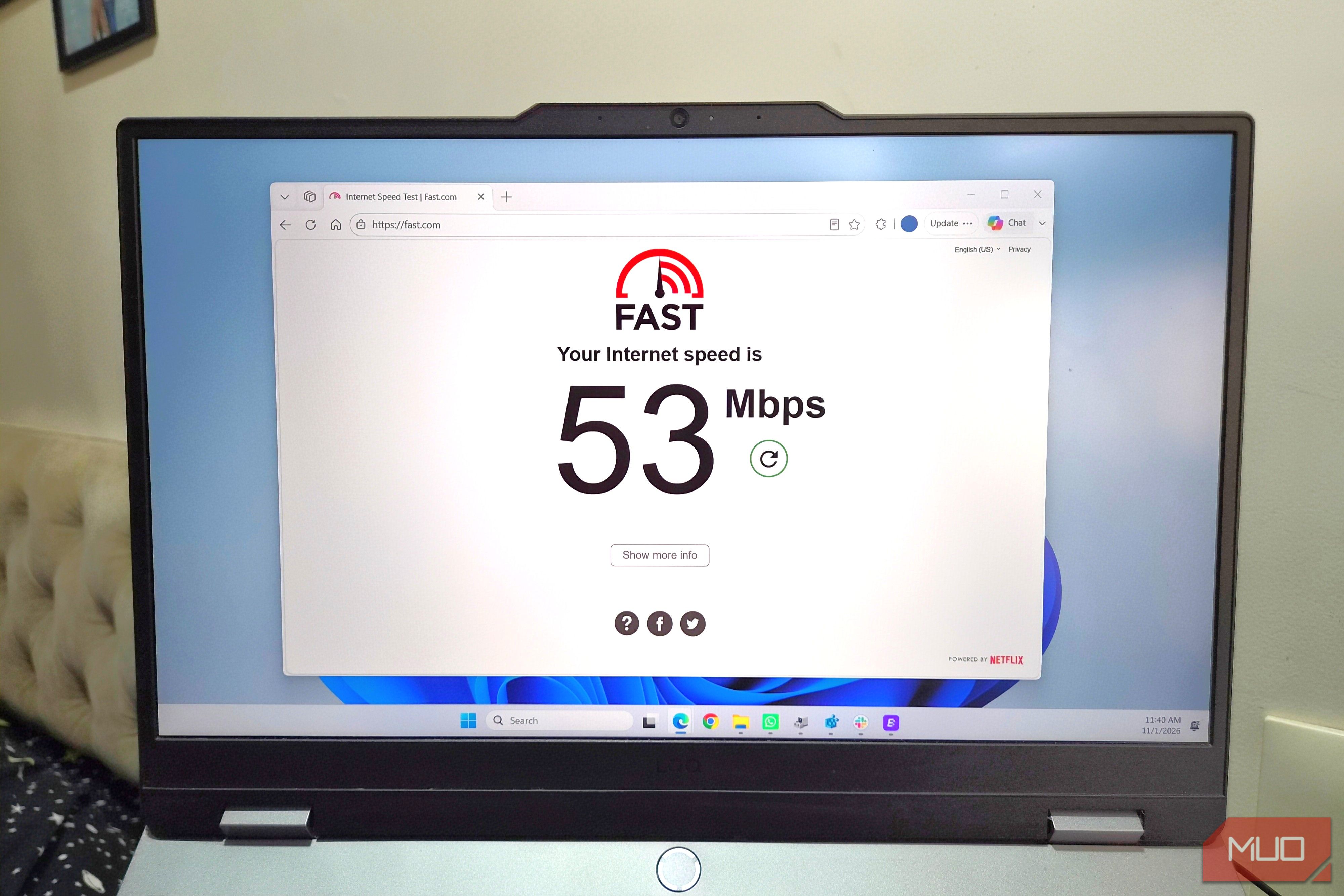
- Switch to the Power Management tab and uncheck Allow the computer to turn off this device to save power. Again, the trade-off for disabling this is basically nonexistent. I’ve been running my laptop with both this and the Wireless Adapter Settings tweak turned off for a while now, and I haven’t noticed any real dip in battery life. It holds up pretty much the same as before. If you mostly use your laptop plugged in at home or in an office, disabling this is an easy call to make. There’s a lot more you can do to speed up your internet I ran speed tests before and after making both tweaks, and the difference was significant. My average speeds more than doubled. And while these changes were the most effective, there’s a lot more you can do to improve internet speeds on Windows. For instance, roaming aggressiveness is a setting that decides how quickly your PC jumps from one Wi-Fi access point to another. If you’re sitting at a distance from your router, this can force Windows to downgrade from 5GHz to 2.4GHz in search of a better signal. But that also lowers the speed, which isn’t ideal. To avoid this, head to Network adapter properties, go to the Advanced tab, and set the Roaming Aggressiveness to Lowest. In the same Advanced tab, you’ll find MIMO Power Save Mode (sometimes also labeled SMPS), which shuts off some of the antennas any time there’s not much network activity. This sounds reasonable, but it can sometimes cause internet speeds to tank. So make sure to set it to No SMPS. If you’re on Realtek or MediaTek drivers, this option will be named Power Saving Mode or 802.11 Power Saving.