Summary
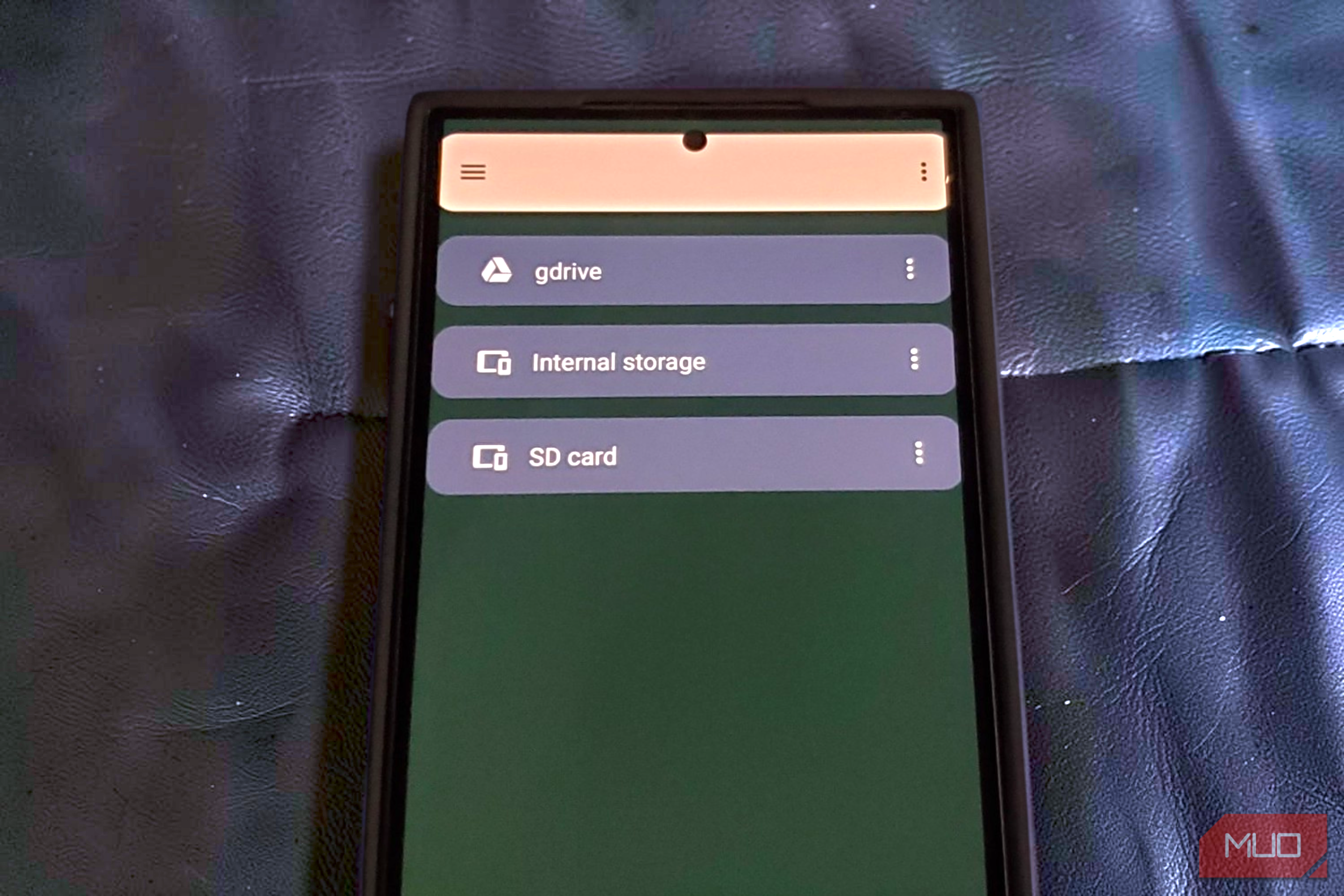
Finding one file on my phone can turn into a wild goose chase through the wrong apps. A driver installer sits in Google Drive, screenshots pile up in Downloads, and another document gets lost somewhere in a cloud account. My filing system is a mess. That’s how I ended up trying Round Sync, an open-source Android file manager that uses rclone to bring cloud storage and local files under one roof. I installed it on my Samsung phone, hoping to bring some order to the chaos. Getting everything connected was a bit of a wrestling match, but the actual browsing experience turned out to be far more agreeable. Connecting the clouds requires some paperwork Google Drive sent me to the developer console You can get Round Sync from F-Droid or its GitHub releases, and I’d stick to those official sources for the APK. Like many open-source alternatives to stock Android apps, Round Sync gives you plenty of control, though some of it takes patience. The first time I opened the app, it walked me through setting up permissions, including giving it access to all my files. It also warned me that Android’s battery optimization could interfere with scheduled transfers, so I allowed the app to run without those restrictions. The main screen is pretty straightforward, showing your internal storage and SD card, along with a floating ”+” button to add cloud accounts. When you tap that button, you are hit with a massive list of options like Google Drive, Dropbox, OneDrive, Box, and MEGA. In the app’s tech jargon, these connections are called “remotes,” which is just a fancy word for a linked cloud storage account. I picked Google Drive, and that is where things got a bit painful. The app threw a form at me asking for a remote name, an OAuth client ID, a client secret, and an access scope. Because rclone’s shared Google Drive client ID is being retired, I had to visit the Google Cloud Console and create my own OAuth credentials. That meant enabling the Drive API, configuring a consent screen, adding myself as a test user, and creating a desktop OAuth client. Once that headache was out of the way, I went back to Round Sync to finish up:
- Named the account gdrive and pasted in my custom Google credentials.
- I chose the “drive” scope to give the app full file access and left the service account box blank.
- Hit save, logged into my Google account through the browser pop-up, and approved the connection. Google did flash a scary-looking “unverified app” warning since I was using my own DIY developer setup, but I clicked past it. After granting permission, my Google Drive finally showed up right next to my phone’s local storage. The hard part was officially over. Browsing is easy, until you need to copy something A normal file manager with a few unusual habits Opening gdrive was a welcome change of pace after all that setup. My familiar Google Drive folders were right where I expected them, with breadcrumbs for navigation and file listings showing names, sizes, and action menus. Round Sync uses a similar layout for cloud and local storage, which makes hopping between them fairly painless when you’re trying to sort out cluttered phone storage alongside documents you’ve stashed online. The app also packs a decent amount of file management into its interface. You can rename files, create folders, delete items, and even set up HTTP or WebDAV serving if you’re feeling adventurous. I kept my ambitions considerably smaller and started by downloading a 19.6MB HP installer from Google Drive. I selected the file, tapped Download, picked a folder in internal storage, and found the installer sitting there afterward, exactly where I’d sent it. That’s about as much excitement as I want from a file transfer. Uploading, however, revealed a weird flaw. I selected a PDF in my phone’s Downloads folder and tried to move it to Google Drive, but the moment I switched from local storage to the cloud, the app forgot what file I had selected. You would expect a smoother handoff from a powerful file manager. There’s already an open GitHub issue describing this exact limitation, so at least I wasn’t the only one struggling with it. I also turned on Round Sync’s experimental file-picker feature, hoping I could access my Google Drive directly through Android’s default Files app. Unfortunately, it never showed up. Browsing and downloading worked well, but I couldn’t get the usual file-manager workflow to move a file from my phone to Google Drive. I needed another route. Tasks got my files into Google Drive Copy first, automate when you’re confident That workaround turned out to be the Tasks screen, which lets you create reusable transfers between folders. To test it, I made a folder called Round Sync Test in my phone’s Downloads directory, threw a PDF inside, and created a destination folder named “Phone Storage” on my Google Drive. Here’s how I set up the transfer.
- Open Tasks, tap +, and give the job a name.
- Set Direction to Copy local to remote.
- Under Local Storage Path, select the folder containing your files, then choose gdrive and your destination folder under Remote Storage Path.
- Save the task and select Start Task from its menu. This time, Round Sync did exactly what I’d been trying to make it do. My PDF showed up in Google Drive at the expected size, and the task stayed available for another run whenever I needed it. I could see this being handy for shuttling screenshots and documents off my phone during a busy workday. The folder paths only need setting up once, and anything else I drop into the source directory can go through the same route on the next run. Pay close attention to that Direction menu. Copy leaves destination-only files intact, although it can still overwrite matching files with updated versions. Sync goes further and can delete files from the destination folder if they no longer exist in the source. Most of us have already learned the hard way why cloud syncing isn’t the same as a real backup, and this dropdown is exactly the kind of thing that will teach you that lesson all over again. Round Sync also has a Triggers feature for scheduling tasks, so transfers can potentially run without opening the app and pressing Start every time. I didn’t test how reliably those schedules work, however, and Android’s battery optimization can interfere with background jobs. If you try it, test it with some throwaway files first. I’d keep it around for the unglamorous jobs I wouldn’t uninstall my dedicated cloud apps yet, particularly for sharing and provider-specific features. But Round Sync has earned a place on my phone for finding old files, downloading them, and transferring whole folders without opening a terminal. The setup asks a lot of questions, but thankfully, I won’t need to answer them every time I want a file.