Summary
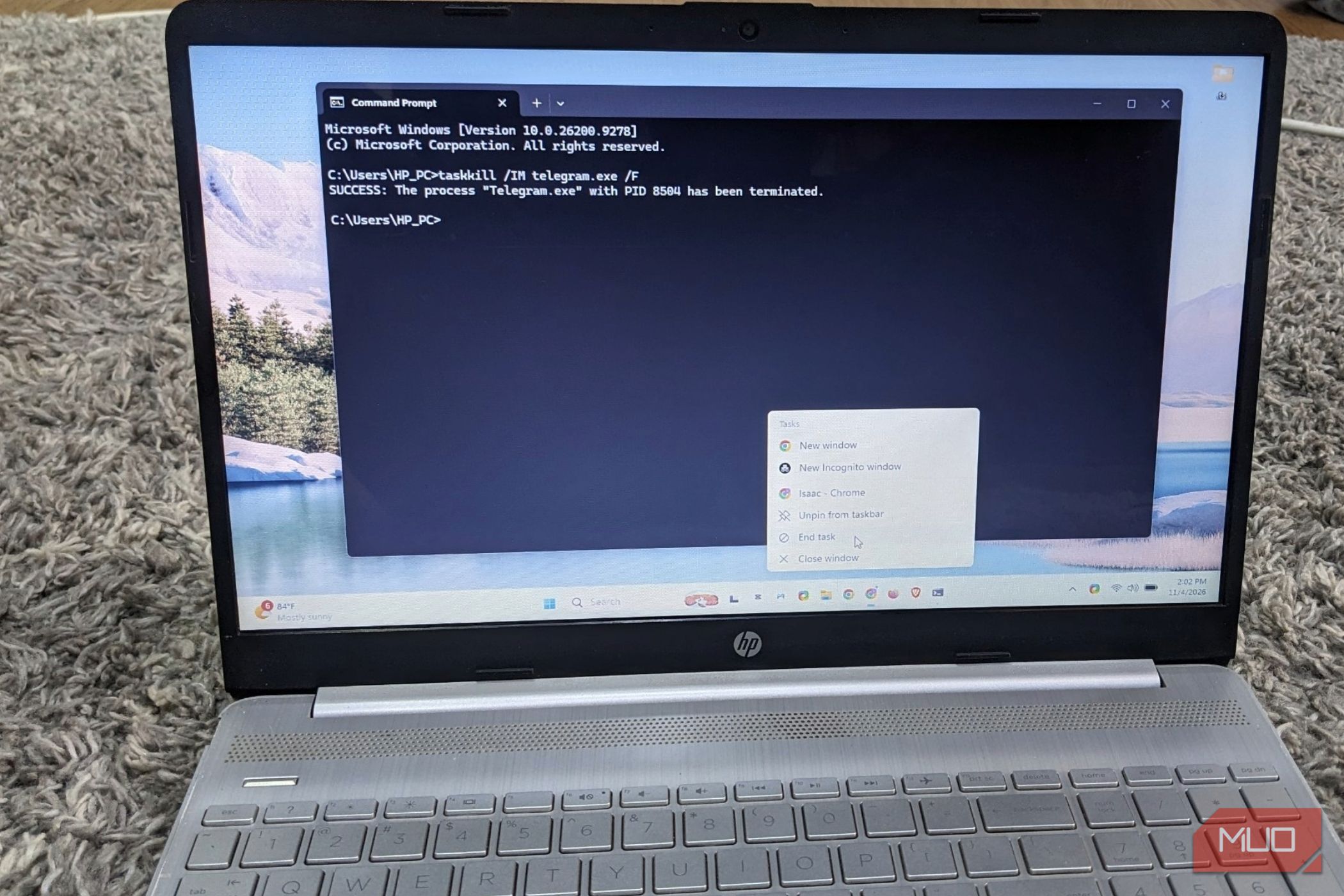
Whenever an app freezes on my laptop, my hand is already on Ctrl+Shift+Esc out of instinct. My laptop is fairly old, and I’m always multitasking on it, so app freezes have become the norm. The Floorp web browser has been one of the main culprits recently. While Task Manager lets you close frozen apps, Windows offers a few other options. For example, there’s an End task option hiding in the taskbar’s right-click menu. I’ve tried a couple of these, and when my File Explorer froze, one of them took out my entire taskbar. The taskbar had an End task button all along It only needed one switch in Settings Windows 11 has an End task option in the taskbar’s right-click menu, but it is off by default. I found it under Settings → System → Advanced, in the Taskbar section, and turned it on. Then right-clicked Floorp’s taskbar icon and selected End task. The browser closed almost immediately. This is the easiest method I’ve used. You don’t need to open another window or search through a list of running processes. Since the icon was already in the taskbar, the fix was one right-click away. There’s one thing to keep in mind, though. End task doesn’t give an app a chance to save your work before closing it. Anything unsaved will be lost. So I’d use this on apps that aren’t responding, not ones that are just slow. The taskbar has a few other tricks like this you can check out too. Command Prompt ended Floorp without me hunting for it It took a couple of seconds longer, then everything closed Command Prompt is another solid option to use if you know the app’s name. The taskkill /IM processname.exe /F command can kill a process by its executable name. I opened Command Prompt, typed in taskkill /IM floorp.exe /F and pressed Enter. It took a couple of seconds to start, so it was the slowest option I used. Once loaded, Floorp closed straight away. The output was long. As Floorp has multiple processes running, Taskkill listed every one it ended. Two came back with an operation not supported error, but Floorp still closed, so I didn’t worry. Also, you can use a second command if several processes are frozen or unresponsive: taskkill /F /FI “status eq not responding” This command ends every app Windows has marked as not responding at once. I’d use it carefully since it might close apps you didn’t intend to, and any unsaved work in them could be lost. Resource Monitor told me which process had frozen Frozen apps turned red, so there’s nothing to guess Resource Monitor gave me another way to force-close unresponsive apps. But this time, with a clearer view of what was happening. I pressed Win + R, typed resmon and opened the CPU tab. Floorp appeared in the process list as Not Responding, in red. I right-clicked it and selected End Process. Floorp closed immediately, just as it did with the taskbar option. I liked being able to pinpoint exactly the processes flagged as the cause of the problem. The numbers at the top also showed why I consistently get unresponsive apps. My CPU was at 100%, and 83% to 87% of my memory was in use. That’s what multitasking on an old laptop looks like. I also checked the Terminate button in Settings → Apps, but many of my installed apps don’t have one, so I left it out. File Explorer didn’t play along One End Process later, my taskbar was gone File Explorer was a different story. It froze while I was sending media to my phone and doing other things. The taskbar’s End task doesn’t show up in the right-click menu. So, I opened Resource Monitor and selected End Process. Explorer closed immediately. Unfortunately, my entire taskbar and Desktop disappeared. I had to turn my laptop off and on to get it back. This is because explorer.exe does more than show folders. It also handles parts of your Windows shell, including the taskbar, desktop, and Start menu. So, ending it takes them down too. Nothing was lost; the shell just wasn’t running. However, when I try it through Task Manager, there’s no option to End task. So I chose Restart instead, and it closes normally without affecting the taskbar. It’s the one freeze where I’d still open Task Manager. You can also restart File Explorer by choosing Run new task and entering explorer.exe, among other ways, without restarting the laptop. The setting I’d turn on today I’d start by enabling the End task option in the taskbar. It’s the easiest method, and I don’t have to stop what I’m doing to use it. Taskkill is also useful if you know the process name of the application. Resource Monitor is similar to Task Manager, but it identifies processes with color codes. I wouldn’t stop using Task Manager either, just for the periods when File Explorer acts up.