Summary
If you have an older Fire HD 8 or Fire HD 10 tablet that’s still working but doesn’t quite have the battery life or processing power required for modern apps, it may still be useful around the house. Amazon’s Show Mode turns a compatible Fire tablet into an Echo Show-style Alexa display with one toggle.
You can use it for visual Alexa answers, music controls, smart home controls, and video calls. And with new Echo Shows costing nearly double the price of a Fire HD 10, using an older Fire tablet as an Echo Show alternative can be worth considering.
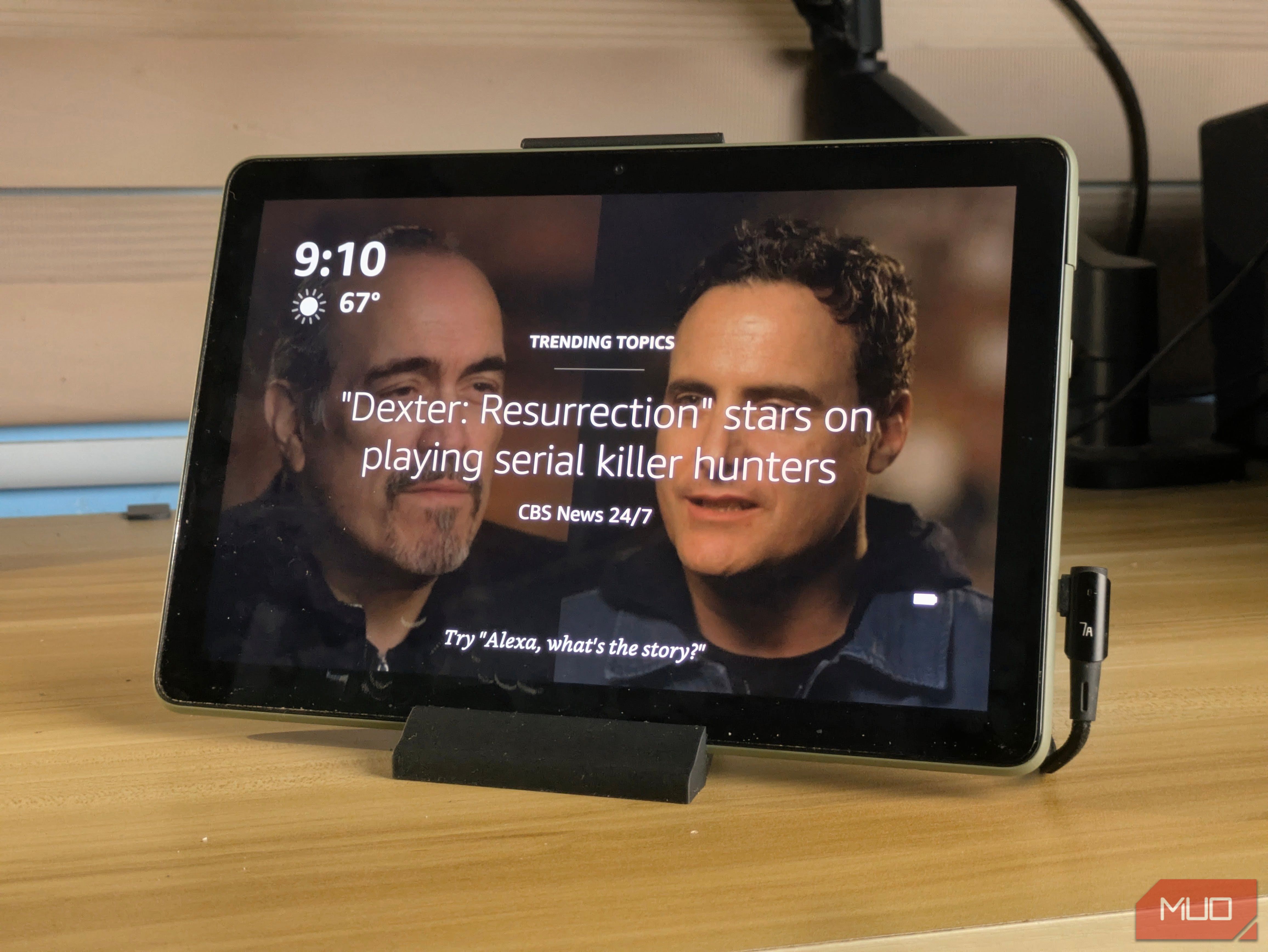
I tested this on my Fire HD 10 2021 11th generation tablet, and it still works well as a dedicated Alexa display.
How to turn on Show Mode on a Fire tablet
Turn it on with one toggle
Show Mode is easy to enable if your tablet still supports it. First, make sure the tablet is connected to Wi-Fi and registered to your Amazon account. Then swipe down from the top of the Home screen and tap the Show Mode toggle. To leave it, swipe down again and turn the toggle off. Don’t forget to turn on Alexa Hands-Free mode on the quick settings panel to get more out of your Echo Show.
If you already have it enabled, you can also say “Alexa, switch to Show Mode” and “Alexa, exit Show Mode” to toggle Show Mode. And that’s pretty much it, a single toggle to turn it on and off.
If you’ve successfully activated Show Mode on your Fire tablet, there’s also an Amazon Show Mode Charging Dock that they sell for certain older Fire HD 8 and Fire HD 10 models. It holds the tablet at a useful angle, charges it, and can automatically launch Show Mode when you set the tablet down.
I personally just 3D printed a stand for my Fire HD 10. I particularly like this model from Printables, as it has this top section that secures the tablet when accidentally bumped on. A 90-degree angle USB-C cable would also be a good option just so the charger doesn’t flair out and tangle into things. This setup works great, but you do miss out on the Automatic Mode Switch from the dedicated dock.
Show Mode features you get and don’t get
What Show Mode can do
Show Mode does not turn your Fire tablet into a full Echo Show, but it gets close enough for everyday Alexa use. You still get flash briefings, weather, traffic, movie times, local searches, alarms, timers, video calling, hands-free Alexa, and Alexa Skills with visual responses.
The touchscreen is also a major advantage. You can tap a weather card, control music, check a timer, or manage a smart home device without relying only on voice commands. That makes a Fire tablet in Show Mode feel especially useful as a bedside clock, kitchen helper, or desk dashboard.
However, you are missing out on multiroom audio. A Fire tablet cannot join a grouped Echo speaker setup, so you cannot play music across several Echo devices at once. That matters more if you own several Echo devices and want to get more out of your Echo setup.
Show Mode may also offer fewer options for audio notifications, Do Not Disturb, and Night Mode than a dedicated Echo Show. Alexa features are tied to the main profile logged into the tablet.
Drop In and Announcements are available on compatible Fire tablets, but they may not feel as polished as they do on a dedicated Echo device.
Not all Fire tablets support Show Mode
Check whether your tablet supports it
If you can’t toggle or even see Show Mode when you pull down the Quick Settings panel, there are two likely reasons why.
First, your tablet or Fire OS version may not support it. Show Mode works on the Fire HD 8 7th, 8th, and 10th generations, plus the Fire HD 10 7th, 9th, 10th, and 11th generations, provided they run the required software versions.
|
Tablet |
Show Mode Support |
|---|---|
|
Fire HD 8 |
7th, 8th, and 10th generations |
|
Fire HD 10 |
7th, 9th, 10th, and 11th generations |
|
Fire 7 |
Not compatible |
|
Fire HD 8 12th generation |
Not compatible |
|
Fire HD 10 13th generation |
Not compatible |
|
Fire Max 11 13th generation |
Not compatible |
Fire tablets running FireOS 8 may no longer show the option, even if the hardware was originally compatible. To check your version, go to Settings > Device Options > System Updates.
Second, you may have used Fire Toolbox to remove preinstalled features. Show Mode may still appear, but it will refuse to toggle. I ran into this problem myself. Fire Toolbox includes a restore feature under Manage Amazon Apps > Restore > Restore all.
After that, I had to register a new account and found that you do not need a US account for Show Mode to work, despite what past forums might say.
After that, I had to register a new account and found that you do not need a US account for Show Mode to work, despite what past forums might say.
Should you get a Fire tablet instead of an Echo Show?
When a Fire Tablet makes more sense
As stated earlier, Show Mode is such a great feature that it might actually be a better option to buy a cheaper Fire tablet over an Echo Show.
If you already own a compatible Fire HD 8 or Fire HD 10, the answer is easy. Try Show Mode first before spending money on an Echo Show. You may find that it already handles everything you need from a smart display.
In everyday use, the Alexa software is not the main compromise. The hardware is. An Echo Show is designed from the ground up as a smart display, so it usually has better speakers, more effective far-field microphones, and a camera positioned for video calls. A Fire tablet can handle those tasks, but it may not sound as good, pick up your voice as reliably from across the room, or look as natural during video calls.
 Amazon Echo Show 11 (2025 release) with Adjustable Stand
- Chipset
- AZ3 Pro
- Display
- 11-inch Full-HD touchscreen
- Sound
- Room-filling spatial audio
- Colors
- Graphite
- Misc.
- Built-in smart home hub; Alexa+ Early Access; Amazon Adjustable Stand included
- Orientation
- 40° tilt and 360° swivel (with Amazon Adjustable Stand)
- Integrations
- Alexa+ An Echo Show still makes more sense if your household depends on the wider Echo ecosystem. If you regularly use Drop In, send announcements between rooms, or group Echo speakers for music, a dedicated Echo device will fit better into that setup. You can also make better use of the smart home devices you already own by choosing the right Echo hardware for your home. For everyone else, a Fire tablet is an easy way to test whether you actually need an Echo Show. If you use it every day and find yourself wanting the missing household features, you can then decide whether a dedicated Echo Show is worth the upgrade. Give that old tablet a new job An old Fire tablet is easy to dismiss once a newer device arrives, but Show Mode proves it can still earn its place in your home. Set it on a stand, plug it in, and it becomes an Alexa display for timers, recipes, music, cameras, and smart home controls. It will not fully replace an Echo Show, especially if you rely on multiroom audio, but it costs you nothing to try. Before you recycle, sell, or store that old Fire HD tablet, check whether it supports Show Mode. It may be the cheap smart display you were about to buy anyway.