Summary
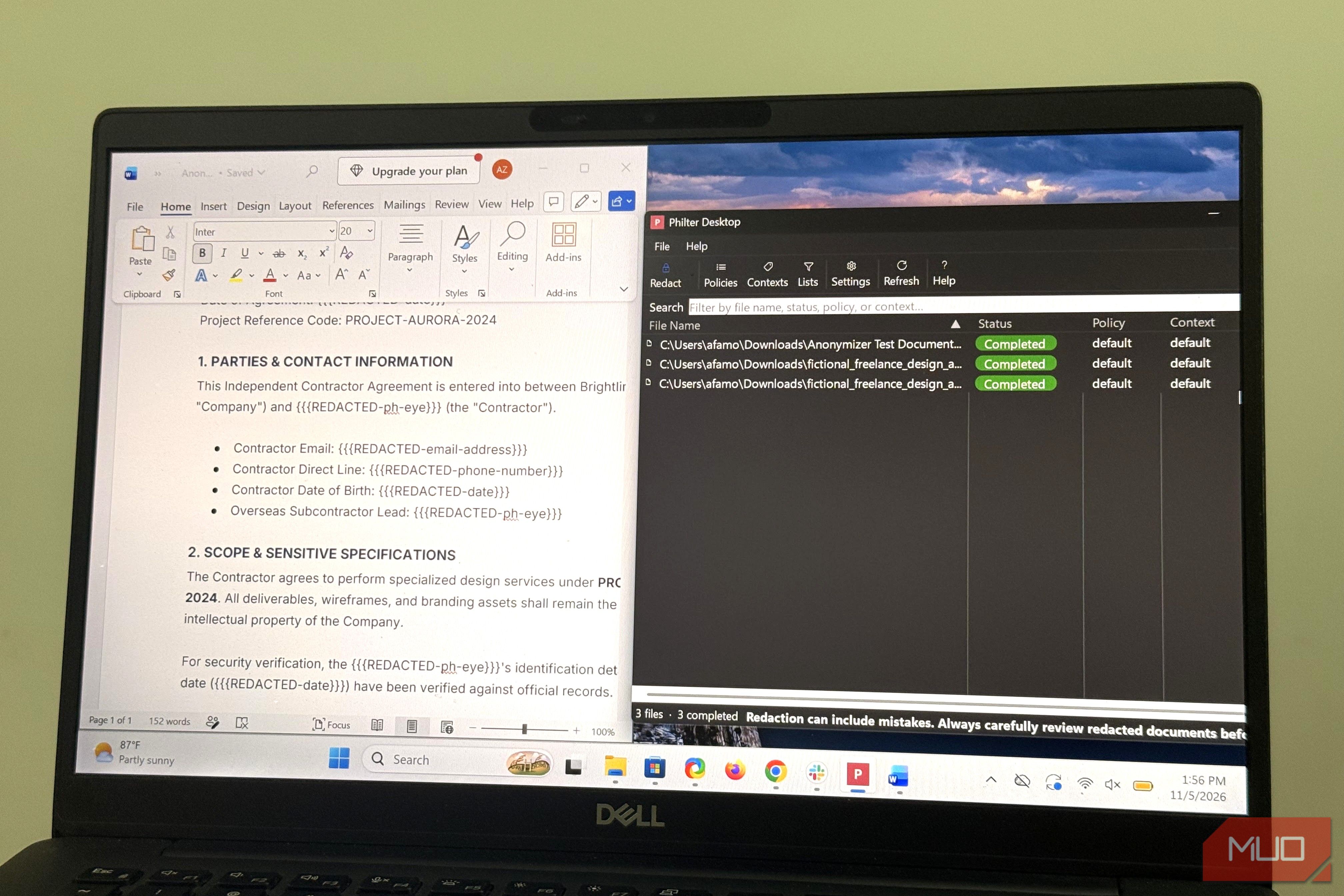
If you’ve ever asked a chatbot to summarize a contract for you, there’s a possibility that it passed along your client’s name, email, and phone number. Unfortunately, it’s easy to overlook how much sensitive information you’re handing over when you upload documents to LLMs like ChatGPT, Claude, and Grok. You should consider using services like Philter Desktop. This free Windows tool strips out important details from your file before it leaves your PC. It’s one way to use AI on real work with fewer privacy concerns. I fed it a fake contract Names vanished, the content didn’t Before I use tools like this in real work, I like to try them out on things I don’t mind losing. So, I invented a freelance agreement between a company called Brightline Studios Ltd. and a designer called Élodie N’Guessan, and dropped it into Philter Desktop. This tool runs as a standard Windows app, and it’s free for personal use. It doesn’t need admin rights because it runs under the user account. It’s similar to Anonymizer, which I’ve used in the past, but the biggest difference is that the Philter Desktop’s build is signed and doesn’t trigger any SmartScreen complaints. I went with the default settings and it scrubbed company names, addresses, dates, phone numbers, and email addresses. In the end, the contract looked the same, but sensitive items had been replaced with redaction tags. It gave me a decent level of redaction consistency that makes the file safe for uploading into online chatbots. The chatbots can still work out who owes what to whom. Using black bars would have made the document unreadable and prevented the chatbot from producing a useful summary. I uploaded the anonymized file to Grok and asked for a summary of payment terms. The summary was plain and very understandable:
- Total fixed fee: $2,400
- Deposit: 40% ($960) due within 3 business days after signature
- Balance: $1,440 due within 10 calendar days after delivery of the final files
- Late payment: May incur 1% per month (or the maximum rate allowed by applicable law, whichever is lower) Six traps, one escape Dates, screenshots, and anything not in English I needed to be sure of what slipped through, so I built another document with six things I wanted Philter to catch. I opened it to see what the tool flagged: | Trap | Flagged? | What happened | |---|---|---| | Email address | Yes | Detected and replaced with {{{REDACTED-email-address}}} | | Phone number | Yes | Detected and replaced with {{{REDACTED-phone-number}}} | | Company name | No | Missed “Brightline Studios” under the default policy | | Date of birth | Yes | Detected and replaced with {{{REDACTED-date}}} | | Name outside English and Finnish | Yes | “Jean-François Mwamba” was mapped to {{{REDACTED-ph-eye}}} | | Text inside a screenshot | No* | The text was not detected in the image (*OCR support for scanned PDFs does not guarantee detection of text in images embedded in Word documents) | The tool instantly scrubbed the email address and phone number, but the company name slipped through. Philter Desktop is quite efficient because it leans on pattern matching and name identity recognition. However, for certain elements that slipped through, you may have to build a custom rule in the tool. Still, it’s easy to spot most misses because of the redaction tags. You should review the output before passing it along to AI. Redacted isn’t anonymous A scrubbed document can still point straight at you When you swap a name for a tag, every other fact is left where it was. So if a part of my contract reads “the only pastry shop on Elm Street, owned since 2019,” even without having the owner’s name, it’s still quite easy to work out who it is. Someone local to the area will put the pieces together, and so will AI, as long as it has enough context. A job title, a start date, and a small town can do the same. There are certain ways to handle this on Philter Desktop. It provides options that allow you to black out sensitive details, replace them with fixed labels, or use made-up values that keep the document readable. That last option is known as pseudonymization. It replaces identifiers with consistent fictitious values; anonymization removes or alters data so individuals cannot be reidentified from the remaining information. There are also options to encrypt replaced values, though this requires a key you supply. The tool can recall the replacements it assigned to a particular piece of data and reuse them in other documents. You can get a before-and-after comparison beside a list of editable redactions if you use Redact with Preview. This allows you to remove an element that the tool may have flagged unnecessarily or select text that it missed. My rule before any upload The options for me are straightforward. If a document doesn’t contain anything sensitive or confidential, it may get uploaded directly. When it has names, client details, or some business information, I first scrub it, then decide whether to upload it after scanning the results. On top of these rules come your AI provider’s data settings. You may set retention and training rules, but these generally differ by provider. Philter Desktop adds a second layer of protection, but it isn’t a guarantee that every identifying detail is gone.