Summary
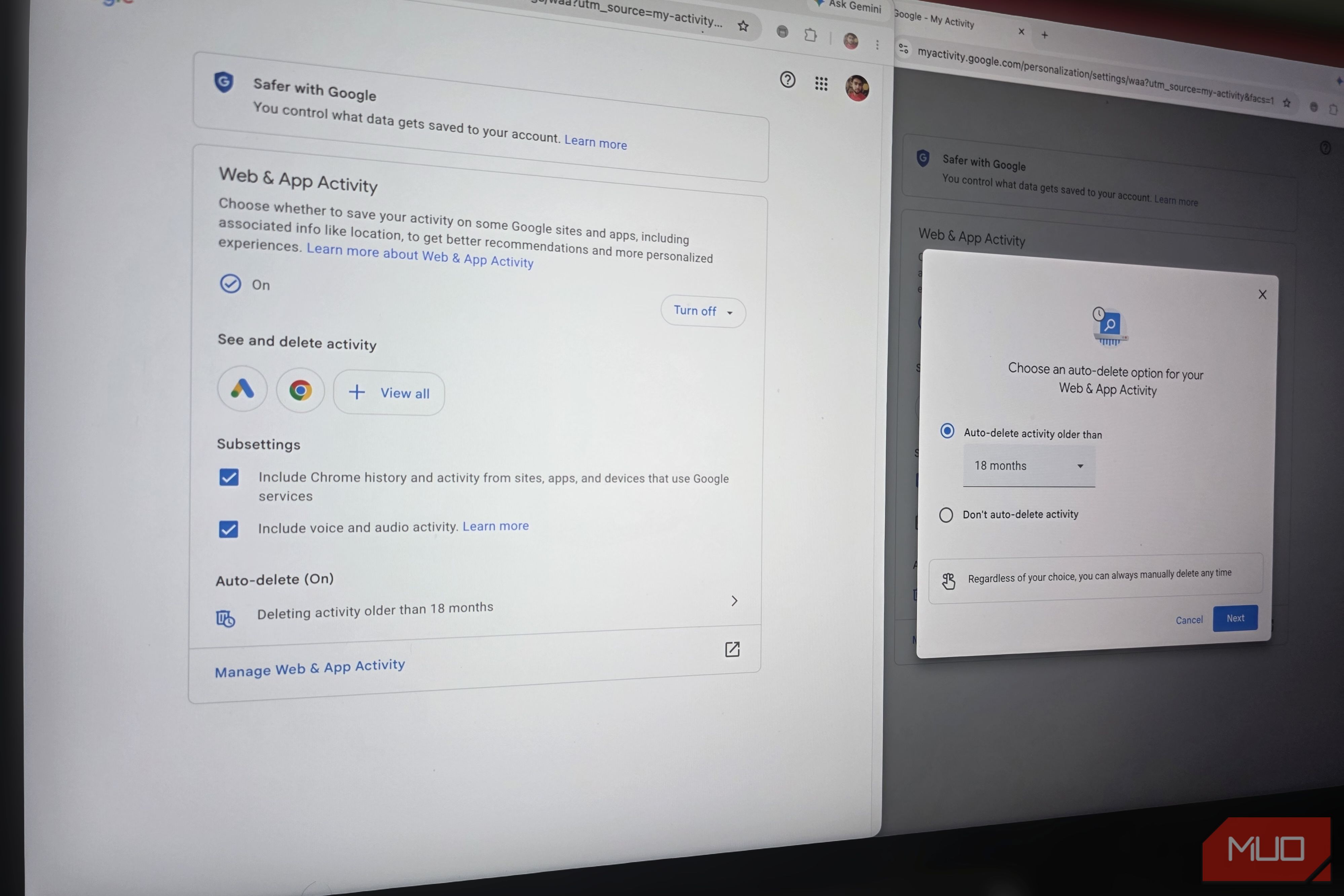
Ask Google for directions or dictate a text, and the audio of your voice doesn’t disappear after you get a response. A default setting in your Google Account saves the actual recording as a file on Google’s servers. It lives inside your Web & App Activity page, a name that gives no hint of voice recordings. If you’ve been using Assistant, Gemini, or Maps with your microphone and never opened this page, years of recordings could be sitting there right now. What Web & App Activity actually saves Google archives sound files, not just text Web & App Activity has been part of Google Accounts for over a decade, originally tracking search history and app usage. Google has steadily expanded its reach since then. Today, it logs Gemini conversations, location information, and activity from apps using Google services, all in a single history. Beneath the main toggle, two additional checkboxes take it further, and both are turned on by default. One pulls in your Chrome browsing history, while the other handles voice recordings. When the voice checkbox is off, Google converts your speech to text, responds, and discards the audio. With it on, the original sound file stays on Google’s servers instead. That file captures more than just your command. It preserves background noise in the room and conversations between people nearby, and Google doesn’t filter any of it out. And these recordings don’t just come from your phone. Smart speakers, Android Auto, and any device signed into your Google account all feed into the same log. Every voice search, Maps direction, and dictated message adds another file to the list. All of it stays on Google’s servers, and the timer that’s supposed to clear them may not be set the way you’d expect. Where Google stores your saved audio Stored recordings outlast your phone history Once audio recordings reach Google’s servers, they follow a retention schedule that varies depending on your account’s age. New accounts get an 18-month auto-delete timer by default, but older accounts may still be set to Don’t auto-delete activity, which means Google keeps everything indefinitely unless you change it. The options are 3, 18, or 36 months, and if you’ve never opened this settings page, yours might still be keeping everything. That’s the standard retention schedule, but there’s a second one running alongside it. Google’s own support page confirms that samples of saved audio go through human review, where trained reviewers listen to, transcribe, and annotate the recordings. Before a reviewer hears anything, Google delinks the audio from your account, so it’s no longer tied to your identity. That separation is why deleting your entire Google account won’t touch it. Standard recordings get removed, but because the reviewed audio has already been disconnected from your account, it stays on Google’s servers for the full three years. Even turning off the setting doesn’t take effect right away, as Google continues saving data for another 72 hours before the change kicks in. Turn off voice recording and verify your privacy Stop recordings and delete old ones Revoking microphone permissions on your phone might seem like enough, but it only blocks the mic on that device. The cloud setting stays on by itself, and the moment you restore mic access for any Google app, recording starts again. Deleting Gemini chat threads from the sidebar doesn’t help either, as it removes the conversation text but leaves the stored audio files untouched in your Web & App Activity history. The option you need is inside your Google Account settings. Navigate to Data & privacy, select My Activity, and open Web & App Activity to uncheck Include voice and audio activity. Google will confirm that it’ll stop saving recordings. Once you click Stop saving, no new recordings will be stored. If your auto-delete is still set to Don’t auto-delete activity, change it to three months for the shortest period. But previously saved audio is not deleted when you turn this setting off, and those old recordings may continue to be used to improve audio technologies unless you remove them. Head back to the main Web & App Activity page, where Google may ask you to verify your identity first. Once you’re through, tap the three-dot menu, select Delete activity by, and choose All time. There’s no filter for voice recordings alone, so this clears your full Web & App Activity log. Finally, look for the Manage My Activity verification link on your My Activity page and select Require extra verification. This tells Google to confirm your identity before anyone can see or delete your full history, which helps if you use a shared computer or leave your device unlocked around others. This only applies to My Activity, though, so your history may still appear in other Google products. Don’t stop at voice recordings Web & App Activity is just one of five controls on your My Activity page. Search Services History, Timeline, Play History, and YouTube History are all turned on by default, each with its own auto-delete settings. So, if you’ve never opened this page before, don’t stop at voice recordings. Taking a few extra minutes to review those settings helps keep your location history, app habits, and search queries just as private as your spoken conversations.